MTU (maximum transmission unit)
Path MTU value of a network is the maximum length(in bytes) of data packets that can be transmitted over a network without requiring fragmentation.
In Windows 10 and 11 OS, the MTU value of the network adapter(interface) that is connected to the internet, decides the maximum value of data packets that can be sent by the computer. Configuring an optimal value of MTU will increase the network efficiency.
Setting a proper MTU value of the network interface will speed up the downloading and uploading of data by the apps.
Key Features of MTU
1. Why is MTU important
- Network performance: MTU affects network performance by reducing latency and packet loss caused by fragmentation when packets exceed a network link’s MTU.
- Compatibility: Mismatched MTU sizes can cause communication issues like packet loss and delays.
- Fragmentation: Fragmentation is required when a packet exceeds the MTU, which can add latency and inefficiency.
2. Fragmentation
- If a packet exceeds the MTU, it is split into smaller fragments.
- IPv4: Routers handle fragmentation.
- IPv6: Only the source device can fragment; Path MTU Discovery (PMTUD) is essential.
3. Importance of MTU Optimization
- Smaller MTU:
- Advantage:
- Reduces the network latency.
- Data packets are less prone to errors during transmission and it minimizes retransmission of data packets.
- Disadvantages
- Increased overhead (more headers for the same data).
- Workload on CPU increases.
- Advantage:
- Larger MTU:
- Advantages
- More data is transmitted using fewer data packets.
- Disadvantages
- The transmitted data packets are at risk of fragmentation or packet drops. If the size of transmitted data packet is larger than the network path MTU value, then the router will fragment or drop the data packet.
- The data packets are prone to errors during transmission. It is more evident when data transmits through wireless channel that experiences interference, attenuation and distortions.
- Advantages
- Ideal MTU: Maximizes throughput while avoiding fragmentation and is less prone to errors during transmission.
MTU value range for IPv4 and IPv6 Ethernet Interface
A network adapter can be assigned both IPv4 and IPv6 addresses. Both act as a separate network and requires separate MTU values.
- For IPv4 network interface
- For IPv6 network interface
Valid Range of MTU value in Windows OS for Ethernet Network interface:
- IPv4 MTU value range: 576 to 1500
- IPv6 MTU value range: 1280 to 1500
Set-NetIPInterface command Syntax
The Set-NetIPInterface command is used to modify the IP interface parameters.
-InterfaceAlias
Specifies an array of aliases of network interfaces. The cmdlet modifies IP interfaces that match the aliases.
-InterfaceIndex
Specifies an array of indexes of network interfaces. The cmdlet modifies IP interfaces that match the indexes.
-AddressFamily
Specifies an array of IP address families. The cmdlet modifies the IP interface that matches the families. The acceptable values for this parameter are:
IPv4, IPv6
-NlMtuBytes
Specifies the network layer Maximum Transmission Unit (MTU) value, in bytes, for an IP interface.
1. Configure the MTU value of the IPv4 network interface using Interface name
Run the Powershell in Administrator mode.
- First we need to know the name of the IPv4 interface and the interface Index.
To show the Network Interface list run the command:
- Get-NetIPInterface -AddressFamily IPv4

Note down the InterfaceAlias and the InterfaceIndex (ifIndex) of the network adapter that connects to the Internet.
2. Use the Set-NetIPInterface command to set the MTU value for the network interface using Interface Alias.
Syntax: Set-NetIPInterface [[-InterfaceAlias] <Interface name>] [-AddressFamily <AddressFamily>] [-NlMtuBytes <UInt32>]
In my case :
- Network Interface name: IntelAX
- Target MTU value in bytes: 1400
Set-NetIPInterface command to set MTU value to 1400 for the IPv4 network interface named IntelAX is:
⦁ Set-NetIPInterface -InterfaceAlias IntelAX -AddressFamily IPv4 -NlMtuBytes 1400

3. Use the Set-NetIPInterface command to set the MTU value for the network interface using Interface Index.
The network interface can also be designated using the network interface index.
Syntax: Set-NetIPInterface [[-InterfaceIndex] <Interface index number>] [-AddressFamily <AddressFamily>] [-NlMtuBytes <UInt32>]
In my case :
- Network Interface Index number: 16
- Target MTU value in bytes: 1400
Set-NetIPInterface command to set MTU value to 1400 for the IPv4 network interface index number 16 is:
⦁ Set-NetIPInterface -InterfaceIndex 16 -AddressFamily IPv4 -NlMtuBytes 1400

2. Configure the MTU value of the IPv6 Network Interface using Interface name
Run the Powershell in Administrator mode.
- First we need to know the name of the IPv6 interface or the interface Index.
To show the Network Interface list run the command:
- Get-NetIPInterface -AddressFamily IPv6
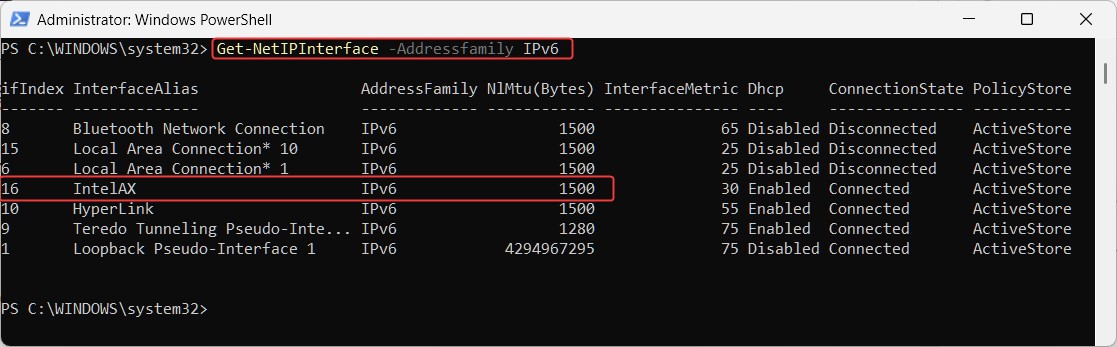
Note down the InterfaceAlias and the InterfaceIndex (ifIndex) of the network adapter that connects to the Internet.
2. Use the Set-NetIPInterface command to set the MTU value for the network interface using Interface Alias.
Syntax: Set-NetIPInterface [[-InterfaceAlias] <Interface name>] [-AddressFamily <AddressFamily>] [-NlMtuBytes <UInt32>]
In my case :
- Network Interface name: IntelAX
- Target MTU value in bytes: 1400
Set-NetIPInterface command to set MTU value to 1400 for the IPv6 network interface named IntelAX is:
⦁ Set-NetIPInterface -InterfaceAlias IntelAX -AddressFamily IPv6 -NlMtuBytes 1400
3. Use the Set-NetIPInterface command to set the MTU value for the network interface using Interface Index.
The network interface can also be designated using the network interface index.
Syntax: Set-NetIPInterface [[-InterfaceIndex] <Interface index number>] [-AddressFamily <AddressFamily>] [-NlMtuBytes <UInt32>]
In my case :
- Network Interface Index number: 16
- Target MTU value in bytes: 1400
Set-NetIPInterface command to set MTU value to 1400 for the IPv6 network interface index number 16 is:
⦁ Set-NetIPInterface -InterfaceIndex 16 -AddressFamily IPv6 -NlMtuBytes 1400
