Origin OS 6 organizes app-related controls into logical groups for management, cloning, defaults, system-level tweaks, digital wellbeing, cloud media, cleanup, and advanced permissions. Below is a thorough breakdown of each setting.

App Manager
This is the central hub for all installed applications (user and system).
- View every app with details such as storage usage, data consumption, battery impact, permissions, and last used time.
- Force stop, uninstall, clear cache, or clear data for individual apps.
- Adjust notification settings, battery optimization (Unrestricted / Optimized / Restricted), and auto-start behavior.
- Monitor resource usage to identify battery or data hogs.
Practical value: Essential for troubleshooting lag, excessive battery drain, or storage bloat. Origin OS adds helpful extras such as activity timers and permission revocation for idle apps.
App Clone
Creates independent duplicate instances of supported apps (commonly messaging, social, and banking apps).
- Each clone runs separately with its own login, data, and notifications.
- Useful for managing multiple accounts (work/personal WhatsApp, dual Instagram, etc.) without logging out.
- Clones appear as distinct icons on the home screen or app drawer and can usually be renamed or given different icons.
Notes: Not every app supports cloning due to security or technical limits. Cloned apps consume additional storage and may have restricted background behavior for battery reasons. This is a native Origin OS / Vivo feature rather than a third-party tool.
Default Apps
Lets you choose which application handles specific system actions by default.
Common categories include:
- Browser
- Phone / Dialer
- SMS / Messaging
- Home / Launcher
- Digital Assistant
- Gallery / Photos
- Opening links or certain file types
Why it matters: Prevents repeated “Open with” prompts and ensures your preferred tools open links, calls, messages, or files automatically. Changing a default takes effect immediately.
Recent Background Apps
Controls the visual style and behavior of the recent apps / multitasking overview screen.
In Origin OS 6 this specifically includes modern layout options such as Stack and Tile views, along with spring/animation effects.
- Stack: Cards overlap for a compact, swipe-friendly experience.
- Tile: Side-by-side or grid-style arrangement.
Benefits: Cleaner navigation, smoother gestures, and easier access when many apps are open. Changing the style here updates the look and feel of the recent-apps interface system-wide.
System App Settings
Provides deeper configuration options for pre-installed (system) applications that regular users cannot fully uninstall.
- Fine-tune behavior of core apps such as Phone, Messages, Gallery, Settings, or Vivo-specific services.
- Adjust auto-start, permissions, notifications, and advanced features unique to system apps (for example, call recording options or filtering in the dialer).
- Sometimes includes global search or other system-level toggles.
Use case: Useful when you want to limit background activity of bloatware-like system components or enable extra features that are hidden from the normal App Manager view.
System App Recovery
Allows restoration of factory-installed system apps that were disabled, frozen, or accidentally removed.
- Reinstalls or reactivates essential system components if something breaks after aggressive cleaning or customization.
- Acts as a safety net so core functions (phone, messages, settings, etc.) can be recovered without a full factory reset.
When to use: After troubleshooting or if a critical system app stops working. It is a recovery tool rather than a daily-use setting.
Screen Time
Digital wellbeing / usage tracking section.
- Shows daily and weekly screen-on time broken down by app.
- Lets you set daily limits or timers for individual apps (the app pauses when the limit is reached).
- May include focus modes, bedtime schedules, or notification summaries depending on the exact Origin OS 6 implementation.
Value: Helps build healthier device habits, manage distraction, and monitor which apps consume the most attention. Similar to Google’s Digital Wellbeing but integrated into Vivo’s interface.
Cloud Media Settings
Manages how photos, videos, and other media interact with cloud services (Vivo cloud, Google Photos, or other linked accounts).
- Controls automatic backup, upload quality, sync frequency, and which albums or media types are included.
- Options for Wi-Fi-only uploads, mobile data limits, or selective syncing.
Practical impact: Prevents unexpected data usage, keeps media backed up, and frees local storage when cloud versions exist. Useful if you use Vivo’s ecosystem services or third-party cloud storage heavily.
Unused Apps
Identifies and helps manage applications that have not been opened for a set period (often 30 days or more).
- Lists rarely used apps sorted by last-opened time or storage size.
- Offers one-tap uninstall or archive options.
- Origin OS may also automatically revoke permissions, clear temporary files, or restrict network activity for idle apps.
Benefit: Quickly frees storage and reduces background resource drain without manual hunting through the full app list. Complements the App Manager’s cleanup tools.
Special App Access
Advanced system-level permissions that go beyond normal runtime permissions (camera, location, etc.).
Typical entries include:
- Display over other apps / Draw over other apps
- Modify system settings
- Usage access
- Notification access / Device & app notifications
- All files access / Media management
- Picture-in-picture
- Battery optimization exceptions
- Autostart / Background activity controls
- Install unknown apps
Importance: These permissions enable powerful features (floating widgets, automation tools, file managers, accessibility services) but also carry higher privacy and security implications. Review them periodically and grant only when necessary.
1) App manager
This is the central list view that displays all installed applications on the device (207 apps in the example). It serves as the entry point for managing individual apps. Below is a detailed breakdown of each element and the typical actions/settings available.

Header and Navigation
- Back arrow (< App manager)
- Returns you to the previous Apps settings menu.
- Three-dot menu (⋮) in the top-right corner
- Opens additional list management options. Common choices in Origin OS / Vivo App Manager include:
- Sort by name, size, last used, or installation date
- Filter (show only user apps, system apps, or all)
- Show/hide system apps
- Reset app preferences
- Opens additional list management options. Common choices in Origin OS / Vivo App Manager include:
These options help you organize or narrow down the long list of apps quickly.
Search Bar
- Type an app name (or part of it) to instantly filter the list.
- Useful when you have many apps installed and need to locate one quickly (e.g., type “Fire” to jump to Firefox).
- The number (207) updates to reflect the total apps currently shown.
App List Entries
Each row represents one installed application and displays:
| Element | What it shows | What it means / Why it matters |
|---|---|---|
| App icon | Visual identifier of the app | Helps quick recognition |
| App name | Official name (e.g., Files by Google, Find Hub, Firefox) | Primary label |
| Storage size | Current space used by the app (e.g., 2.39 GB, 31.23 MB, 496 MB) | Includes the app itself + its data/cache. Large sizes often indicate accumulated media, downloads, or caches that can be cleaned. |
| Right arrow (>) | Indicates more options | Tapping the entire row opens the detailed App Info page for that app |
Examples from the screenshot:
- Files by Google (2.39 GB) — Relatively large because it often stores downloaded files, documents, or cached media.
- Find Hub (31.23 MB) — Lightweight system or utility app.
- Firefox (496 MB) — Browser with history, cache, and extensions contributing to the size.
1.1) App info page for the “Google Chrome” app
This page gives complete control over how Chrome runs, uses resources, and interacts with the system. Most options are standard across apps, while a few are browser-specific. Here is a full breakdown of each element.
Header Section

- App icon + name + version
- Identifies the app and shows the exact build (151.0.7922.71). Useful for verifying updates or diagnosing version-related issues.
- Three quick-action buttons
| Button | Function | Typical use case |
|---|---|---|
| Open | Launches Chrome immediately | Quick access |
| Disable | Completely turns the app off (hides it and stops all activity) | Temporarily remove Chrome without uninstalling |
| Force stop | Instantly kills Chrome and all its background processes | When Chrome freezes, lags, or drains battery unexpectedly |
Main Settings List

A. Additional settings in the app
- Opens Chrome’s own internal settings page (the one you normally reach from the three-dot menu inside Chrome).
- Handy shortcut so you do not need to open the browser first.
B. Storage
- Shows total space used (1.36 GB here).
- Tapping opens a detailed view of App size, User data, and Cache.
- Browsers often grow large because of cached websites, images, and offline data.
Storage Breakdown

| Item | Size shown | What it actually contains |
|---|---|---|
| Total | 1.36 GB | Combined size of everything Chrome uses on the device (Apps + Data + Cache). |
| Apps | 245.62 MB | The Chrome application itself — the installed program files, libraries, and core code. This size stays relatively stable unless Chrome is updated. |
| Data | 740.47 MB | User-generated and app-created content: browsing history, cookies, saved passwords, autofill data, website databases, downloaded files stored by Chrome, extensions data, and other persistent information. |
| Cache | 373.97 MB | Temporary files Chrome stores to speed up loading (images, scripts, website resources, offline pages, etc.). This is the most common place where space grows over time. |
Available Actions
Clear data
- Deletes all of the Data section (history, cookies, logins, saved form data, site settings, etc.).
- Effectively resets Chrome to a fresh state while keeping the app installed.
- Important consequences:
- You will be logged out of all websites.
- Browsing history, bookmarks stored only in Chrome, and saved passwords will be lost (unless synced to a Google account).
- Website preferences and permissions will be reset.
- Use this only when you want a complete clean start or are troubleshooting serious problems.
Clear cache
- Deletes only the temporary Cache files (373.97 MB in this example).
- Safe and recommended for regular maintenance.
- Does not log you out, remove history, bookmarks, or saved passwords.
- After clearing, some websites may load a little slower the first time until Chrome rebuilds the cache.
- This is the best everyday way to free space without losing personal data.
Practical Guidance for Chrome Storage
- Regular habit: Clear cache every few weeks or whenever storage is low. It usually recovers hundreds of megabytes safely.
- When to Clear data: Only if Chrome is misbehaving badly, you want to remove all traces of browsing activity, or you are preparing to give the phone to someone else.
- After clearing cache: Chrome will automatically rebuild necessary temporary files as you browse.
- Note on “Apps” size: You cannot clear the Apps portion from this screen. Uninstalling or updating Chrome is the only way to change it significantly.
This storage view is standard across almost all apps in Origin OS 6. The same layout and options appear for other applications, with sizes varying according to how heavily each app is used.
C. Battery usage
- Displays Chrome’s battery consumption (foreground + background).
- Lets you set optimization level:
- Unrestricted
- Optimized
- Restricted
- Also controls auto-start and high-background-power permissions.
- Important because Chrome can keep background tabs and services alive.
Battery usage details page
This page provides a detailed breakdown of how much battery Chrome has consumed, distinguishing between active (foreground) and background activity. It also offers tools to limit background power use.

Header and Time Period Selector
- Chrome
- Confirms the app being analyzed.
- Last 24 hours / Last 7 days
- Tabs that switch the displayed data between the most recent day and the past week.
- Last 24 hours (currently selected) shows short-term usage.
- Last 7 days gives a broader view of battery impact over time.
- Tabs that switch the displayed data between the most recent day and the past week.
Usage Graph
- Visual chart showing power consumption over the selected period (here, the last 24 hours).
- Time axis runs from earlier hours (17, 19, 21…) to “Now”.
- Two colors represent:
- Dark blue bars = Foreground power consumption (when Chrome is open and visible on screen).
- Light blue bars = Background power consumption (when Chrome is running while you are using other apps or the screen is off).
- The vertical scale is in mAh (milliampere-hours), the standard unit for battery capacity used.
In the example, Chrome shows only small spikes of activity, indicating relatively light usage during this period.
Usage Statistics
| Item | Value shown | Meaning |
|---|---|---|
| Foreground usage | 76.42% | Percentage of Chrome’s total battery use that occurred while the app was open and visible. Higher percentage means most power was used during active browsing. |
| Background usage | 23.58% | Percentage of Chrome’s total battery use that occurred while the app was running in the background. |
| Foreground duration | 5 min | Actual time Chrome was open and actively used in the foreground. |
| Background duration | 1 hr 41 min | Actual time Chrome remained active in the background (even if not visible). Background time is often much longer than foreground time for browsers because of tabs, syncing, or notifications. |
These numbers help diagnose whether Chrome is draining battery mainly when you use it or while it sits in the background.
More
- Tapping this expands additional battery-related options or a more detailed view.
This screen provides a deeper breakdown of Chrome’s battery consumption over the last 24 hours, showing both the total power used and how that power was distributed across different hardware components.

Top Summary
- Last 24 hours battery usage – About 17 mAh
- Total battery capacity consumed by Chrome in the past 24 hours. 17 mAh is a relatively low figure, indicating Chrome has not been a major battery drain during this period (a typical phone battery is 4000–6000 mAh, so this is less than 0.5% of total capacity).
Hardware Power Consumption Percentage
This section shows the percentage of Chrome’s 17 mAh that was used by different hardware parts of the phone. The percentages always add up to approximately 100%.
| Component | Percentage | What it means |
|---|---|---|
| Screen | 62% | Power used to light up and refresh the display while Chrome was open in the foreground. This is usually the largest consumer when you actively browse. |
| Mobile network | 0% | Power used by the cellular radio (4G/5G) for data transfer while Chrome was active. 0% means almost no mobile data was used by Chrome in the last 24 hours. |
| GPS | 0% | Power used by the location/GPS hardware. 0% indicates Chrome did not request or use location services during this period. |
| Wi-Fi network | 1% | Power used by the Wi-Fi radio for data transfer. A very small amount, showing minimal Wi-Fi activity attributed to Chrome. |
| Others (CPU, RWN, etc.) | 37% | Power used by the processor (CPU), memory, and other system components (RWN typically refers to radio-related or miscellaneous hardware). This covers background processing, JavaScript execution, tab management, and other computational work Chrome performs. |
How to Interpret These Numbers
- High Screen percentage (as seen here) is normal for any app you actively use with the display on.
- Low or zero values for Mobile network, GPS, and Wi-Fi indicate Chrome was not heavily transferring data or using location in the background.
- The Others category often rises when Chrome keeps tabs alive, runs extensions, or performs background tasks (syncing, prefetching, etc.).
Stop running in background
- Immediate action button at the bottom.
- Forces Chrome to stop all background processes right now.
- Useful when you notice unexpected battery drain and want to kill background activity without fully force-stopping the app from the main App info page.
- Chrome may restart background services later depending on system rules and your optimization settings.
Practical Insights from This Screen
- A high Background duration combined with noticeable background usage percentage often indicates Chrome is keeping tabs alive, syncing, or running services even when not open.
- If background usage feels excessive, the usual fixes are:
- Tap Stop running in background.
- Go back to the main App info page → Battery usage → set optimization to Optimized or Restricted.
- Disable unnecessary Chrome background features (in Chrome’s own settings: Notifications, Background Sync, etc.).
- Low overall bars on the graph (as shown) mean Chrome is currently not a major battery consumer in the last 24 hours.
This battery details view is consistent across apps in Origin OS 6. The same layout appears for other applications, with numbers changing according to how each app behaves.
D. Data usage
- Shows mobile data and Wi-Fi consumption statistics.
- Options to restrict background data or allow unrestricted data access.
- Useful for limiting data usage when browsing on mobile networks.
This page tracks how much mobile and Wi-Fi data Chrome has consumed and gives you direct controls to limit its network activity. Below is a complete breakdown of each section.
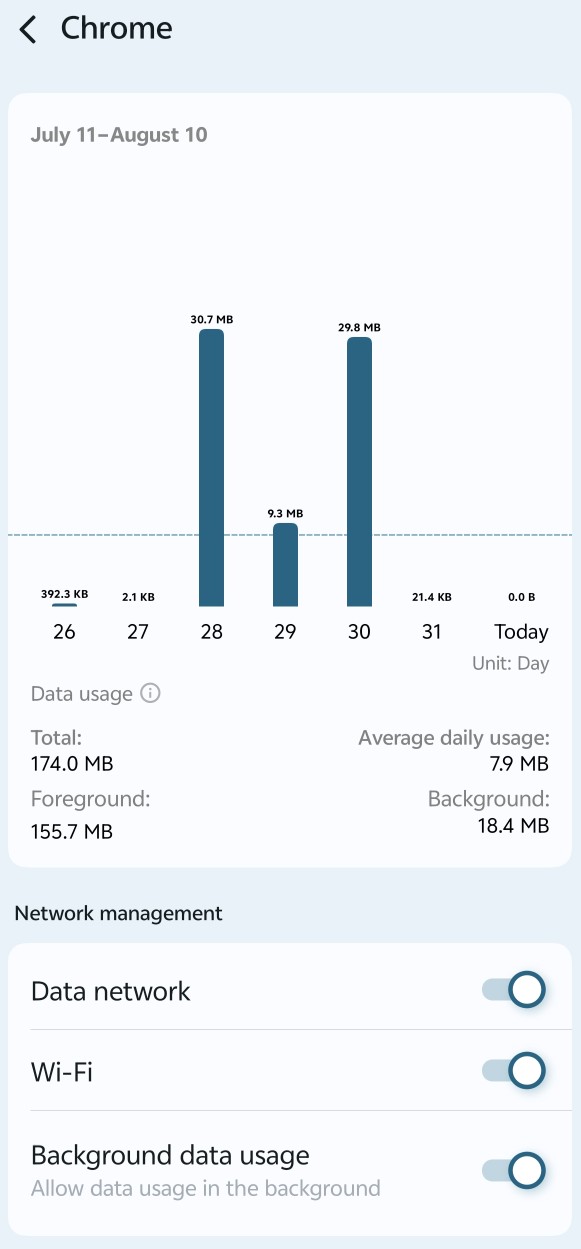
Time Period and Usage Graph
- July 11–August 10
- The current reporting window (approximately the last 30 days). Origin OS displays data usage over this rolling period.
- Bar chart
- Shows daily data consumption by Chrome.
- Tall bars (e.g., 30.7 MB on the 28th and 29.8 MB on the 30th) indicate heavier browsing days.
- Very small values (392.3 KB, 2.1 KB, 21.4 KB, 0.0 B) show light or no usage.
- The horizontal axis marks individual days, ending with “Today”.
- Unit is shown as “Day”.
- Shows daily data consumption by Chrome.
The graph quickly reveals which days Chrome used the most data.
Data Usage Summary Statistics
| Statistic | Value | Meaning |
|---|---|---|
| Total | 174.0 MB | Combined mobile + Wi-Fi data Chrome has used in the selected period. |
| Average daily usage | 7.9 MB | Total divided by the number of days — a quick indicator of typical daily consumption. |
| Foreground | 155.7 MB | Data used while Chrome was open and visible on screen (active browsing, video streaming, downloads, etc.). |
| Background | 18.4 MB | Data used while Chrome was running in the background (tab syncing, prefetching, notifications, updates, etc.). |
In this example, the majority of data (about 90%) was consumed while you were actively using the browser, which is normal and healthy. Background usage remains relatively low.
Network Management Controls
These three toggles let you restrict how Chrome accesses the network.
Data network
- Currently On (toggle enabled).
- When turned On, Chrome can use mobile data (4G/5G).
- When turned Off, Chrome is blocked from using cellular data entirely. It will only work on Wi-Fi.
- Useful for preventing unexpected mobile data charges.
Wi-Fi
- Currently On.
- Allows Chrome to use Wi-Fi networks.
- Turning it Off blocks Chrome from using any Wi-Fi connection (rarely needed, but available for strict control).
Background data usage
- Currently Off (“Allow data usage in the background” is disabled).
- When Off, Chrome cannot transfer data while running in the background.
- When On, Chrome is permitted to use data for background tasks (syncing open tabs, checking for updates, loading site notifications, etc.).
- Keeping this Off is one of the most effective ways to reduce background data consumption and slightly improve battery life.
Practical Recommendations for Chrome Data Usage
- Monitor the graph for unusually high days — these often correspond to video streaming or large downloads.
- Keep Background data usage turned off unless you specifically need features such as live tab syncing across devices.
- If you are on a limited mobile data plan, turn Data network off when you are not actively browsing.
- The combination of low background usage (18.4 MB) and the background toggle being off shows good current control.
This data-usage view is consistent across most apps in Origin OS 6. The same layout and controls appear for other applications, with the numbers changing according to each app’s behavior
E. Notifications
- Controls all Chrome notifications (download complete, site notifications, etc.).
- You can turn notifications on/off, set importance, sound, vibration, and lock-screen behavior.
This page controls how, when, and where Chrome can show notifications. Origin OS gives fine-grained control over both system-level behavior and Chrome-specific notification channels. Below is a complete breakdown.
Master Controls

Allow notifications
- Currently On.
- Master switch for all Chrome notifications.
- When turned Off, Chrome cannot display any notifications at all (downloads, site alerts, media, etc.).
- Turning it off is the quickest way to silence the entire app.
Silent notification
- Currently Off.
- When enabled, notifications appear only in the Notification Center (shade) and produce no sound, vibration, or heads-up banner.
- Useful when you still want to see alerts later but do not want to be interrupted.
Reminder Mode

This section controls how Chrome notifications appear on the lock screen, Always-On Display (AOD), and home screen.
| Option | Current State | What it does |
|---|---|---|
| AOD (match lock screen) | Unchecked | Shows notifications on the Always-On Display in the same style as the lock screen. Requires the global AOD notifications setting to be enabled. |
| Lock screen | Unchecked | Displays notifications on the lock screen. |
| Pop-up | Checked | Allows heads-up / floating banner notifications while the phone is unlocked and in use. |
| Badges | Checked | Shows a small numeric or dot badge on the Chrome app icon indicating unread notifications. Note: some apps do not support count badges. |
Two system-level warnings appear:
- “Show AOD notifications” is not enabled → tap Enable now to turn it on globally.
- “Show lock screen notifications” is not enabled → tap Enable now to turn it on globally.

Show notification details on lock screen

- Currently shows “Lock screen notifications turned off”.
- When enabled (after turning on the global lock-screen setting), you can choose whether the full content of notifications is visible on the lock screen or hidden for privacy.
General – Notification Categories (Channels)

Chrome divides its notifications into separate channels. Each can be configured independently (sound, importance, silent mode, etc.).
| Category | Current Setting | Typical content |
|---|---|---|
| Browser | Silent notification | General Chrome alerts, site permission requests, and other browser-level messages. |
| Completed downloads | Silent notification | Notifications that appear when a file finishes downloading. |
| Active downloads | Silent notification | Progress notifications shown while a download is in progress. |
| Incognito | Silent notification | Alerts related to Incognito mode (rarely used). |
| Playing media | Silent notification | Media playback controls and now-playing notifications (for example, when a website is playing audio or video). |
A. Browser notification category of Google Chrome
This is a channel-specific page. Chrome separates its notifications into categories (Browser, Completed downloads, Active downloads, etc.). The controls here apply only to the “Browser” channel — general browser alerts, site permission requests, and other non-download messages.
Master Controls for This Category

Allow notifications
- Currently On.
- Master switch for this specific channel.
- When turned Off, Chrome will no longer send any notifications belonging to the Browser category. Other categories (downloads, media, etc.) remain unaffected.
- Use this to silence only general browser alerts while still receiving download or media notifications.
Silent notification
- Currently On.
- When enabled, notifications from this channel appear only in the Notification Center (notification shade). They produce no sound, no vibration, and no heads-up banner.
- Ideal when you still want to review the alerts later but do not want to be interrupted while using the phone.
B. Completed downloads notification category of Google Chrome
This channel controls only the notifications that appear when a file finishes downloading in Chrome. It is separate from active-download progress alerts and general browser notifications.
Master Controls for This Category

Allow notifications
- Currently On.
- Master switch for completed-download alerts.
- When turned Off, Chrome will no longer notify you when a download finishes. Progress notifications (Active downloads) and other channels remain unaffected.
- Recommended to keep On if you want confirmation that files have finished saving.
Silent notification
- Currently Off.
- When enabled, completed-download notifications appear only in the Notification Center and produce no sound, vibration, or heads-up banner.
- Because it is off, the notifications can use the full alert style (pop-up, sound, etc.).
Visual and Alert Behavior
Pop-up
- Currently On.
- Allows the completed-download notification to appear as a floating heads-up banner while you are using the phone.
- This is the most noticeable way to be informed that a download has finished.
- Turning it off keeps the notification only in the shade.
Sound
- Currently set to Follow system notification ringtone.
- Plays the default system notification sound when a download completes.
- Tapping this option lets you choose a different ringtone or set a custom sound specifically for completed downloads.
Vibrate
- Currently Off.
- Controls whether the phone vibrates when a download finishes.
- Can be enabled independently of sound for a quieter but still tactile alert.
Do Not Disturb Behavior
Allow reminders in Do Not Disturb mode
- Currently On.
- Allows completed-download notifications to break through Do Not Disturb / Focus mode.
- When enabled, you will still receive the alert even if the phone is set to silent or Focus.
- Useful if you consider finished downloads important enough to interrupt quiet hours. Turn it off if you prefer downloads to wait until Do Not Disturb ends.
How These Settings Work Together
The current combination is an active alert configuration:
- Notifications are allowed
- They can pop up on screen
- They play the system sound
- They can appear even during Do Not Disturb
- No vibration and not forced to silent
This setup prioritizes immediate awareness that a download has finished.
Practical Recommendations for Chrome Notifications
- Keep Allow notifications on if you want download completion alerts.
- Leave Pop-up and Badges enabled for convenience, but turn them off if you prefer a quieter experience.
- Enable the global AOD and Lock screen notification settings only if you want Chrome alerts visible when the phone is locked.
- Most users benefit from leaving download-related channels active and setting less important channels (Browser, Incognito) to silent or blocked.
- Review each category periodically — Chrome can generate many site-originated notifications if websites are granted permission.
This notifications page follows the standard Origin OS 6 structure used by most apps, with extra browser-specific channels for downloads and media.
F. App permissions
- Currently shows Location and Notifications.
- Tapping opens the full list of permissions Chrome holds (camera, microphone, location, storage, etc.).
- You can allow, deny, or set “Only while using the app” for each one.
- Location is often requested by websites; restricting it improves privacy.
This page lists all the runtime permissions Chrome has requested and shows which ones are currently granted or denied. It also includes an automatic privacy feature for unused apps. Below is a complete breakdown.
Allowed Permissions

These permissions are currently granted to Chrome. The app can use them when needed.
| Permission | What it allows Chrome to do | Typical use cases | Privacy note |
|---|---|---|---|
| Location | Access your device’s approximate or precise location | Website location requests (maps, local weather, store finders), location-based services | Websites can ask for location only while Chrome is open. You can still deny individual site requests. |
| Notifications | Send notifications to your device | Download completed alerts, website push notifications, media playback controls | This matches the notifications settings you reviewed earlier. |
Tapping either permission usually opens a deeper page where you can change it to “Allow only while using the app”, “Ask every time”, or “Don’t allow”.

Location Access for This App
These three radio-button options determine the overall access level. Only one can be selected at a time.
| Option | Current State | What it means | Practical effect |
|---|---|---|---|
| Allow only while using the app | Selected | Chrome can access location only when the app is open and visible on screen. | Websites can request your location while you are actively browsing, but Chrome cannot access location in the background. This is the recommended balanced setting for most users. |
| Ask every time | Not selected | The system will prompt you each time Chrome or a website wants location access. | Maximum control and awareness. You decide on a case-by-case basis. Slightly more interrupting. |
| Don’t allow | Not selected | Chrome is completely blocked from accessing location. | No website can get your location through Chrome. Some map or local services will stop working or fall back to manual location entry. |
Precision Control
Use precise location
- Currently On.
- When On, Chrome (and websites) can access your exact GPS coordinates (precise location).
- When Off, Chrome can only access an approximate location (usually accurate to a few hundred meters or city-level).
- The description notes: “When precise location is off, apps can access your approximate location.”
Precise location is required for accurate turn-by-turn navigation, detailed maps, or services that need your exact position. Approximate location is sufficient for most weather, local search, or regional content.
How These Settings Work Together
- The top radio buttons control when location can be accessed.
- The precise-location toggle controls how accurate that access is.
- Current combination (“Allow only while using the app” + Precise location On) means:
- Location works only while Chrome is open.
- Websites receive high-accuracy coordinates when they request it (and you approve the site-level prompt).
Practical Recommendations for Chrome Location
- Allow only while using the app is the best everyday choice for most people — it enables useful website features without letting Chrome track you in the background.
- Turn Use precise location off if you prefer greater privacy and only need rough location (weather, local news, etc.).
- Choose Ask every time if you want to stay fully aware of every location request.
- Choose Don’t allow if you never want websites to know your location through Chrome.
Not Allowed Permissions

These permissions are currently denied. Chrome cannot access the related hardware or data.
| Permission | What it would allow | Why it is commonly left off | When you might enable it |
|---|---|---|---|
| Camera | Use the rear or front camera | Scanning QR codes, video calls in web apps, website camera access | Enable only if you regularly use web-based video calling or QR scanning inside Chrome. |
| Contacts | Read your contact list | Auto-filling forms or sharing contacts on websites | Rarely needed; most users keep this off for privacy. |
| Microphone | Access the microphone | Voice search, web-based calls, voice input on websites | Enable if you use voice typing or web apps that require audio input. |
| Nearby devices | Detect and connect to nearby Bluetooth or Wi-Fi devices | Rare web features that interact with local hardware | Almost never required for normal browsing; keep denied. |
Denying these permissions improves privacy and reduces the chance of websites accessing sensitive hardware without your knowledge.
Unused App Settings

Manage app if unused
- Currently On.
- When enabled, Origin OS automatically takes protective actions if Chrome is not opened for a prolonged period (typically a few months):
- Removes granted permissions
- Deletes temporary files
- Stops notifications
- Archives the app (hides it from the app drawer while preserving data)
- The note at the bottom confirms: “To protect your data, permissions for this app will be removed if the app is unused for a few months.”
- This is a system-level privacy and storage feature. Turning it off means Chrome will keep its permissions indefinitely even if you stop using it.
Practical Recommendations for Chrome Permissions
- Keep Location and Notifications allowed if you use maps, local services, or want download alerts.
- Leave Camera, Microphone, Contacts, and Nearby devices denied unless you have a specific need — this is the more privacy-friendly configuration.
- Review this page occasionally. Websites can only use a permission while it is granted, so removing unnecessary ones reduces tracking surface.
- The “Manage app if unused” toggle is generally worth leaving on for any app you do not open regularly.
This permissions screen follows the standard Android / Origin OS 6 layout. Tapping any individual permission opens further options (Allow all the time, Only while using the app, Ask every time, or Don’t allow).
G. Language
- Set to “System default”.
- Allows you to force a different language only for Chrome, independent of the system language.
H. Screen time
- Shows how much time you have spent using Chrome.
- May let you set a daily usage limit that pauses the app once the limit is reached.

I. Browser app
- Currently set to Yes.
- Indicates that Chrome is registered as a browser on the device.
- Tapping usually lets you manage whether Chrome can handle web links or change the default browser status.
- Related to the system-wide “Default apps” setting.
Unused App Settings

Pause app activity if unused
- Toggle is currently off.
- When turned on, Origin OS automatically:
- Removes permissions
- Deletes temporary files
- Stops notifications if Chrome has not been used for a while.
- Recommended for reducing background activity and storage use if you do not open Chrome regularly.
Advanced Section

Picture-in-picture
- Currently set to Allow.
- Enables Chrome (or websites inside it) to play video in a floating mini-window while you use other apps.
- Useful for watching YouTube or other video sites while multitasking.
- You can change this to Deny if you prefer not to allow floating video.
Install unknown apps
- Currently set to Disable.
- Controls whether Chrome is allowed to download and install APK files from websites.
- Keep this disabled for security unless you specifically need to sideload apps through Chrome.
Store Section

App details
- Confirms the app was installed from the Google Play Store.
- Tapping opens Chrome’s Play Store page for ratings, updates, developer information, or uninstallation.
Quick Reference – Most Useful Actions for Chrome
- Free space regularly → Storage → Clear cache
- Reduce battery drain → Battery usage → set to Optimized or Restricted
- Improve privacy → Permissions (especially Location) + Pause app activity if unused
- Control floating videos → Picture-in-picture
- Prevent accidental APK installs → Install unknown apps → Disable
- Stop a frozen browser → Force stop
These controls are nearly identical for most apps, with Chrome-specific extras such as “Additional settings in the app”, “Browser app”, and “Picture-in-picture”.
App info page for the DevCheck app
A. Header Section
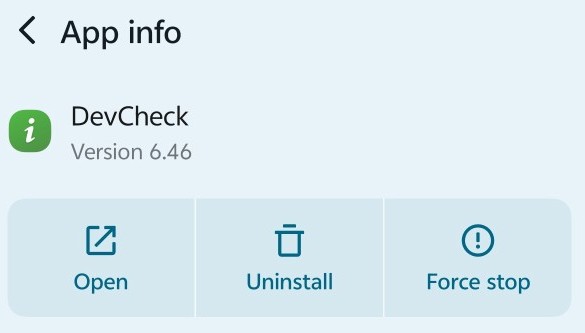
- App icon + name + version
- Identifies DevCheck and its version (6.46).
- Three quick-action buttons
| Button | Function | Notes |
|---|---|---|
| Open | Launches the app immediately | Quick access |
| Uninstall | Completely removes the app and its data | Available because this is a user-installed app |
| Force stop | Immediately stops the app and all its processes | Useful if the monitoring tool becomes unresponsive |
Main Settings List
B. Storage
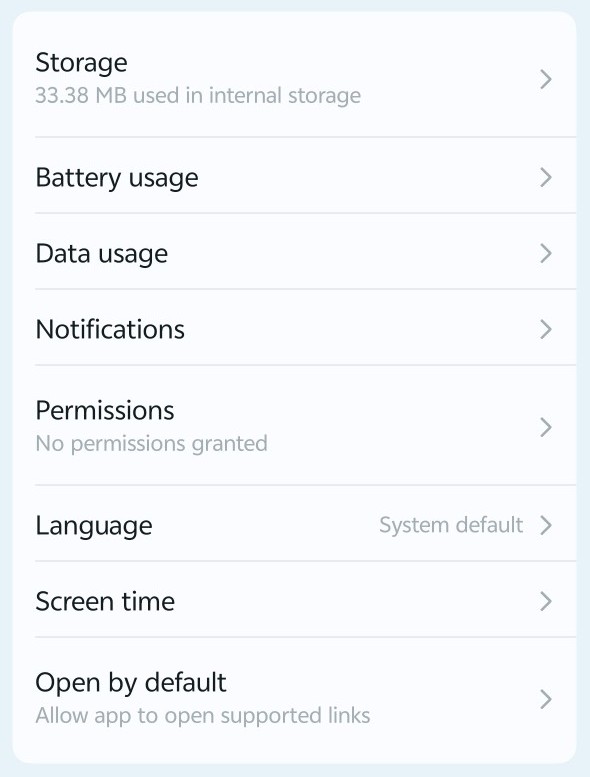
- Shows 33.38 MB used.
- Tapping opens a detailed view (App size, Data, Cache) with Clear cache and Clear data options.
- Small footprint typical for a system-monitoring utility.
C. Battery usage
- Displays battery consumption statistics (foreground vs background).
- Allows changing optimization mode and background activity controls.
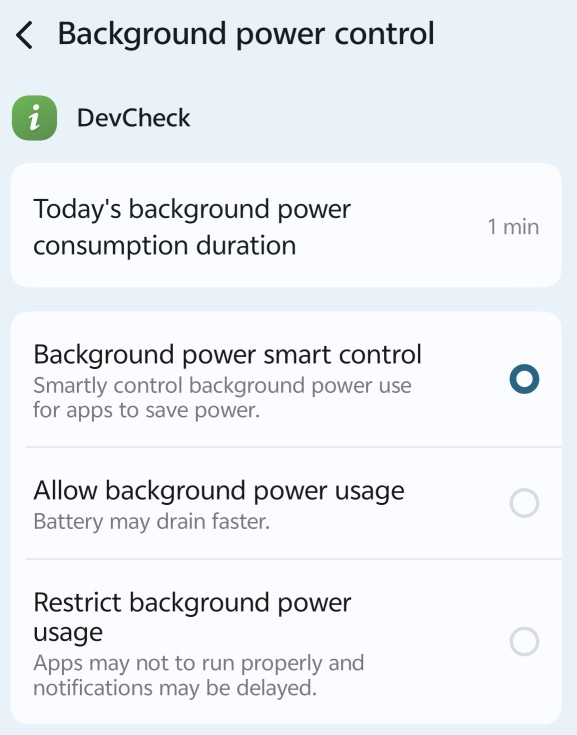
Background power control
Today’s Background Power Consumption Duration
- Shows 1 min.
- This is the total time DevCheck has spent actively using power in the background today.
- A low value (1 minute) indicates the app has done very little background work so far.
- Useful for quickly spotting whether an app is waking up frequently behind the scenes.
Background Power Control Options
Only one of the three radio-button choices can be selected at a time. The currently selected option is Background power smart control.
| Option | Current State | What it does | Best used when |
|---|---|---|---|
| Background power smart control | Selected | Origin OS automatically manages the app’s background activity using intelligent rules. It allows necessary background work while limiting excessive battery drain. | Recommended default for most apps, including monitoring tools like DevCheck. Provides a good balance between functionality and battery life. |
| Allow background power usage | Not selected | Removes almost all restrictions. The app can run freely in the background, keep services alive, and use as much power as it needs. | Only when the app must stay fully active in the background (e.g., real-time monitoring, continuous data collection). Warning: “Battery may drain faster.” |
| Restrict background power usage | Not selected | Aggressively limits or blocks background activity. The app may be prevented from running services, updating data, or sending timely notifications while in the background. | When you want maximum battery savings and do not need the app to do anything while closed. Warning: “Apps may not run properly and notifications may be delayed.” |
How These Settings Affect DevCheck
- Smart control (current choice) lets the system decide when DevCheck can perform background tasks. This is usually sufficient for occasional hardware checks.
- Switching to Allow background power usage would keep DevCheck more responsive in the background but at the cost of higher battery use.
- Switching to Restrict background power usage would minimize battery impact but could prevent features such as background sensor logging or delayed alerts from working reliably.
Practical Recommendation
For a tool like DevCheck that is typically opened only when needed:
- Keep Background power smart control selected (the current setting).
- Monitor the “Today’s background power consumption duration” value. If it starts climbing significantly, consider moving to Restrict.
- Only choose Allow if you actively use continuous monitoring features that require the app to stay alive in the background.
This background power control page is available for most apps in Origin OS 6 and is one of the most effective ways to fine-tune battery behavior on a per-app basis.
D. Data usage
- Shows mobile data and Wi-Fi usage by the app.
- Includes toggles to restrict background data or block mobile data.
E. Notifications
- Controls whether and how DevCheck can send notifications (alerts, temperature warnings, etc.).
F. Permissions
- Currently shows “No permissions granted”.
- Tapping opens the full list of possible permissions.
- The app is running with minimal privileges.
G. Language
- Set to System default.
- Lets you force a different language only for this app.
H. Screen time
- Tracks time spent inside DevCheck and may allow daily limits.
I. Open by default
- Controls whether the app can open supported links automatically.
- Rarely relevant for a monitoring tool.
Unused App Settings
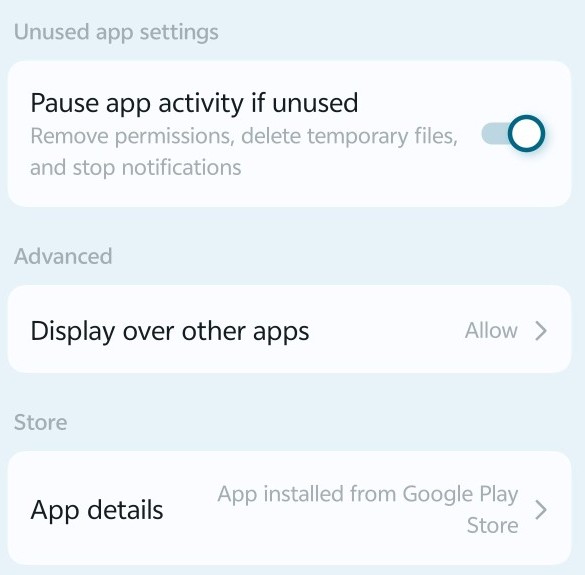
Pause app activity if unused
- Currently On.
- When enabled, Origin OS automatically:
- Removes permissions
- Deletes temporary files
- Stops notifications if DevCheck has not been opened for a period of time.
- This is a privacy and resource-saving feature. Leaving it on is recommended for apps used only occasionally.
Advanced Section
Display over other apps
- Currently set to Allow.
- This special permission lets DevCheck draw floating windows or overlays on top of other apps.
- Monitoring tools sometimes use it for always-on-top widgets, real-time graphs, or floating information panels.
- Because it is now allowed, DevCheck can show overlays if the feature is enabled inside the app.
- Only grant this permission to apps you trust, as overlays can appear above other content.
Store Section
App details
- Confirms installation from the Google Play Store.
- Tapping opens the Play Store page for updates, ratings, or uninstallation.
Summary of Current State
- The app remains lightweight (33 MB) with no runtime permissions granted.
- Pause app activity if unused is active → good for automatic cleanup.
- Display over other apps is allowed → enables potential floating overlays if DevCheck offers them.
- Uninstall remains available because this is a user-installed app.
2) App clone settings
App Clone is Origin OS’s built-in feature that creates a second, fully independent copy of supported apps. This lets you run two separate accounts (for example, personal and work) at the same time without logging out of either one. Below is a complete breakdown of the screen.
Header and Description
- App clone title with back arrow and three-dot menu.
- Descriptive text: “Enable App clone to create a duplicate app on the home screen for dual account sign-in.” This summarizes the purpose — the cloned app appears as a separate icon and maintains its own data, login, and notifications.

List of Supported Apps
Each row shows an app that Origin OS can clone, along with its current status.
| App | Status | Meaning |
|---|---|---|
| Cloned | A second Instagram instance has already been created. Tapping the row lets you manage or remove the clone. | |
| Telegram | Not cloned | No clone exists yet. Tapping the row allows you to create one. |
| Not cloned | No clone exists yet. Tapping opens the option to create a dual WhatsApp. | |
| X | Not cloned | No clone exists yet. Tapping lets you enable a second X (Twitter) account. |
- Cloned status means the duplicate is active and usually appears on the home screen or app drawer with a small clone indicator.
- Not cloned means the feature is available but has not been turned on for that app.
Tapping any row typically opens a simple toggle or confirmation screen where you can:
- Enable the clone (creates the second app)
- Disable / delete the clone (removes the duplicate and its data)
- Sometimes rename the cloned icon or choose its appearance
Try more apps
- Opens an extended list of additional apps that support cloning.
- Origin OS only shows apps that have been verified to work with the dual-app system. Not every installed app appears here — unsupported apps cannot be cloned through this official feature.
This page lists additional apps that Origin OS has detected as compatible with the App Clone feature, beyond the main ones shown on the previous screen (Instagram, Telegram, WhatsApp, X). Each app has a simple on/off toggle that creates or removes its clone.

ESET HOME
- Toggle currently Off.
- ESET HOME is a security / device-management app.
- Turning the toggle On creates a second, independent copy of ESET HOME.
- Turning it Off (current state) means no clone exists.
- Cloning a security app is uncommon and usually unnecessary, which is why it remains off by default.
Firefox
- Toggle currently On.
- Firefox is the Mozilla web browser.
- Because the toggle is On, a cloned version of Firefox has been created.
- The cloned Firefox appears as a separate icon and maintains its own browsing data, logins, bookmarks, and settings — completely independent from the original Firefox.
- This is useful if you want two separate browser profiles (for example, personal and work, or one clean profile and one with extensions).
How the Toggles Work
- On → Origin OS creates a full duplicate of the app. The clone receives its own storage space and runs as a distinct application.
- Off → The clone is removed. All data belonging only to the cloned instance is deleted, and the extra icon disappears.
- Only apps that Origin OS officially supports for cloning appear on this list. Unsupported apps cannot be toggled here.
Practical Notes
- Cloning a browser such as Firefox is one of the more useful extra options, especially if you need isolated sessions.
- Cloning security or system-utility apps (like ESET HOME) is rarely needed and can sometimes cause conflicts, so it is normally left off.
- After turning a toggle on, the new clone icon usually appears on the home screen or in the app drawer within a few seconds.
- You can return to this page at any time to turn clones off and free the storage they occupy.
How App Clone Works in Practice
- The cloned app runs completely separately from the original.
- Each instance has its own storage, cache, login session, and notification settings.
- You can keep both the original and the clone on the home screen.
- Data is not shared between the two copies (messages, media, settings remain independent).
- Cloned apps still consume storage and can use battery/data independently.
Practical Tips
- Use App Clone for messaging and social apps when you need two accounts simultaneously (personal + work, or multiple personal accounts).
- After creating a clone, open it and sign in with the second account.
- To remove a clone, return to this page, tap the cloned app, and turn the feature off — this deletes the duplicate and frees the storage it used.
- The three-dot menu in the top-right corner may offer additional options such as sorting or help information, depending on the Origin OS 6 build.
This screen is the central hub for managing dual-app instances in Origin OS 6. It keeps the process simple: only supported apps are listed, and cloning is controlled with a single action per app.
2.1) Clone settings page for Instagram

Clone On Section
Instagram toggle
- Currently On.
- This is the master switch for the Instagram clone.
- On → A second, independent Instagram app is active. It appears as a separate icon on the home screen or app drawer and maintains its own login, data, and notifications.
- Off → The clone is disabled and removed. All data belonging to the cloned instance is deleted, and only the original Instagram remains.
Turning this toggle off is the official way to delete an app clone in Origin OS 6.
Default Section
These three radio-button options control which Instagram instance opens when the system needs to launch the app (for example, when you tap an Instagram link, a notification, or a share target). Only one option can be selected.
| Option | Current State | What it does |
|---|---|---|
| Ask each time | Selected | Every time an Instagram link or action is triggered, the system asks you to choose between the main app and the cloned app. This gives maximum flexibility when you use both accounts regularly. |
| Main app | Not selected | Always opens the original Instagram. The cloned version is ignored for links and system actions. |
| Cloned app | Not selected | Always opens the cloned Instagram. The original version is ignored for links and system actions. |
How These Settings Work Together
- The top toggle controls whether the clone exists at all.
- The Default section only matters while the clone is turned On.
- “Ask each time” is the most flexible choice when you actively use two Instagram accounts.
- Choosing “Main app” or “Cloned app” removes the prompt and forces one specific instance to handle all Instagram-related actions.
Practical Recommendations
- Keep the clone On only while you need the second account.
- Use Ask each time if you switch between accounts frequently.
- Switch to Main app or Cloned app if you want one account to be the permanent default and avoid repeated prompts.
- Turning the clone off completely is the cleanest way to free storage and remove the second Instagram.
This Clone settings layout is consistent for every app that supports cloning in Origin OS 6 (WhatsApp, Telegram, X, etc.). The same options appear when you manage any other cloned app.
3) Default apps settings
This screen lets you choose which application handles specific system actions by default. When you tap a link, make a call, open a message, or perform other common actions, the system uses the app selected here. Below is a complete breakdown of every item.
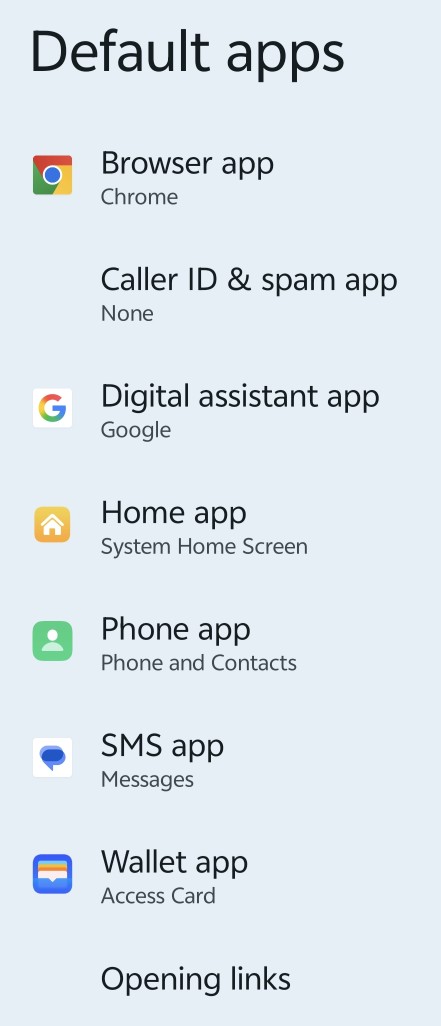
Default App Categories
| Category | Currently Selected | What it controls | Practical meaning |
|---|---|---|---|
| Browser app | Chrome | Opens web links and HTML content | Any http/https link you tap will open in Chrome. Changing this switches your default web browser. |
| Caller ID & spam app | None | Identifies incoming callers and filters spam calls | No third-party caller-ID or spam-blocking app is set. The system uses its built-in handling only. |
| Digital assistant app | Responds to voice commands, “Hey Google”, and assistant gestures | Google Assistant is the active digital assistant. Changing this would switch to another assistant if available. | |
| Home app | System Home Screen | Provides the home screen, app drawer, and launcher experience | The default Origin OS launcher is active. Selecting another launcher (if installed) would replace the entire home screen interface. |
| Phone app | Phone and Contacts | Handles outgoing and incoming calls and the contacts interface | The built-in Phone app is used for all calling functions. |
| SMS app | Messages | Sends and receives text / SMS / MMS messages | The built-in Messages app is the default for texting. |
| Wallet app | Access Card | Manages digital cards, tickets, and contactless payments | Access Card is set as the default wallet / payment app. |
| Opening links | (Entry point) | Manages which apps open specific types of links | Tapping this opens a deeper page where you can set or clear defaults for individual link types (e.g., specific websites, file types, or app links). |
How Default Apps Work
- When you perform an action (tap a link, make a call, open a message, etc.), Origin OS checks this list and launches the selected app automatically.
- If multiple apps can handle the same action and no default is set, the system asks you to choose every time.
- Selecting a new app here immediately changes the behavior system-wide.
- “None” means no preferred app is chosen for that category.
3.1) Open by default page for Instagram
This page controls whether Instagram is allowed to open its own links automatically and manages any default associations the app has claimed. It is the per-app version of the system-wide “Opening links” settings.
Header
- Instagram with version number (440.1.0.46.86) Confirms you are viewing the default-link settings for this specific app and build.

App Links Section
Open supported links
- Currently On.
- Master switch that allows Instagram to open links it supports (Instagram posts, profiles, reels, etc.).
- When On, tapping an Instagram link can open directly in the Instagram app instead of a browser.
- When Off, Instagram links will open in your default browser instead of the app.
Verified links
- Shows 11.
- Lists the specific web domains that Instagram has verified and claimed (for example, instagram.com and related sub-domains).
- Tapping this row opens the full list of those 11 verified links so you can see exactly which domains are associated with the app.
- Verified links are domains the app developer has proven they own, allowing Android/Origin OS to open them in the app with higher confidence.

Add link
- Lets you manually add an additional web address or domain that you want Instagram to handle.
- Useful only in advanced cases; most users never need to add custom links.
Other Default Preferences Section
No default settings
- Indicates that Instagram currently has no additional “Open with” defaults set beyond the App links above.
- This is the normal state for most apps.
Clear defaults
- Button (shown in red/pink) that removes any default associations Instagram has claimed.
- Tapping it resets the app so the system will ask you every time which app should open a particular link or content type.
- Useful if Instagram has become the unwanted default for certain links and you want to force a choice dialog again.
How These Settings Work Together
- Open supported links is the main control. Keeping it on allows the convenient “tap Instagram link → open in Instagram app” behavior.
- Verified links shows the technical list of domains the app is allowed to handle.
- Clear defaults is the reset tool if the app has taken over links you prefer to open elsewhere.
Practical Recommendations
- Leave Open supported links turned On if you want Instagram links to open directly in the app (the usual preference).
- Turn it Off if you prefer every Instagram link to open in your browser instead.
- Use Clear defaults only when Instagram has become the default handler for something you do not want it to handle.
- Checking Verified links is optional and mainly informative.
This “Open by default” page appears for every app that can handle links. The same layout and options are used across Origin OS 6.
4) Recent background apps settings
This page controls the visual style and privacy behavior of the recent apps / multitasking overview (the screen you see when you swipe up and hold or tap the recent-apps button). Origin OS 6 offers two modern layouts plus a privacy feature.

Recent Apps Style
Two layout choices are available. Only one can be selected.
| Style | Current State | Visual appearance | Behavior & notes |
|---|---|---|---|
| Stack | Not selected | App cards are stacked on top of one another, slightly offset, like a deck of cards. | Classic overlapping style. Swiping left/right moves through the stack. Takes less horizontal space. |
| Tile | Selected | App cards are arranged side-by-side or in a grid. | Modern tiled layout. The note below the options states that when Tile is selected you can further switch between horizontal and grid layouts directly on the recent-apps screen. Easier to see multiple apps at once and often feels faster for switching. |
Tile is currently active. This is the newer style introduced/emphasized in Origin OS 6 and is generally considered more visually modern and practical for devices with larger screens.
Privacy Option
Hide app content
- Currently On.
- When enabled, you can choose specific apps whose content will be hidden (blurred or replaced with a generic card) in the recent-apps overview.
- Purpose: Protects sensitive information (banking apps, messaging conversations, password managers, etc.) from being visible when someone glances at your recent apps screen.
- Tapping the option (or the toggle area) usually opens a list where you select which apps should have their content hidden.
- When the toggle is on, the feature is active; you still need to choose the individual apps you want protected.

How These Settings Work Together
- The style (Stack or Tile) changes the overall look and navigation of the recent-apps interface.
- Hide app content adds a privacy layer on top of whichever style you choose.
- Changes take effect immediately the next time you open the recent-apps view.
Practical Recommendations
- Tile is the preferred choice for most users in Origin OS 6 because it shows more apps clearly and supports both horizontal and grid arrangements.
- Keep Hide app content turned on and select sensitive apps (banking, chats, email, etc.) for better privacy.
- You can switch between Stack and Tile at any time without affecting your open apps.
5) System app settings
This page provides deeper configuration options for selected pre-installed (system) apps and services. Origin OS groups these under “extension services,” allowing you to adjust specialized behaviors that are not available in the regular App Manager. Below is a complete breakdown of each entry.
Purpose of the Screen
The header text states: “You can manage extension services for the following apps.” These are system-level apps that include extra features, background services, or integrations unique to Origin OS. Tapping any row opens a dedicated settings page for that app’s advanced or extension options.

List of System Apps & Services
| App / Service | What it is | Typical settings you can manage |
|---|---|---|
| Albums | Official gallery / photo app | Album organization, cloud sync options, editing tools, privacy features, and media-related extension services. |
| Clock | System clock, alarms, timer, and world clock | Alarm behavior, timer settings, clock face options, and related background services. |
| Contacts | Address book and contact management | Contact storage, sync accounts, display options, and integration with Phone/Messages. |
| Global search | System-wide search (home-screen search, AI search, etc.) | Search scope, AI features, result categories, and indexing options. |
| iManager | Vivo’s system optimization and security suite | Storage cleanup, virus scan, app management tools, power saving, and other device-care services. |
| Music | Built-in music player | Library management, playback settings, equalizer, and audio-related extension services. |
| Notes | Official notes / memo app | Note organization, cloud backup, widgets, and related productivity features. |
| Phone | Dialer and calling app | Call recording, spam filtering, caller ID, dialer interface, and call-related services. |
| Quick App Frame Service | System service that supports Quick Apps (lightweight instant apps) | Controls how Quick Apps run, their permissions, and background behavior. |
| Weather | Official weather app | Location sources, update frequency, notification preferences, and weather data services. |
How These Settings Differ from Regular App Info
- Regular App Manager pages control storage, battery, permissions, and notifications for any app.
- System app settings focuses on Origin OS-specific extension features and deeper system integrations that only these pre-installed apps offer.
- Changes made here often affect system-wide behavior (for example, how Global search works or how iManager optimizes the device).
Practical Notes
- Most users only need to open these pages when they want to customize a specific system feature (e.g., enabling call recording in Phone, adjusting weather updates, or configuring Global search).
- The three-dot menu in the top-right corner may offer additional view or help options depending on the Origin OS 6 build.
- Not every system app appears here — only those that provide manageable extension services are listed.
This screen acts as a centralized hub for fine-tuning the most important built-in Origin OS apps and services.
5.1) System apps auto-update
This is a simple, single-purpose page that controls whether pre-installed system apps can update themselves automatically.

System Apps Auto-Update
- Toggle currently On
- When enabled, Origin OS automatically downloads and installs updates for system apps (the built-in apps that come with the phone) whenever the following conditions are met:
- The device is connected to Wi-Fi
- Battery level is above 30%
- When the toggle is turned Off, system apps will not update automatically. You would need to update them manually through the app store, iManager, or system update settings.
Key Details Shown on the Screen
- Updates occur only over Wi-Fi (never on mobile data by default).
- Updates are blocked when battery is below 30% to avoid draining power or interrupting usage during low-battery situations.
Practical Meaning
- Keeping this setting On (the current state) is recommended for most users. It ensures system apps receive bug fixes, security patches, and feature improvements without manual intervention.
- Turning it Off gives you full control but requires you to check for and install system-app updates yourself.
6) System app recovery
This is a recovery tool for pre-installed system applications.
What it does:
- Lets you restore official system apps that have been disabled, uninstalled (where possible), or stopped working correctly.
- Reinstalls or reactivates the original factory versions of built-in apps (for example Phone, Messages, Contacts, Clock, Gallery/Albums, Settings components, etc.).
- Acts as a safety net after aggressive cleaning, disabling, or troubleshooting.
When to use it:
- A system app is missing from the app drawer.
- A core app crashes repeatedly or refuses to open.
- You previously disabled a system app and now need it back.
- After using third-party tools or debloating and something essential stops working.
How it typically works:
- Tap the entry to open the recovery page.
- You see a list of recoverable system apps.
- Select the app(s) you want to restore.
- Confirm the recovery — the system reinstalls or re-enables the original version.
Important notes:
- This only restores official system apps. It cannot recover third-party apps you uninstalled.
- Recovered apps return to their factory state (no user data is restored).
- It is safer and simpler than performing a full factory reset when only one or two system apps are broken.
In short, System app recovery is Origin OS’s dedicated tool for bringing back essential built-in apps without resetting the entire phone.
7) Screen time settings
A. App activity details (Screen time)
This is the digital wellbeing / usage dashboard that tracks how long you spend on the phone and which apps consume the most time. Below is a complete breakdown of every part of the screen.

Header and View Selector
- App activity details
- Main title of the usage report.
- Screen time dropdown (currently selected)
- Lets you switch between different metrics. Common options usually include:
- Screen time (total time the screen is on)
- Notifications received
- Times opened / app launches The current view is focused on pure screen-on time.
- Lets you switch between different metrics. Common options usually include:
Today’s Total Usage
- 10 hr, 59 min – Today
- Total screen time recorded for the current day (Saturday, August 1). This is the sum of time spent in all apps while the screen was on.
Weekly Bar Chart
- Horizontal bar graph showing daily screen time from Sunday to Saturday.
- Each bar represents one day.
- The tallest bar (Saturday) is highlighted in darker blue, matching today’s high usage of nearly 11 hours.
- Lighter bars show previous days with lower usage (roughly 5–8 hours).
- The vertical scale runs from 0h to 12h.
This chart gives a quick visual comparison of your usage pattern across the week.
Date Navigation
- < Sat, Aug 1 >
- Lets you move to previous or next days to review historical screen-time data.
App Breakdown List
Shows individual apps ranked by time used on the selected day, along with quick-action icons.
| App | Time used | Icon on the right | Meaning of the icon |
|---|---|---|---|
| Settings | 6 hr, 26 min | Information (i) | Opens more detailed stats or app info for Settings. High time here is unusual and often means the Settings app was left open or used extensively. |
| YouTube | 2 hr, 5 min | Hourglass | Indicates a time limit can be set (or is already available) for this app. Tapping the hourglass usually lets you create or edit a daily limit. |
| 46 minutes | Hourglass | Same as above — time-limit control is available for Instagram. |
The list continues downward for other apps (not fully visible in the screenshot). Apps are normally ordered from most-used to least-used.
Key Functions Available on This Screen
- View total and per-app screen time.
- Compare daily usage across the week.
- Set or manage app timers (via the hourglass icons) that will pause the app once the limit is reached.
- Tap any app row for more detailed statistics or to open the app’s own Screen time settings.
Practical Insights from the Current Data
- Today’s total (almost 11 hours) is significantly higher than the rest of the week.
- Settings app showing over 6 hours is atypical and may indicate the app was left in the foreground for a long period.
- YouTube and Instagram already have the timer icon, making it easy to set daily limits if desired.
This Screen time dashboard is Origin OS’s version of digital wellbeing. It helps you understand usage patterns and, when needed, set healthy limits on specific apps.
B. Times opened
Header and View Selector
- App activity details
- Main title of the usage report.
- Times opened dropdown (currently selected)
- Lets you switch between different metrics. Available views typically include:
- Screen time (total time the screen is on)
- Times opened / app launches
- Notifications received The current view focuses on the number of times apps were launched and the phone was unlocked.
- Lets you switch between different metrics. Available views typically include:

Today’s Total
- 46 unlocks – Today Total number of times the device was unlocked on Saturday, August 1. This counts every time the lock screen was successfully dismissed (via fingerprint, PIN, pattern, face unlock, etc.).
Weekly Bar Chart
- Shows the number of unlocks for each day of the week (Sunday to Saturday).
- Vertical scale runs from 0 to 100.
- Earlier days (Sun–Tue) had higher unlock counts (near or above 90).
- Counts gradually decreased through the week.
- Saturday (today) is highlighted in darker blue with 46 unlocks — the lowest so far in the visible week.
The chart provides a quick visual comparison of how often the phone is being unlocked day by day.
Date Navigation
- < Sat, Aug 1 > Allows you to move to previous or next days to review historical unlock and app-launch data.
App Breakdown List
Shows individual apps ranked by how many times they were opened on the selected day, along with quick-action icons.
| App | Times opened | Icon on the right | Meaning of the icon |
|---|---|---|---|
| Settings | Opened 93 times | Information (i) | Opens more detailed statistics or the app’s info page. A very high launch count for Settings is unusual and may indicate repeated opening or the app being left in the recent-apps list. |
| Opened 36 times | Hourglass | Indicates that a daily limit / app timer can be set for Instagram. Tapping the hourglass lets you create or edit a usage limit. |
The list continues for other apps (not fully visible in the screenshot). Apps are normally ordered from most frequently opened to least.
Key Differences from the Screen Time View
- Screen time measures duration (hours and minutes).
- Times opened measures frequency (how many times the app was launched or the phone was unlocked).
- An app can have high screen time with few opens (used for a long continuous session) or low screen time with many opens (opened briefly but repeatedly).
Practical Insights from the Current Data
- 46 unlocks today is moderate compared with earlier days in the week.
- Settings being opened 93 times is unusually high and may be worth investigating.
- Instagram’s 36 opens show frequent but relatively short sessions (earlier screen-time view showed only 46 minutes total).
8) Cloud media settings
This page controls whether apps and websites can access your photos and videos stored in the cloud when they ask you to select media (for example, when uploading a picture to a social app, attaching a photo to an email, or choosing a profile picture).

Header Description
- “Access your cloud media when an app or website asks you to select photos or videos” Explains the purpose of the page: it decides which cloud service (if any) will appear as a source when an app or website opens the system media picker.
Access Cloud Media From
Two mutually exclusive options are available:
| Option | Current State | What it does |
|---|---|---|
| Google Photos | Selected | When any app or website requests photos/videos, the system media picker will include your Google Photos library (the account shown) as an available source. You can browse and select cloud-stored media directly without first downloading it to the device. The gear icon next to it opens Google Photos-related settings. |
| None | Not selected | Disables cloud media access. Apps and websites will only be able to see photos and videos stored locally on the device. No cloud library will appear in the media picker. |
How This Setting Works in Practice
- When an app (Instagram, WhatsApp, Gmail, Chrome, etc.) opens the photo/video picker, Origin OS checks this setting.
- If Google Photos is selected, you will see both local device media and your Google Photos library.
- If None is selected, only local media is shown.
- The selected Google account determines which Google Photos library is offered.
Practical Recommendations
- Keep Google Photos selected if you store many photos in the cloud and frequently upload or share them from other apps. This saves time and storage space on the phone.
- Choose None if you prefer stricter privacy or do not want apps to see your cloud library.
- You can change this setting at any time; it takes effect the next time an app requests media.
This is a system-level convenience and privacy control. It does not affect automatic backup or sync inside the Google Photos app itself — it only controls whether other apps can reach into your cloud library when selecting media.
9) Unused Apps
This is a storage and privacy management tool that identifies applications you have not opened for a long time and helps you clean them up.
What it does:
- Scans your device for apps that have not been used recently (typically 30 days or longer, depending on the system rules).
- Lists those rarely used apps, usually sorted by last-opened date or storage size.
- Offers quick actions such as:
- Uninstall the app
- Archive / pause the app
- Clear its cache or data
- Works together with the “Pause app activity if unused” feature found inside individual App info pages.
Benefits:
- Frees up storage space occupied by forgotten apps.
- Reduces background battery and data usage.
- Improves privacy by removing or restricting apps you no longer need.
- Keeps the app drawer and system cleaner without requiring manual checking of every app.
Typical workflow:
- Open Unused apps.
- Review the list of apps the system considers inactive.
- Select one or more apps.
- Choose to uninstall, archive, or manage them.
Note: System apps and apps you use regularly will not appear here. Only user-installed or infrequently opened apps are shown.
In short, Unused apps is Origin OS’s automatic “rarely used apps” cleaner. It makes it easy to find and remove apps that are just taking up space.
10) Special app access settings
This page contains advanced, system-level permissions that go beyond normal runtime permissions (camera, location, microphone, etc.). These are powerful controls that can affect privacy, security, battery life, and system behavior. Only grant them to apps you trust.
Below is a complete breakdown of each item.
Special App Access Categories
These are powerful system-level permissions.

1. All Files Access
- Grants an app full read and write access to all files on the device, including files created by other apps and folders that are normally protected.
- This is stronger than the regular “Storage” or “Photos and videos” permission.
- Typical legitimate uses: Advanced file managers, backup & restore apps, full-device cleaners, media organizers.
- Risk: High. An app with this permission can read, modify, or delete almost any file on your phone.
- Recommendation: Only enable for trusted file-management tools. Leave it off for everything else.
2. Device Admin App
- Shows “Activated 0 apps (4 in total)”.
- Allows an app to become a device administrator. Device admin apps can enforce strong policies such as:
- Locking the screen
- Changing or resetting the lock-screen password
- Wiping device data
- Enforcing encryption or other security rules
- Typical legitimate uses: Corporate/MDM (Mobile Device Management) apps, some antivirus or anti-theft security apps, parental-control tools.
- Current status: No apps are currently activated as device admins (0 of 4 possible).
- Risk: Very high. A malicious device-admin app can lock you out of your phone or erase data.
- Recommendation: Activate only if you deliberately use a security or work-management app that requires it. Review this list periodically.
3. Display Over Other Apps
- Allows an app to draw content on top of other apps (floating windows, overlays, chat heads, pop-up bubbles, screen filters, etc.).
- Typical legitimate uses:
- Messaging apps with chat heads
- Screen dimmers / blue-light filters
- Floating translators or dictionaries
- Screen recorders with on-screen controls
- Custom navigation or gesture tools
- Risk: Medium to high. Malicious apps can create fake overlays (phishing) or interfere with what you see and tap.
- Recommendation: Enable only for apps that clearly need floating interfaces. Disable it for any app that does not require overlays.
4. Do Not Disturb Control
- Allows an app to read and change Do Not Disturb / Focus mode settings.
- The app can turn Do Not Disturb on or off, or modify its rules.
- Typical legitimate uses:
- Calendar apps that automatically enable DND during meetings
- Sleep / bedtime apps
- Automation tools (e.g., Tasker, routines)
- Driving or focus-mode apps
- Risk: Medium. An app could unexpectedly silence notifications or change your Focus settings.
- Recommendation: Grant only to apps that have a clear reason to manage interruption settings.

5. Media Management Apps
- Allows an app to modify or delete media files (photos, videos, audio) that were created by other apps, without asking for confirmation each time.
- This goes beyond normal photo/video access.
- Typical legitimate uses:
- Alternative gallery apps
- Media cleaners / duplicate finders
- Photo & video editors that manage the library
- Backup tools that reorganize media
- Risk: Medium to High. An app with this permission can permanently delete or alter your photos and videos.
- Recommendation: Enable only for trusted gallery or media-management apps. Leave it off for everything else.
6. Modify System Settings
- Allows an app to change system-level settings such as brightness, volume, network preferences, display timeout, sound profiles, and other global configurations.
- Typical legitimate uses:
- Automation apps (Tasker, routines, etc.)
- Custom launchers or customization tools
- Display filters / blue-light apps
- Accessibility tools
- Risk: High. A malicious or poorly designed app could change important settings without your knowledge.
- Recommendation: Grant only to apps that clearly need to adjust system behavior. Review this list regularly.
7. Device & App Notifications
- Allows an app to read all notifications on the device, including their full content (messages, emails, etc.), and interact with them (dismiss, reply, or trigger actions).
- Also lets the app control Do Not Disturb-related notification behavior in some cases.
- Typical legitimate uses:
- Notification management / filter apps
- Wearable companion apps
- Automation tools
- Accessibility services
- Smartwatch or desktop notification mirrors
- Risk: High (privacy-sensitive). The app can see the content of your messages, emails, and other alerts.
- Recommendation: Enable only for apps you fully trust with your notification content. This is one of the more privacy-invasive permissions.
8. Picture-in-Picture
- Allows an app to continue displaying content in a small floating window while you use other apps.
- Most commonly used for video playback.
- Typical legitimate uses:
- Video players (YouTube, Chrome, VLC, etc.)
- Mapping / navigation apps
- Video calling apps
- Risk: Low to Medium. Mainly a convenience feature; abuse potential is limited compared with the other permissions on this list.
- Recommendation: Safe to enable for video and navigation apps that support PiP. Disable for apps that do not need floating video.

9. Premium SMS
- Allows an app to send premium-rate SMS messages (messages that cost extra money and are charged to your mobile bill).
- Typical legitimate uses:
- Carrier billing / subscription services
- Some payment or voting services that use premium SMS
- Specific operator-provided apps
- Risk: High. A malicious or poorly designed app could send expensive SMS messages without clear consent, leading to unexpected charges.
- Recommendation: Keep this disabled for almost all apps. Enable it only if you deliberately use a service that requires premium SMS and you trust the app completely.
10. Unrestricted Data Usage
- Shows “2 apps allowed to use unrestricted mobile data when Data Saver is on”.
- Allows selected apps to bypass Data Saver and continue using mobile data normally even when Data Saver mode is enabled.
- Typical legitimate uses:
- Messaging apps (WhatsApp, Telegram, etc.) that need reliable background data
- Navigation / maps apps
- Critical communication or work apps
- Risk: Medium. Apps with this permission can consume mobile data even when you are trying to save data.
- Recommendation: Grant only to apps that must stay connected in the background. Review the list of the 2 currently allowed apps and remove any that do not need this exception.
11. Install Unknown Apps
- Allows an app to install APK files from sources other than the Google Play Store (sideloading).
- Typical legitimate uses:
- File managers
- Web browsers
- Alternative app stores
- Apps that download and install updates or plugins
- Risk: High. This is one of the most common ways malware is installed. An app with this permission can install other apps without going through Play Store security checks.
- Recommendation: Enable only for trusted file managers or browsers when you intentionally need to sideload an app. Turn it off again afterward when possible.
12. Alarms & Reminders
- Allows an app to schedule exact alarms and reminders that can wake the device at a precise time, even in Doze / battery-optimization mode.
- Typical legitimate uses:
- Clock / alarm apps
- Calendar apps
- Reminder and to-do apps
- Automation tools that need precise timing
- Risk: Low to Medium. Excessive use can slightly affect battery life because the phone is woken at exact times.
- Recommendation: Generally safe to allow for clock, calendar, and legitimate reminder apps. Restrict it for apps that have no reason to set precise alarms.

13. App Usage Data
- Allows an app to access detailed statistics about how you use other apps — which apps you open, how often, how long you use them, and related usage patterns.
- Typical legitimate uses:
- Digital Wellbeing / Screen Time apps
- Battery monitoring and optimization tools
- Custom launchers that show frequently used apps
- Productivity or focus apps that track usage
- Risk: Medium (privacy-sensitive). The app can build a detailed profile of your daily app habits.
- Recommendation: Grant only to apps that clearly need usage statistics (wellbeing, battery, or launcher apps). Avoid giving it to apps that have no reason to know your usage patterns.
14. VR Helper Services
- Allows an app to act as a helper service for Virtual Reality experiences. These services support VR mode, headset connections, and related system features.
- Typical legitimate uses:
- VR platforms and headsets
- VR games or applications that require system-level VR support
- Risk: Low for most users. Relevant only if you use VR headsets or VR apps.
- Recommendation: Leave this disabled unless you actively use VR features on the device. Most phones never need it.
15. Wi-Fi Control
- Allows an app to turn Wi-Fi on or off and change certain Wi-Fi settings.
- Typical legitimate uses:
- Automation apps (routines, Tasker, etc.)
- Network management tools
- Battery-saving apps that disable Wi-Fi under certain conditions
- Location-based apps that manage connectivity
- Risk: Medium. An app could switch Wi-Fi off unexpectedly or change network behavior.
- Recommendation: Enable only for trusted automation or network tools. Disable it for apps that do not need to control Wi-Fi.
16. Turn Screen On
- Allows an app to turn the device screen on programmatically (wake the display).
- Typical legitimate uses:
- Messaging apps that wake the screen for new messages
- Alarm / clock apps
- Notification and reminder apps
- Automation tools that need to wake the device
- Risk: Low to Medium. Frequent use can increase battery consumption by waking the screen often.
- Recommendation: Generally safe for messaging, clock, and legitimate notification apps. Restrict it for apps that have no reason to wake the screen.

17. Autostart
- Allows an app to start automatically when the device boots or when the system determines it needs to run in the background.
- Typical legitimate uses:
- Messaging apps (WhatsApp, Telegram, etc.) that need to receive messages after a reboot
- Email clients
- Security / antivirus apps
- Automation tools
- Cloud sync or backup services
- Risk: Medium to High. Apps with Autostart permission can run in the background more aggressively, which may increase battery usage and data consumption.
- Recommendation: Enable only for apps that must remain active after reboot (mainly messaging and critical services). Disable it for apps that do not need to launch themselves.
18. Full-Screen Notifications
- Allows an app to display notifications that take over the entire screen (full-screen intent notifications).
- These are high-priority alerts that appear instead of a normal notification banner.
- Typical legitimate uses:
- Phone / dialer app (incoming call screen)
- Alarm / clock apps
- Critical messaging apps
- Emergency or priority alert apps
- Risk: Medium. An app could interrupt you with a full-screen takeover.
- Recommendation: Generally safe (and often necessary) for the Phone app and Clock. Be cautious about granting it to other apps unless they have a clear need for full-screen alerts.
19. Write System Preferences
- Allows an app to write to system preference databases (low-level system configuration values).
- This is a very powerful permission that can change how parts of the operating system behave.
- Typical legitimate uses:
- Advanced automation tools
- System customization / tweaking apps
- Certain accessibility or developer tools
- Risk: High. Incorrect or malicious use can alter system behavior in unexpected ways.
- Recommendation: Grant this permission only to highly trusted advanced tools. Most users should leave it disabled for all apps.
Key Points About Special App Access
- These permissions are not granted by default. Each one must be manually enabled per app.
- Tapping any row opens a list of apps that have requested (or can request) that permission, where you can allow or deny access individually.
- Many of these permissions can significantly affect battery life, privacy, or security if given to the wrong app.
- Regularly review this page and revoke access for apps you no longer use or trust.
Practical Advice
- Keep most of these set to the minimum necessary.
- Be especially careful with: All files access, Display over other apps, Modify system settings, Device & app notifications, Install unknown apps, and Autostart.
- Apps such as file managers, automation tools (e.g., Tasker), launchers, and security apps are the most common legitimate users of these permissions.
This screen is the central hub for the most powerful app permissions in Origin OS 6. Changes take effect immediately.