The GUID Partition Table (GPT) is a modern standard for defining the partition structure on a storage device, such as a hard disk drive (HDD) or solid-state drive (SSD). It is part of the Unified Extensible Firmware Interface (UEFI) specification and serves as a replacement for the older Master Boot Record (MBR) partitioning scheme. GPT offers several advantages over MBR, including support for larger disk sizes, more partitions, and better reliability through redundancy.
Overview of GPT
GPT uses Globally Unique Identifiers (GUIDs) to identify partitions and other components of the disk layout. It is designed to address the limitations of MBR, such as the 2.2 terabyte disk size limit and the restriction to four primary partitions. GPT supports disks up to 8 zettabytes (2^73 bytes) and allows for up to 128 partitions by default (though this can be extended with modifications to the partition table).
The GPT disk layout consists of a series of data structures stored on the disk, including a protective MBR, the GPT header, the partition entry array, and the actual partitions. These structures are organized in a specific sequence to ensure compatibility, redundancy, and efficient management of the disk.
GPT Disk Layout
The GPT disk layout is organized into logical blocks, typically 512 bytes each (though some advanced drives use 4 KB sectors, known as Advanced Format). Below is a detailed breakdown of the components of the GPT disk layout, typically expressed in terms of Logical Block Addressing (LBA):
1. Protective MBR (LBA 0)
- Purpose: The protective MBR is located at the first logical block (LBA 0) of the disk. It exists to maintain compatibility with older systems or tools that expect an MBR-based disk.
- Structure:
- Contains a single partition entry that spans the entire disk (or up to the 2 TB limit of MBR).
- The partition type is set to 0xEE (EFI GPT partition), signaling to MBR-aware systems that the disk uses GPT. This hexadecimal value signifies “GPT Protective” and is the key indicator to legacy systems that the disk is being managed by a newer scheme.
- The boot code area, which in MBR contains boot loader code, is typically unused in GPT disks (set to zeros).
- Function: Prevents MBR-based tools from misinterpreting the GPT disk as unpartitioned or incorrectly modifying it. It also provides limited backward compatibility for systems that do not support GPT.
- The size of this “protective” partition is set to the maximum size that a 32-bit MBR address can represent (approximately 2 TiB). For disks larger than this, the size is set to the hexadecimal value
0xFFFFFFFF, which is a recognized flag for disks that are too large to be fully represented.
The Protective Master Boot Record (MBR) is an ingenious component of the GPT specification that exists for a singular, critical purpose: to ensure backward compatibility and prevent data loss when a GPT disk is accessed by a legacy, MBR-only system or utility. It is not used for booting on modern UEFI systems, which ignore the boot code located within it.
The core function of the Protective MBR is to “trick” older software into believing the entire disk is occupied by a single, massive, and unmanageable partition. It accomplishes this through a specific, standardized partition entry within its 16-byte partition table.
When a legacy system or disk utility encounters a disk with a partition entry of type 0xEE, it is programmed to interpret this as a single, unknown, or protective partition that occupies the entire disk space. This effectively communicates a “do not touch” signal to the older tool, preventing it from attempting to create new partitions, format the disk, or otherwise manipulate the GPT data structures, which would lead to the loss of all data. This proactive protection mechanism is a deliberate design choice that makes GPT robust in a heterogeneous computing environment, actively safeguarding data even in the presence of incompatible systems.
2. Primary GPT Header (LBA 1)
- Purpose: The primary GPT header defines the structure and attributes of the GPT disk, including the location of the partition table and other metadata.
- Structure:
- Signature: An 8-byte field containing the ASCII string EFI PART to identify the disk as GPT.
- Revision: Specifies the version of the GPT specification (e.g., 1.0 for UEFI 2.0).
- Header Size: Typically 92 bytes (stored in a 512-byte block).
- CRC32 Checksum: A checksum of the GPT header itself for error detection.
- Current LBA: The LBA address of the primary GPT header (usually LBA 1).
- Backup LBA: The LBA address of the backup GPT header (typically at the end of the disk).
- First Usable LBA: The LBA where the first partition can begin (usually LBA 34, to allow space for the partition entry array).
- Last Usable LBA: The last LBA available for partitions (before the backup GPT structures).
- Disk GUID: A unique identifier for the disk itself.
- Partition Entry Array LBA: The starting LBA of the partition entry array (usually LBA 2).
- Number of Partition Entries: The total number of partition entries supported (default is 128).
- Size of Partition Entry: Typically 128 bytes per entry.
- Partition Array CRC32: A checksum of the partition entry array to verify its integrity.
- Function: The header provides critical metadata about the disk’s partitioning scheme and points to the partition table. It also includes pointers to the backup GPT structures for redundancy.
The inclusion of two CRC32 checksums—one for the header itself and another for the entire partition entry array—is a crucial data integrity feature. These checksums are used by the operating system or firmware to verify that the header and partition data have not been corrupted during read operations. If a mismatch is detected, the system is alerted to a potential issue. The pointers to the current and backup headers also establish a physical linkage, enabling a robust recovery mechanism.
3. Primary Partition Entry Array (LBA 2 to LBA 33)
- Purpose: Stores the partition table, which contains entries describing each partition on the disk.
- Structure:
- Each partition entry is 128 bytes, allowing for 128 entries by default (128 entries × 128 bytes = 16 KB, spanning LBA 2 to LBA 33 for 512-byte sectors).
- A partition entry includes:
- Partition Type GUID: Identifies the type of partition (e.g., EFI System Partition, Windows data partition, Linux filesystem, etc.).
- Unique Partition GUID: A unique identifier for the partition.
- Starting LBA: The first logical block of the partition.
- Ending LBA: The last logical block of the partition.
- Attributes: Flags defining partition properties (e.g., bootable, read-only, hidden).
- Partition Name: A human-readable name (up to 36 UTF-16 characters).
- Function: Defines the location, type, and properties of each partition. Unused entries are filled with zeros.
The use of globally unique identifiers (GUIDs) for both the partition type and the individual partition instance is a significant improvement over MBR. The 16-byte Partition Type GUID allows for an almost limitless number of partition types without the need for a centralized registry, providing extensibility for future use cases. The 64-bit LBAs for starting and ending sectors are what enable GPT to address massive storage volumes, allowing for a theoretical maximum disk size of up to 8 ZiB with 512-byte sectors. This is an exponential leap in capacity compared to the 2 TiB limit of MBR.
4. Partitions (LBA 34 to Last Usable LBA)
- Purpose: The actual partitions where data, operating systems, or filesystems are stored.
- Details:
- Partitions begin at the First Usable LBA (typically LBA 34) and extend to the Last Usable LBA.
- Each partition is defined by its starting and ending LBAs, as specified in the partition entry array.
- Common partition types include:
- EFI System Partition (ESP): Stores boot loaders and firmware-related files (type GUID: C12A7328-F81F-11D2-BA4B-00A0C93EC93B).
- Basic Data Partition: Used for general data storage (e.g., Windows or Linux filesystems).
- Reserved Partitions: For specific purposes, such as Microsoft Reserved Partition (MSR) on Windows.
- Function: Holds the actual data, including filesystems, operating systems, or other content.
5. Backup Partition Entry Array (Near the End of the Disk)
- Purpose: A redundant copy of the partition entry array to ensure data integrity.
- Structure: Identical to the primary partition entry array, typically occupying the same number of LBAs (e.g., 32 blocks for 128 entries).
- Location: Placed just before the backup GPT header, near the end of the disk.
- Function: Provides a backup in case the primary partition table is corrupted. The backup array is used during recovery operations.
6. Backup GPT Header (Last LBA)
- Purpose: A redundant copy of the GPT header for fault tolerance.
- Structure: Nearly identical to the primary GPT header, with adjustments to reflect its location (e.g., Current LBA points to the last LBA, and Backup LBA points to LBA 1).
- Location: Typically stored in the last LBA of the disk.
- Function: Ensures that the disk remains usable even if the primary GPT header is damaged. The backup header points to the backup partition entry array.
Technical Specifications
- Sector Size: GPT assumes a 512-byte sector size (or 4 KB for advanced format drives). All LBA references are in sectors.
- Maximum Disk Size: 2⁶⁴ sectors × 512 bytes = 9.4 zettabytes (9.4 × 10²¹ bytes). Actual limits depend on the operating system and filesystem.
- Partition Count: 128 partitions by default, extensible by reserving more sectors for the partition table.
- GUIDs: 128-bit identifiers, typically represented as 36-character strings (e.g., 550E8400-E29B-41D4-A716-446655440000).
- Checksums: CRC32 for both the header and partition table to ensure integrity.
- Alignment: GPT partitions are typically aligned to 1 MB boundaries (2048 sectors for 512-byte sectors) to optimize performance on modern drives.
How GPT Works with UEFI
GPT disks are tightly integrated with UEFI firmware, which replaces legacy BIOS for booting modern systems. Key interactions include:
- EFI System Partition (ESP):
- A mandatory partition on GPT disks for UEFI systems.
- Formatted as FAT32 (typically 100–300 MB).
- Stores boot loaders (e.g., BOOTX64.EFI for Windows, GRUB for Linux) and UEFI drivers.
- Identified by the Partition Type GUID C12A7328-F81F-11D2-BA4B-00A0C93EC93B.
- Boot Process:
- UEFI firmware reads the GPT header and partition table to locate the ESP.
- The firmware executes the boot loader from the ESP, which loads the operating system.
- Supports Secure Boot, which verifies the integrity of boot files using cryptographic signatures.
- Partition Attributes:
- GPT defines attributes (stored in the partition entry) that UEFI uses, such as:
- Bit 0: System partition (required for booting).
- Bit 2: Legacy BIOS bootable (for compatibility).
- Bit 60: Read-only.
- Bit 63: Hidden.
- GPT defines attributes (stored in the partition entry) that UEFI uses, such as:
Technical Advantages of GPT
- Scalability:
- Supports disk sizes up to 9.4 zettabytes, limited only by the 64-bit LBA addressing.
- Allows up to 128 partitions (extensible), compared to MBR’s 4 primary partitions.
- Reliability:
- Redundancy: Primary and backup GPT headers/tables enable recovery if one is corrupted.
- Error Detection: CRC32 checksums detect corruption in the header or partition table.
- Tools like gdisk or TestDisk can restore the backup table if needed.
- Uniqueness:
- 128-bit GUIDs ensure globally unique identification of disks and partitions, reducing conflicts in multi-disk or networked environments.
- Flexibility:
- Supports a wide range of partition types via standardized GUIDs (e.g., Windows, Linux, macOS, RAID).
- Partition names and attributes allow for descriptive and customizable configurations.
- UEFI Compatibility:
- Designed for UEFI, enabling modern features like Secure Boot, faster boot times, and support for large disks.
Technical Limitations
- Compatibility:
- Legacy BIOS systems and older operating systems (e.g., Windows XP 32-bit) may not support GPT without workarounds.
- Some older tools (e.g., early versions of fdisk) cannot handle GPT disks.
- Complexity:
- GPT’s structure is more complex than MBR, requiring modern tools and knowledge for manual management or recovery.
- ESP Requirement:
- UEFI systems require a FAT32 ESP, which adds overhead (small space and configuration complexity).
- Alignment Overhead:
- GPT’s default 1 MB alignment may waste a small amount of space on smaller drives, though this optimizes performance on modern hardware.

Practical Considerations
- EFI System Partition (ESP): On UEFI systems, GPT disks typically include an ESP (100–300 MB, FAT32 filesystem) for storing boot loaders and UEFI firmware files.
- Alignment: GPT partitions are typically aligned to 1 MB boundaries (2048 sectors for 512-byte sectors) to optimize performance on modern drives.
- Hybrid MBR: Some systems use a hybrid MBR/GPT layout for compatibility with legacy BIOS systems, but this is less common and can cause issues.
- Tools: Common tools for managing GPT disks include gdisk (Linux), diskpart (Windows), and Disk Utility (macOS).
- Backup and Recovery: The redundant GPT structures allow tools like gdisk or TestDisk to recover a corrupted GPT disk by restoring the backup header or partition table.
Example Use Case
On a 1 TB SSD with GPT:
- LBA 0: Protective MBR (type 0xEE).
- LBA 1: Primary GPT header.
- LBA 2–33: Primary partition entry array (128 entries, 16 KB).
- LBA 34: Start of the EFI System Partition (e.g., 200 MB).
- LBA ~390625: Start of a data partition (e.g., NTFS for Windows or ext4 for Linux).
- Near End: Backup partition entry array (32 blocks).
- Last LBA: Backup GPT header.
Key Features of GPT Disks
1. Support for Large Disk Sizes (Up to 8 Zettabytes)
- Description: GPT supports disks with capacities up to 8 zettabytes (2^73 bytes) when using 512-byte sectors, far exceeding the MBR’s limit of 2.2 terabytes (2^32 sectors).
- Technical Details:
- GPT uses 64-bit Logical Block Addressing (LBA), allowing it to address 2^64 sectors.
- For 512-byte sectors, this translates to 2^64 × 512 bytes = 9.4 × 10^21 bytes (approximately 8 zettabytes).
- For 4 KB sectors (Advanced Format drives), the limit extends to 64 zettabytes.
- Implications:
- Enables the use of high-capacity storage devices, such as 8 TB, 16 TB, or larger enterprise-grade HDDs and SSDs.
- Future-proofs storage systems for emerging technologies with massive capacities.
- Use Case: A data center deploying a 20 TB RAID array uses GPT to fully utilize the disk capacity, which would be impossible with MBR’s 2.2 TB limit.
2. High Partition Count (Up to 128 Partitions by Default)
- Description: GPT supports up to 128 partitions by default, compared to MBR’s limit of 4 primary partitions (or more with extended/logical partitions).
- Technical Details:
- The GPT partition entry array, typically stored in LBA 2–33 (16 KB), contains 128 entries, each 128 bytes.
- Each entry defines a partition with its type GUID, unique GUID, start/end LBA, attributes, and name.
- The partition count can be extended by increasing the partition entry array size, though this requires reformatting.
- Unlike MBR, GPT treats all partitions as primary, eliminating the need for extended or logical partitions.
- Implications:
- Simplifies complex disk configurations, such as multi-boot systems or servers with multiple data partitions.
- Allows flexible organization of storage for different operating systems, filesystems, or purposes (e.g., boot, data, swap).
- Use Case: A workstation with a GPT disk can host 10 partitions for Windows, Linux, a shared data partition, and experimental OS installations, without the constraints of MBR’s 4-partition limit.
3. Redundancy for Reliability
- Description: GPT includes redundant copies of the partition table and header to protect against corruption, ensuring data recoverability.
- Technical Details:
- Primary GPT Header: Stored at LBA 1, contains metadata about the disk and pointers to the partition table.
- Backup GPT Header: Stored at the last LBA, mirrors the primary header with adjusted LBA pointers.
- Primary Partition Entry Array: Stored at LBA 2–33, defines all partitions.
- Backup Partition Entry Array: Stored near the disk’s end (e.g., LBA N-33 to N-2 for a disk with N sectors), mirrors the primary array.
- CRC32 checksums in the headers verify the integrity of both the header and partition table.
- Implications:
- If the primary header or partition table is corrupted (e.g., due to a bad sector), tools like gdisk or TestDisk can restore the disk using the backup structures.
- Enhances reliability for critical systems, such as servers or RAID arrays.
- Use Case: An enterprise server with a corrupted primary GPT header is restored using the backup header and partition table, preventing data loss and minimizing downtime.
4. Unique GUID-Based Identification
- Description: GPT uses Globally Unique Identifiers (GUIDs) to identify disks and partitions, ensuring uniqueness and avoiding conflicts.
- Technical Details:
- Disk GUID: A 128-bit identifier in the GPT header (e.g., 550E0F6D-5C2B-4A3C-BF3D-1E3F4A2B6C7D) uniquely identifies the disk.
- Partition GUID: Each partition has a unique 128-bit GUID in its partition entry.
- Partition Type GUID: Defines the partition’s purpose (e.g., C12A7328-F81F-11D2-BA4B-00A0C93EC93B for EFI System Partition).
- GUIDs follow the UUID standard (8-4-4-4-12 hexadecimal format).
- Implications:
- Prevents conflicts in multi-disk environments, such as RAID or SAN systems, where disks must be uniquely identified.
- Simplifies disk management in complex setups, as GUIDs are globally unique and not reliant on physical disk order.
- Partition type GUIDs ensure consistent interpretation across operating systems.
- Use Case: In a RAID-5 array with multiple 8 TB drives, GPT’s Disk GUIDs ensure each drive is correctly identified, avoiding confusion during array assembly or maintenance.
5. UEFI Compatibility
- Description: GPT is designed for UEFI firmware, making it the standard for modern boot processes and supporting features like Secure Boot.
- Technical Details:
- GPT disks are required for UEFI booting, which relies on an EFI System Partition (ESP, typically 100–300 MB, FAT32) to store boot loaders.
- The ESP is identified by the type GUID C12A7328-F81F-11D2-BA4B-00A0C93EC93B and marked with the esp attribute.
- GPT supports Secure Boot, a UEFI feature that verifies the integrity of boot loaders to prevent unauthorized code execution.
- Implications:
- Enables modern OS installations (e.g., Windows 10/11, macOS, Linux) on UEFI systems.
- Supports complex boot configurations, such as multi-boot setups with multiple OS boot loaders in the ESP.
- Eliminates reliance on legacy BIOS, which is limited to MBR disks.
- Use Case: A new PC running Windows 11 uses a GPT disk with an ESP to boot via UEFI, leveraging Secure Boot to protect against malware.
6. Protective MBR for Legacy Compatibility
- Description: GPT includes a protective MBR at LBA 0 to ensure compatibility with older MBR-based tools and systems.
- Technical Details:
- The protective MBR contains a single partition entry of type 0xEE, spanning the entire disk (or up to 2.2 TB).
- This signals to MBR-aware tools that the disk uses GPT, preventing accidental modification.
- The boot code area is typically unused (filled with zeros), as GPT relies on UEFI for booting.
- Implications:
- Allows GPT disks to be recognized by legacy systems without causing errors.
- Prevents older tools from misinterpreting the disk as unpartitioned or overwriting GPT structures.
- Supports hybrid MBR/GPT setups for rare cases where legacy BIOS booting is needed (though complex and error-prone).
- Use Case: An external GPT-formatted drive is safely connected to an older system that only understands MBR, with the protective MBR preventing accidental data corruption.
7. Cross-Platform Compatibility
- Description: GPT is supported by most modern operating systems, making it ideal for disks shared across different platforms.
- Technical Details:
- Supported by Windows (Vista SP1 and later), macOS, Linux (kernel 2.6+), FreeBSD, and others.
- Standardized partition type GUIDs ensure consistent interpretation (e.g., EBD0A0A2-B9E5-4433-87C0-68B6B72699C7 for basic data partitions).
- Common filesystems like exFAT or FAT32 on GPT partitions enable cross-platform data sharing.
- Implications:
- Facilitates data exchange on external drives or in mixed-OS environments.
- Simplifies multi-boot setups with partitions for different OSes (e.g., Windows, macOS, Linux).
- Use Case: A photographer uses a GPT-formatted external drive with an exFAT partition to share large photo files between a Windows PC, a MacBook, and a Linux editing server.
8. Partition Attributes and Naming
- Description: GPT allows detailed customization of partition attributes and human-readable names, enhancing flexibility and management.
- Technical Details:
- Each partition entry includes a 64-bit attribute field for flags, such as:
- Bit 0: System partition (required by platform).
- Bit 60: Read-only.
- Bit 62: Hidden.
- Bit 63: Do not automount.
- Partition names are stored as UTF-16LE strings (up to 36 characters) in the partition entry.
- Each partition entry includes a 64-bit attribute field for flags, such as:
- Implications:
- Attributes allow fine-grained control, such as marking partitions as bootable or preventing automounting.
- Human-readable names improve partition identification in multi-partition setups.
- Use Case: A server administrator names partitions (e.g., “Data1”, “Logs”) and sets attributes to hide sensitive partitions from automounting, improving organization and security.
9. Performance Optimization through Alignment
- Description: GPT supports partition alignment to optimize performance on modern storage devices, particularly SSDs and 4 KB-sector drives.
- Technical Details:
- Partitions are typically aligned to 1 MB boundaries (2048 sectors for 512-byte sectors, 256 sectors for 4 KB sectors).
- Alignment matches the physical block size of SSDs or Advanced Format HDDs, reducing write amplification and improving I/O efficiency.
- Tools like gdisk, parted, and Disk Management automatically align partitions.
- Implications:
- Enhances read/write performance on SSDs and large HDDs.
- Reduces wear on SSDs by minimizing unnecessary write operations.
- Use Case: A 4 TB SSD in a video editing workstation uses GPT with 1 MB-aligned partitions to maximize performance for large file transfers.
10. Extensibility and Future-Proofing
- Description: GPT’s design is extensible, allowing for future enhancements without breaking compatibility.
- Technical Details:
- The GPT header includes a revision field (e.g., 0x00010000 for UEFI 2.0), supporting future updates.
- Reserved fields in the header and partition entries allow additional metadata without altering the core structure.
- The partition entry array size can be increased to support more than 128 partitions if needed.
- Implications:
- Ensures GPT remains relevant as storage technologies evolve (e.g., larger disks, new filesystems).
- Allows operating systems to add custom attributes or features.
- Use Case: A future storage system with 100 TB drives uses GPT with an extended partition table to support hundreds of partitions, leveraging its extensible design.
Technical Specification of GPT Disk Layout
The GPT disk layout is organized into logical blocks, typically 512 bytes each, though some modern drives use 4 KB sectors (Advanced Format). The layout consists of a protective MBR, a primary GPT header, a primary partition entry array, user-defined partitions, a backup partition entry array, and a backup GPT header. Below is a block-by-block breakdown of the GPT disk layout, including the size, location, and content of each component.
1. Protective MBR (LBA 0)
- Location: Logical Block Address (LBA) 0
- Size: 1 sector (512 bytes for standard disks)
- Purpose: Ensures compatibility with legacy MBR-based systems and tools by indicating that the disk uses GPT.
- Structure:
- Boot Code (Bytes 0–445): Typically unused (filled with zeros) in GPT disks, as GPT relies on UEFI for booting.
- Partition Table (Bytes 446–509): Contains a single partition entry:
- Status (1 byte): Set to 0x00 (non-bootable).
- First CHS Address (3 bytes): Set to 0x000200 (cylinder-head-sector addressing, often dummy values).
- Partition Type (1 byte): Set to 0xEE (EFI GPT partition).
- Last CHS Address (3 bytes): Dummy values or maximum addressable by MBR (e.g., 0xFFFFFF).
- First LBA (4 bytes): Typically 0x00000001 (starts at LBA 1).
- Number of Sectors (4 bytes): Spans the entire disk or up to 2^32 sectors (2.2 TB, MBR’s limit).
- Signature (Bytes 510–511): Set to 0x55AA to indicate a valid MBR.
- Key Details:
- The protective MBR prevents legacy tools from misinterpreting the GPT disk as unpartitioned.
- If the disk is used in a hybrid MBR/GPT setup (rare), additional partition entries may exist for legacy BIOS compatibility.
2. Primary GPT Header (LBA 1)
- Location: LBA 1
- Size: 1 sector (512 bytes, though only 92 bytes are typically used for the header)
- Purpose: Defines the GPT structure, including pointers to the partition table and metadata for the disk.
- Structure (key fields, based on UEFI 2.8 specification):

Key Details:
- The CRC32 checksums ensure the integrity of both the header and the partition table.
- The Disk GUID uniquely identifies the disk, useful for RAID or multi-disk systems.
- The First Usable LBA (typically LBA 34) accounts for the protective MBR (1 sector), primary GPT header (1 sector), and primary partition entry array (32 sectors for 128 entries).
- The header is extensible, with the reserved field allowing for future additions.
3. Primary Partition Entry Array (LBA 2 to LBA 33)
- Location: LBA 2 to LBA 33 (32 sectors)
- Size: 16 KB (128 entries × 128 bytes per entry)
- Purpose: Stores metadata for each partition, defining its type, location, and attributes.
- Structure of Each Partition Entry (128 bytes):

Partition Type GUIDs (examples):
- EFI System Partition: C12A7328-F81F-11D2-BA4B-00A0C93EC93B
- Microsoft Basic Data: EBD0A0A2-B9E5-4433-87C0-68B6B72699C7
- Linux Filesystem: 0FC63DAF-8483-4772-8E79-3D69D8477DE4
- Microsoft Reserved: E3C9E316-0B5C-4DB8-817D-F92DF00215AE
Attributes (64-bit flags, examples):
- Bit 0: System partition (required by platform).
- Bit 1: EFI firmware should ignore (e.g., Microsoft Reserved Partition).
- Bit 60: Read-only.
- Bit 62: Hidden.
- Bit 63: Do not automount.
Key Details:
- Each entry is 128 bytes, allowing for 128 partitions by default (16 KB / 128 bytes = 128 entries).
- Unused entries are filled with zeros.
- The partition name is optional and may be empty.
- The array is typically aligned to occupy exactly 32 sectors (16 KB) for 512-byte sectors.
4. Partitions (LBA 34 to Last Usable LBA)
- Location: Starts at First Usable LBA (typically LBA 34) and ends at Last Usable LBA (before backup structures).
- Size: Varies based on disk size and partition configuration.
- Purpose: Contains the actual data, such as filesystems, operating systems, or reserved areas.
- Details:
- Partitions are defined by their Starting LBA and Ending LBA in the partition entry array.
- Common configurations include:
- EFI System Partition (ESP): 100–300 MB, FAT32, stores UEFI boot loaders.
- Data Partitions: NTFS (Windows), ext4 (Linux), APFS (macOS), etc.
- Reserved Partitions: E.g., Microsoft Reserved Partition (16–128 MB, no filesystem).
- Partitions are typically aligned to 1 MB boundaries (2048 sectors for 512-byte sectors) for performance on modern drives.
- Key Details:
- The number of partitions is limited to 128 by default (based on the partition entry array size).
- Partitions can span up to 2^64 sectors, supporting disks up to 8 zettabytes (with 512-byte sectors).
5. Backup Partition Entry Array (Near End of Disk)
- Location: Immediately before the backup GPT header (e.g., LBA N-33 to LBA N-2 for a disk with N sectors).
- Size: 16 KB (32 sectors, identical to primary partition entry array).
- Purpose: Provides a redundant copy of the partition table for recovery in case of corruption.
- Structure: Identical to the primary partition entry array (128 entries of 128 bytes each).
- Key Details:
- The CRC32 in the backup GPT header verifies the integrity of this array.
- Used by recovery tools (e.g., gdisk, TestDisk) to restore a corrupted primary partition table.
6. Backup GPT Header (Last LBA)
- Location: Last LBA of the disk (e.g., LBA N-1 for a disk with N sectors).
- Size: 1 sector (512 bytes).
- Purpose: Redundant copy of the GPT header for fault tolerance.
- Structure: Identical to the primary GPT header, with adjustments:
- Current LBA: Set to the last LBA (e.g., LBA N-1).
- Backup LBA: Set to LBA 1 (points to the primary GPT header).
- Partition Entry LBA: Points to the backup partition entry array (e.g., LBA N-33).
- CRC32 fields: Recalculated for the backup header and backup partition array.
- Key Details:
- Ensures the disk remains usable if the primary GPT header is corrupted.
- The backup header is critical for recovery operations.

Additional Technical Details
- Sector Size Considerations:
- GPT assumes 512-byte sectors by default, but modern drives with 4 KB sectors (Advanced Format) are supported.
- For 4 KB sectors, the partition entry array occupies fewer LBAs (e.g., 4 sectors instead of 32), but the total size remains 16 KB.
- The First Usable LBA adjusts to maintain alignment (e.g., LBA 8 for 4 KB sectors).
- Alignment:
- Partitions are typically aligned to 1 MB boundaries (2048 sectors for 512-byte sectors, 256 sectors for 4 KB sectors) to optimize performance on SSDs and HDDs.
- Misaligned partitions can degrade performance, especially on 4 KB sector drives.
- GUIDs:
- GUIDs are 128-bit (16-byte) identifiers in the format {8-4-4-4-12} (e.g., 550E0F6D-5C2B-4A3C-BF3D-1E3F4A2B6C7D).
- Disk GUID and Partition GUIDs ensure uniqueness across systems, critical for RAID, LVM, or ZFS.
- Maximum Disk Size:
- GPT supports 2^64 sectors. For 512-byte sectors, this is 8 zettabytes (2^73 bytes). For 4 KB sectors, it’s 64 zettabytes.
- Far exceeds MBR’s 2.2 TB limit (2^32 sectors at 512 bytes).
- Partition Limits:
- Default is 128 partitions (16 KB / 128 bytes per entry).
- Extensible by increasing the partition entry array size (requires reformatting).
- Redundancy:
- The backup GPT header and partition table enable recovery from corruption of the primary structures.
- Tools like gdisk or parted can repair a GPT disk by copying the backup structures to the primary location.
- UEFI Requirements:
- GPT is mandatory for UEFI boot (except in hybrid MBR/GPT setups).
- The EFI System Partition (ESP) must be present on UEFI-bootable GPT disks, typically 100–300 MB, formatted as FAT32.
- Checksums:
- CRC32 checksums in the GPT header and partition array detect corruption.
- UEFI firmware and partitioning tools verify these checksums during boot or disk operations.
Example: GPT Layout for a 1 TB Disk
For a 1 TB SSD (1,953,525,168 sectors at 512 bytes):
- LBA 0: Protective MBR (512 bytes).
- LBA 1: Primary GPT Header (512 bytes).
- LBA 2–33: Primary Partition Entry Array (16 KB).
- LBA 34: Start of first partition (e.g., 200 MB ESP at LBA 34 to ~LBA 390625).
- LBA ~390626–1,953,525,134: Data partitions (e.g., NTFS or ext4).
- LBA 1,953,525,135–1,953,525,166: Backup Partition Entry Array (16 KB).
- LBA 1,953,525,167: Backup GPT Header (512 bytes).
Tools and Compatibility
- Tools:
- Linux: gdisk, parted, fdisk (modern versions).
- Windows: diskpart, Disk Management.
- macOS: Disk Utility.
- Recovery: TestDisk for repairing corrupted GPT structures.
- Compatibility:
- Supported by modern OSes: Windows (Vista and later), macOS, Linux (kernel 2.6+), FreeBSD, etc.
- Legacy BIOS systems may require a hybrid MBR/GPT setup, which is complex and error-prone.
Use Cases for GPT Disks
1. Modern Operating System Installation and Booting
- Description: GPT is the standard partitioning scheme for UEFI-based systems, which are required for booting modern operating systems like Windows 10/11, macOS, and most Linux distributions.
- Details:
- UEFI Booting: GPT disks are mandatory for UEFI firmware, which replaces legacy BIOS. UEFI requires an EFI System Partition (ESP) on a GPT disk to store boot loaders and firmware-related files (e.g., EFI binaries for GRUB or Windows Boot Manager).
- Example: Installing Windows 11 on a new PC requires a GPT disk with an ESP (typically 100–300 MB, FAT32) and a data partition (e.g., NTFS). The GPT header and partition table provide the necessary metadata for UEFI to locate the ESP.
- Why GPT?:
- Supports UEFI Secure Boot, which verifies the integrity of boot loaders.
- Allows multiple bootable partitions, enabling dual-boot or multi-boot configurations (e.g., Windows and Linux).
- Provides redundancy through backup GPT structures, ensuring boot reliability even if the primary header is corrupted.
- Operating Systems: Windows (Vista SP1 and later), macOS, Linux (kernel 2.6+), FreeBSD, etc.
- Real-World Application: A user setting up a new laptop with Windows 11 and Ubuntu in a dual-boot configuration uses a GPT disk to create an ESP, a Windows NTFS partition, and a Linux ext4 partition, leveraging GPT’s support for multiple partitions and UEFI compatibility.
2. Large-Capacity Storage Devices
- Description: GPT is essential for disks larger than 2.2 terabytes (TB), as it supports up to 8 zettabytes (2^73 bytes) with 512-byte sectors.
- Details:
- MBR Limitation: MBR is limited to 2^32 sectors (2.2 TB with 512-byte sectors), making it unsuitable for modern high-capacity drives.
- GPT Advantage: GPT uses 64-bit LBA addressing, supporting massive disks (e.g., 8 TB, 16 TB, or larger enterprise drives).
- Example: A 4 TB external HDD or a 16 TB enterprise SSD uses GPT to fully utilize its capacity, with partitions defined for data storage (e.g., NTFS for Windows or ZFS for servers).
- Why GPT?:
- No size restrictions for partitions or disks, unlike MBR.
- Partition alignment (e.g., to 1 MB boundaries) optimizes performance on large drives, especially SSDs with 4 KB sectors.
- Real-World Application: A video production company uses a 12 TB GPT-formatted NAS drive to store high-resolution footage, with multiple partitions for different projects, leveraging GPT’s large disk support and partition flexibility.
3. Multi-Partition Configurations
- Description: GPT supports up to 128 partitions by default (extensible with modifications), compared to MBR’s limit of 4 primary partitions (or more with extended partitions).
- Details:
- Partition Flexibility: GPT treats all partitions as primary, simplifying management and eliminating the need for extended/logical partitions.
- Example: A server might use a GPT disk with:
- An ESP for UEFI booting (100 MB).
- A small partition for boot loader configuration (e.g., 500 MB for GRUB).
- Multiple data partitions for different filesystems (e.g., ext4, ZFS, or Btrfs).
- Swap partitions for Linux.
- Reserved partitions for future use.
- Why GPT?:
- Allows complex configurations with many partitions, ideal for servers or workstations with multiple operating systems or datasets.
- Each partition has a unique GUID and human-readable name (UTF-16), improving identification in multi-partition setups.
- Real-World Application: A developer workstation uses a GPT disk with 10 partitions for Windows, Linux, a shared data partition, and experimental OS installations, taking advantage of GPT’s high partition count.
4. Data Redundancy and Recovery
- Description: GPT’s redundant structures (backup GPT header and partition table) make it ideal for scenarios requiring high reliability and recovery from corruption.
- Details:
- Redundancy: GPT stores a backup GPT header at the disk’s end and a backup partition entry array, allowing recovery if the primary structures are damaged.
- Example: If a disk’s primary GPT header (LBA 1) is corrupted due to a write error, tools like gdisk or TestDisk can restore the partition table using the backup structures (e.g., last LBA and preceding sectors).
- Why GPT?:
- CRC32 checksums in the GPT header and partition array detect corruption.
- Backup structures ensure data recoverability, critical for mission-critical systems.
- Real-World Application: An enterprise server with a GPT-formatted RAID array uses the backup GPT structures to recover partitions after a disk failure, minimizing downtime.
5. RAID and Storage Arrays
- Description: GPT is widely used in RAID (Redundant Array of Independent Disks) configurations and enterprise storage arrays due to its scalability and unique identifiers.
- Details:
- Disk GUID: Each GPT disk has a unique 128-bit GUID, preventing conflicts in RAID setups where multiple disks are managed together.
- Example: A RAID-5 array with 6× 8 TB drives uses GPT to define partitions for data, parity, and metadata, ensuring each disk is uniquely identified and partitions are aligned for performance.
- Why GPT?:
- Supports large disk sizes common in RAID (e.g., 10 TB+ drives).
- GUID-based identification simplifies disk management in multi-disk arrays.
- Redundancy ensures partition table integrity in high-availability systems.
- Real-World Application: A data center uses GPT-formatted disks in a ZFS RAID-Z pool to store petabytes of data, leveraging GPT’s large disk support and unique identifiers for reliable disk management.
6. Cross-Platform Compatibility
- Description: GPT is supported by most modern operating systems, making it ideal for environments where disks are shared across different platforms.
- Details:
- Supported OSes: Windows (Vista SP1 and later), macOS, Linux (kernel 2.6+), FreeBSD, and others support GPT natively.
- Example: An external USB drive formatted with GPT and an exFAT partition can be used seamlessly on Windows, macOS, and Linux for file sharing.
- Why GPT?:
- Standardized partition type GUIDs ensure consistent interpretation across platforms (e.g., EBD0A0A2-B9E5-4433-87C0-68B6B72699C7 for basic data partitions).
- Protective MBR prevents legacy systems from corrupting the disk.
- Real-World Application: A photographer uses a GPT-formatted external drive with an exFAT partition to transfer large photo files between a Windows PC, a MacBook, and a Linux-based editing server.
7. Virtual Machine and Cloud Storage
- Description: GPT is commonly used in virtual machine (VM) disk images and cloud storage environments due to its flexibility and UEFI compatibility.
- Details:
- VM Disks: Virtual disk images (e.g., VMDK, VHDX) often use GPT to support large virtual disks and complex partition layouts.
- Example: A VMware ESXi host uses GPT-formatted virtual disks for VMs running Windows Server and Linux, with an ESP for UEFI booting and multiple data partitions.
- Cloud Storage: Cloud providers like AWS, Azure, and GCP use GPT for virtual block devices to support large-scale storage and multi-OS environments.
- Why GPT?:
- Supports large virtual disks (e.g., terabytes in cloud environments).
- UEFI compatibility ensures VMs boot correctly in modern hypervisors.
- Multiple partitions allow separation of OS, data, and swap spaces in VMs.
- Real-World Application: A cloud-hosted database server uses a GPT-formatted 10 TB virtual disk with separate partitions for the OS, database files, and logs, ensuring scalability and performance.
8. Embedded and IoT Devices
- Description: GPT is used in embedded systems and IoT devices with UEFI firmware and large storage requirements.
- Details:
- Example: A high-end IoT gateway with a 1 TB SSD uses a GPT disk to store firmware, configuration data, and logs in separate partitions.
- Why GPT?:
- Supports multiple partitions for organizing firmware, OS, and data.
- Redundancy ensures reliability in critical embedded applications.
- UEFI compatibility aligns with modern embedded platforms.
- Real-World Application: An industrial IoT device uses a GPT disk with partitions for a Linux OS, sensor data storage, and a recovery partition, leveraging GPT’s partition flexibility and reliability.
9. Backup and Archival Systems
- Description: GPT is ideal for backup and archival systems requiring large storage and reliable partition management.
- Details:
- Example: A backup server uses a 16 TB GPT-formatted drive with partitions for incremental backups, full backups, and metadata, ensuring efficient storage organization.
- Why GPT?:
- Supports massive disk sizes for archival purposes.
- Multiple partitions allow separation of backup types or client data.
- Redundant GPT structures protect against partition table corruption.
- Real-World Application: A corporate backup system uses GPT disks in a NAS to store daily, weekly, and monthly backups in separate partitions, ensuring data integrity and accessibility.
Key Advantages of GPT for These Use Cases
- Large Disk Support: Up to 8 zettabytes, making GPT suitable for modern high-capacity drives.
- High Partition Count: Up to 128 partitions by default, ideal for complex configurations.
- Redundancy: Backup GPT header and partition table ensure recoverability.
- GUID-Based Identification: Unique Disk GUID and Partition GUIDs prevent conflicts in multi-disk or cross-platform setups.
- UEFI Compatibility: Essential for modern OS booting and Secure Boot.
- Cross-Platform Support: Broad compatibility with Windows, macOS, Linux, and more.
- Performance Optimization: Partition alignment (e.g., 1 MB boundaries) enhances performance on SSDs and 4 KB-sector drives.
Limitations and Considerations
- Legacy BIOS Incompatibility: GPT disks require UEFI or a hybrid MBR/GPT setup for legacy BIOS systems, which can be complex and error-prone.
- Tool Support: Older partitioning tools (e.g., early versions of fdisk) may not fully support GPT, requiring modern tools like gdisk or parted.
- Hybrid MBR Risks: Hybrid MBR/GPT setups for legacy compatibility can lead to data corruption if mismanaged.
- ESP Requirement: UEFI systems require an ESP, adding a small overhead to partition planning.
Tools for Managing GPT Disks
1. gdisk (Linux, Cross-Platform)
- Description: gdisk (GPT fdisk) is a command-line tool specifically designed for creating and managing GPT partitions. It is an open-source utility modeled after the traditional fdisk but tailored for GPT disks.
- Platform: Linux, macOS, Windows (via Cygwin or precompiled binaries).
- Key Features:
- Create, delete, modify, and resize GPT partitions.
- Supports partition type GUIDs for various filesystems (e.g., EFI System Partition, Linux, Windows).
- Allows editing of partition attributes (e.g., bootable, hidden) and names (UTF-16).
- Provides recovery options to restore corrupted GPT headers or partition tables using backup structures.
- Converts MBR to GPT (and vice versa) non-destructively when possible.
- Supports advanced alignment options for performance optimization (e.g., 1 MB boundaries).
- Usage Example:
sudo gdisk /dev/sda- Opens an interactive interface to manage partitions on /dev/sda.
- Commands: n (new partition), d (delete), t (change type GUID), w (write changes).
- Recovery: Use the r menu to rebuild the primary GPT header from the backup or vice versa.
- Use Cases:
- Configuring GPT disks for Linux servers or desktops (e.g., creating ext4 partitions).
- Repairing corrupted GPT disks in recovery scenarios.
- Setting up complex multi-boot configurations with UEFI.
- Advantages:
- Lightweight and powerful, ideal for Linux administrators.
- Robust recovery features for GPT-specific structures.
- Cross-platform availability (though primarily Linux-focused).
- Limitations:
- Command-line interface may be intimidating for beginners.
- Requires careful use to avoid accidental data loss.
- Availability: Available in most Linux distributions (sudo apt install gdisk on Debian/Ubuntu, sudo dnf install gdisk on Fedora).
2. parted (Linux, Cross-Platform)
- Description: GNU parted (Partition Editor) is a versatile command-line tool for managing both GPT and MBR disks, with full support for GPT’s features.
- Platform: Linux, macOS, Windows (via third-party ports).
- Key Features:
- Creates, resizes, moves, and deletes GPT partitions.
- Supports filesystem creation (e.g., ext4, FAT32) when used with external tools like mkfs.
- Handles partition alignment for SSDs and 4 KB-sector drives.
- Supports scripting for automated partition management.
- Can detect and repair minor GPT inconsistencies.
- Usage Example:
sudo parted /dev/sda(parted) mklabel gpt(parted) mkpart ESP fat32 1MiB 201MiB(parted) set 1 esp on(parted) quit- Creates a GPT disk with a 200 MB EFI System Partition (ESP).
- Use Cases:
- Setting up GPT disks during Linux installations.
- Automating partition creation in deployment scripts.
- Managing partitions on servers or embedded systems.
- Advantages:
- Supports both GPT and MBR, making it versatile.
- Scriptable for automation in large-scale deployments.
- User-friendly interactive mode.
- Limitations:
- Less focused on GPT recovery compared to gdisk.
- Resizing filesystems requires additional tools (e.g., resize2fs for ext4).
- Availability: Preinstalled on many Linux distributions (sudo apt install parted on Debian/Ubuntu).
3. fdisk (Linux, Modern Versions)
- Description: Modern versions of fdisk (from util-linux) have added GPT support, making it a viable tool for managing GPT disks, though it was originally designed for MBR.
- Platform: Linux.
- Key Features:
- Creates and manages GPT partitions interactively.
- Supports partition type GUIDs and basic attribute settings.
- Allows conversion from MBR to GPT.
- Warns about potential GPT inconsistencies (e.g., mismatched primary and backup headers).
- Usage Example:
sudo fdisk /dev/sdag # Create a new GPT partition tablen # Create a new partitiont # Set partition type (e.g., EFI System)w # Write changes
- Use Cases:
- Quick GPT partition setup on Linux systems.
- Managing GPT disks on systems where gdisk or parted are not installed.
- Advantages:
- Familiar interface for users accustomed to MBR partitioning.
- Widely available on Linux systems.
- Limitations:
- Limited GPT-specific features compared to gdisk (e.g., no advanced recovery options).
- Older versions of fdisk (pre-2012) lack GPT support.
- Availability: Included in util-linux package on most Linux distributions.
4. diskpart (Windows)
- Description: diskpart is a built-in Windows command-line tool for managing disks and partitions, with full GPT support.
- Platform: Windows (Vista and later, including Windows 10/11).
- Key Features:
- Creates, deletes, and modifies GPT partitions.
- Supports EFI System Partition (ESP) creation for UEFI booting.
- Handles partition attributes and filesystem formatting (e.g., NTFS, FAT32).
- Converts MBR disks to GPT (and vice versa) without data loss in some cases.
- Usage Example: cmd
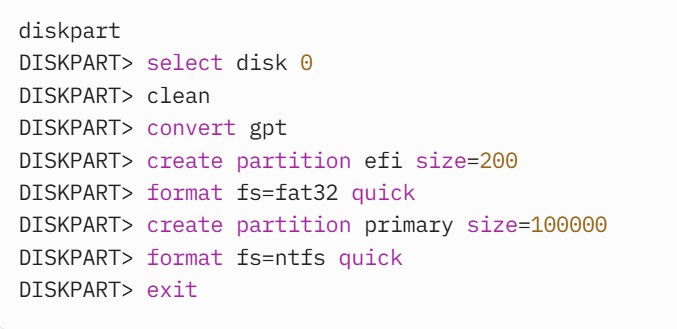
- Creates a GPT disk with a 200 MB ESP and a 100 GB NTFS partition.
- Use Cases:
- Setting up GPT disks for Windows installations.
- Configuring UEFI-bootable disks with an ESP.
- Managing GPT disks in Windows Server environments.
- Advantages:
- Built into Windows, requiring no additional installation.
- Integrates with Windows setup and recovery tools.
- Limitations:
- Command-line only, less intuitive for beginners.
- Limited recovery capabilities for corrupted GPT structures.
- Availability: Preinstalled on Windows systems.
5. Disk Management (Windows)
- Description: Disk Management is a graphical Windows utility for managing disks and partitions, with full GPT support.
- Platform: Windows (Vista and later).
- Key Features:
- GUI for creating, deleting, resizing, and formatting GPT partitions.
- Supports conversion from MBR to GPT (data loss unless empty).
- Displays GPT partition types (e.g., EFI System, Microsoft Reserved).
- Allows volume management (e.g., assigning drive letters).
- Usage Example:
- Open Disk Management (diskmgmt.msc).
- Right-click an unallocated disk > Initialize Disk > Select GPT.
- Right-click unallocated space > New Simple Volume to create partitions.
- Use Cases:
- User-friendly GPT management for Windows users.
- Setting up external drives or secondary disks with GPT.
- Advantages:
- Intuitive graphical interface, ideal for non-technical users.
- Seamless integration with Windows Explorer for drive management.
- Limitations:
- Limited advanced features (e.g., no direct control over partition GUIDs).
- No robust recovery options for corrupted GPT structures.
- Availability: Built into Windows.
6. Disk Utility (macOS)
- Description: Disk Utility is macOS’s built-in graphical tool for managing disks and partitions, with native GPT support.
- Platform: macOS.
- Key Features:
- Creates and manages GPT partitions with filesystems like APFS, HFS+, or exFAT.
- Supports EFI System Partition creation for UEFI booting.
- Allows disk formatting, partitioning, and erasing.
- Provides basic repair functions for disk errors.
- Usage Example:
- Open Disk Utility, select a disk, and choose “Erase” with GUID Partition Map.
- Create partitions (e.g., 200 MB FAT32 for ESP, APFS for macOS).
- Use Cases:
- Setting up GPT disks for macOS installations or Time Machine backups.
- Managing external drives for cross-platform use (e.g., exFAT partitions).
- Advantages:
- User-friendly GUI, ideal for macOS users.
- Seamless integration with macOS boot and recovery processes.
- Limitations:
- Limited to macOS-specific filesystems (e.g., APFS, HFS+) for some operations.
- Basic recovery capabilities compared to specialized tools.
- Availability: Preinstalled on macOS.
7. TestDisk (Cross-Platform)
- Description: TestDisk is an open-source data recovery tool that can repair and recover GPT partition tables.
- Platform: Linux, Windows, macOS.
- Key Features:
- Recovers lost or corrupted GPT partition tables using backup structures.
- Analyzes disk structures to rebuild GPT headers or partition arrays.
- Supports partition recovery for multiple filesystems (e.g., NTFS, ext4, FAT32).
- Can convert MBR to GPT during recovery if needed.
- Usage Example: bash
sudo testdisk /dev/sda- Select “Analyse” to scan for lost partitions.
- Rebuild GPT partition table using backup header or partition array.
- Use Cases:
- Recovering GPT disks after accidental deletion or corruption.
- Restoring partitions on failed RAID arrays or external drives.
- Advantages:
- Powerful recovery capabilities for GPT-specific issues.
- Cross-platform and free.
- Limitations:
- Primarily a recovery tool, not for routine partition management.
- Requires technical knowledge for effective use.
- Availability: Download from cgsecurity.org or install via package managers (sudo apt install testdisk).
8. GParted (Linux, Cross-Platform via Live CD)
- Description: GParted (GNOME Partition Editor) is a graphical tool for managing GPT and MBR disks, built on parted.
- Platform: Linux, usable on Windows/macOS via GParted Live CD/USB.
- Key Features:
- GUI for creating, resizing, moving, and deleting GPT partitions.
- Supports multiple filesystems (e.g., ext4, NTFS, FAT32).
- Allows setting partition flags (e.g., boot, esp).
- Detects and warns about GPT inconsistencies.
- Usage Example:
- Boot GParted Live CD or run sudo gparted on Linux.
- Select disk, create GPT partition table, and add partitions via the GUI.
- Use Cases:
- User-friendly GPT management for Linux users.
- Managing partitions on external drives or during system recovery.
- Advantages:
- Intuitive graphical interface.
- Live CD option for cross-platform use.
- Limitations:
- Resizing some filesystems requires additional tools.
- Slower for complex operations compared to command-line tools.
- Availability: Install via sudo apt install gparted or use GParted Live ISO.
Key Considerations for Managing GPT Disks
- UEFI Requirements:
- For UEFI-bootable systems, ensure an EFI System Partition (ESP, 100–300 MB, FAT32) is created with the correct type GUID (C12A7328-F81F-11D2-BA4B-00A0C93EC93B).
- Tools like gdisk, diskpart, and Disk Utility simplify ESP creation.
- Partition Alignment:
- Align partitions to 1 MB boundaries (2048 sectors for 512-byte sectors, 256 sectors for 4 KB sectors) to optimize performance on SSDs and Advanced Format drives.
- Most tools (e.g., gdisk, parted, Disk Management) handle alignment automatically.
- Redundancy and Recovery:
- Use tools like gdisk or TestDisk to leverage GPT’s backup header and partition table for recovery.
- Always back up data before modifying partition tables.
- Cross-Platform Compatibility:
- For disks shared across Windows, macOS, and Linux, use GPT with a compatible filesystem (e.g., exFAT or FAT32).
- Tools like Disk Utility and Disk Management are ideal for user-friendly cross-platform setups.
- Legacy BIOS Compatibility:
- GPT disks are not natively bootable on legacy BIOS systems without a hybrid MBR/GPT setup, which is complex and error-prone.
- Use gdisk for hybrid setups, but avoid unless necessary.
- Filesystem Tools:
- Partitioning tools often require separate filesystem creation tools (e.g., mkfs.ext4 for Linux, format for Windows, or Disk Utility for macOS).
- Ensure the filesystem matches the partition type GUID for compatibility.
Partitioning on a GPT Disk
Partitioning a GPT (GUID Partition Table) disk involves creating, configuring, and managing partitions to organize storage for operating systems, data, or specific purposes like booting or recovery. GPT is designed for modern systems, particularly those using UEFI firmware, and offers significant advantages over the older MBR (Master Boot Record) scheme, such as support for large disks, up to 128 partitions by default, and redundancy.
Overview of GPT Partitioning
Partitioning a GPT disk involves defining regions of the disk (partitions) in the GPT partition entry array, which is stored in Logical Block Addresses (LBAs) 2–33 (for 512-byte sectors). Each partition is identified by a unique GUID, a type GUID, start/end LBAs, attributes, and an optional name. The process requires careful planning to ensure compatibility with the target operating system, alignment for performance, and proper configuration for UEFI booting (if needed).
Key aspects of GPT partitioning include:
- Creating a GPT disk label (replacing any existing MBR or other partition table).
- Defining partitions with appropriate sizes, types, and filesystems.
- Ensuring alignment to optimize performance (e.g., 1 MB boundaries).
- Configuring an EFI System Partition (ESP) for UEFI systems.
- Writing primary and backup GPT structures to ensure redundancy.
Key Considerations for Partitioning GPT Disks
- Disk Size and Capacity:
- GPT supports disks up to 8 zettabytes (2^64 sectors with 512-byte sectors), making it suitable for large drives (e.g., 4 TB, 16 TB, or more).
- Ensure the disk is initialized with a GPT label to utilize its full capacity, as MBR is limited to 2.2 TB.
- Partition Count:
- GPT supports up to 128 partitions by default (based on a 16 KB partition entry array with 128-byte entries).
- More partitions can be supported by extending the partition entry array, though this is rare and requires reformatting.
- Partition Alignment:
- Align partitions to 1 MB boundaries (2048 sectors for 512-byte sectors, 256 sectors for 4 KB sectors) to optimize performance on SSDs and Advanced Format drives.
- Misaligned partitions can cause performance degradation, especially on SSDs due to write amplification.
- UEFI and ESP Requirements:
- For UEFI-bootable systems, include an EFI System Partition (ESP, 100–300 MB, FAT32 filesystem, type GUID C12A7328-F81F-11D2-BA4B-00A0C93EC93B).
- The ESP stores boot loaders (e.g., GRUB, Windows Boot Manager) and must be marked with the esp attribute.
- Partition Types and GUIDs:
- Each partition has a type GUID to indicate its purpose (e.g., EBD0A0A2-B9E5-4433-87C0-68B6B72699C7 for Microsoft basic data, 0FC63DAF-8483-4772-8E79-3D69D8477DE4 for Linux filesystem).
- Use the correct type GUID to ensure compatibility with the target OS or filesystem.
- Filesystem Selection:
- Choose filesystems compatible with the OS and use case (e.g., NTFS for Windows, ext4 for Linux, APFS for macOS, exFAT for cross-platform).
- Filesystem creation is typically separate from partitioning and requires tools like mkfs or format.
- Redundancy:
- GPT stores a primary partition table (LBA 2–33) and a backup (near the disk’s end), along with primary (LBA 1) and backup (last LBA) headers.
- Ensure partitioning tools update both primary and backup structures to maintain redundancy.
- Protective MBR:
- GPT includes a protective MBR at LBA 0 (type 0xEE) to prevent legacy tools from misinterpreting the disk.
- This is automatically created when initializing a GPT disk.
Steps for Partitioning a GPT Disk
Below is a general process for partitioning a GPT disk, followed by tool-specific examples.
- Backup Data:
- Partitioning is destructive if the disk already contains data. Back up all data before proceeding.
- Initialize the Disk with GPT:
- Create a GPT disk label, which overwrites any existing partition table (MBR or otherwise).
- This sets up the protective MBR (LBA 0), primary GPT header (LBA 1), and primary partition entry array (LBA 2–33).
- Plan Partitions:
- Determine the number, size, and purpose of partitions (e.g., ESP, OS, data, swap).
- Allocate space for the ESP (if UEFI booting) and ensure alignment.
- Create Partitions:
- Define partitions with start/end LBAs, type GUIDs, attributes, and optional names.
- Assign appropriate filesystems after partitioning.
- Write Changes:
- Save the partition table, ensuring both primary and backup GPT structures are updated.
- Format Partitions:
- Create filesystems on the partitions (e.g., FAT32 for ESP, NTFS for Windows, ext4 for Linux).
- Verify and Test:
- Check the partition table for consistency (e.g., matching primary and backup structures).
- Test booting (if applicable) or mount partitions to confirm functionality.
Practical Partitioning Scenarios
Scenario 1: Dual-Boot Windows 11 and Ubuntu
- Disk: 1 TB SSD.
- Partitions:
- Partition 1: 200 MB, FAT32, ESP (type GUID C12A7328-F81F-11D2-BA4B-00A0C93EC93B).
- Partition 2: 16 MB, Microsoft Reserved (type GUID E3C9E316-0B5C-4DB8-817D-F92DF00215AE).
- Partition 3: 200 GB, NTFS, Windows (type GUID EBD0A0A2-B9E5-4433-87C0-68B6B72699C7).
- Partition 4: 200 GB, ext4, Ubuntu (type GUID 0FC63DAF-8483-4772-8E79-3D69D8477DE4).
- Partition 5: Remaining space, exFAT, shared data (type GUID EBD0A0A2-B9E5-4433-87C0-68B6B72699C7).
- Tool: Use gdisk or diskpart for precise control.
- Steps:
- Initialize GPT disk.
- Create partitions with appropriate sizes and type GUIDs.
- Format partitions and install boot loaders (e.g., Windows Boot Manager, GRUB) in the ESP.
Scenario 2: Server with Multiple Data Partitions
- Disk: 8 TB HDD in a RAID array.
- Partitions:
- Partition 1: 200 MB, FAT32, ESP.
- Partition 2: 500 MB, ext4, boot partition.
- Partition 3: 2 TB, ZFS, data pool.
- Partition 4: 2 TB, ZFS, backup pool.
- Partition 5: Remaining space, ext4, logs.
- Tool: Use parted or gdisk for scripting or manual configuration.
- Steps:
- Create GPT label and align partitions to 1 MB.
- Assign type GUIDs and names (e.g., “DataPool”, “BackupPool”).
- Format partitions and configure RAID/ZFS.
Scenario 3: External Drive for Cross-Platform Use
- Disk: 4 TB external HDD.
- Partitions:
- Partition 1: 4 TB, exFAT, shared data (type GUID EBD0A0A2-B9E5-4433-87C0-68B6B72699C7).
- Tool: Use Disk Utility (macOS) or Disk Management (Windows) for simplicity.
- Steps:
- Initialize as GPT.
- Create a single exFAT partition for compatibility with Windows, macOS, and Linux.
- Format and verify cross-platform access.
Best Practices for GPT Partitioning
- Plan Partition Layout:
- Determine the number, size, and purpose of partitions based on the use case (e.g., OS, data, recovery).
- Account for ESP and reserved partitions (e.g., Microsoft Reserved Partition for Windows).
- Use Appropriate Tools:
- Command-line tools (gdisk, parted, diskpart) for precision and automation.
- Graphical tools (Disk Management, Disk Utility, GParted) for user-friendly setups.
- Ensure Alignment:
- Align partitions to 1 MB boundaries to optimize performance, especially on SSDs.
- Most modern tools handle alignment automatically.
- Verify Filesystem Compatibility:
- Use filesystems supported by the target OS (e.g., NTFS for Windows, ext4 for Linux, exFAT for cross-platform).
- Format the ESP as FAT32 for UEFI compatibility.
- Maintain Redundancy:
- Ensure partitioning tools update both primary and backup GPT structures.
- Verify CRC32 checksums with tools like gdisk to detect corruption.
- Test Booting and Access:
- For bootable disks, test the ESP and boot loader configuration.
- Mount and test data partitions to confirm functionality.
- Backup Before Partitioning:
- Partitioning can be destructive. Always back up data before modifying the partition table.
Common Partition Type GUIDs
Below are commonly used partition type GUIDs for GPT disks:
- EFI System Partition (ESP): C12A7328-F81F-11D2-BA4B-00A0C93EC93B (FAT32, 100–300 MB).
- Microsoft Basic Data: EBD0A0A2-B9E5-4433-87C0-68B6B72699C7 (NTFS, exFAT, etc.).
- Microsoft Reserved (MSR): E3C9E316-0B5C-4DB8-817D-F92DF00215AE (no filesystem, 16–128 MB).
- Linux Filesystem: 0FC63DAF-8483-4772-8E79-3D69D8477DE4 (ext4, Btrfs, etc.).
- Linux Swap: 0657FD6D-A4AB-43C4-84E5-0933C84B4F4F.
- Apple APFS: 7C3457EF-0000-11AA-AA11-00306543ECAC.

Types of Partitions on a GPT Disk
Overview of Partitions on a GPT Disk
A partition on a GPT disk is a logical division of the disk’s storage space, defined in the GPT partition table. Each partition is identified by a unique 128-bit GUID (Globally Unique Identifier) and a Partition Type GUID, which specifies its purpose (e.g., system, data, or recovery). Unlike the older MBR (Master Boot Record) system, which is limited to 4 primary partitions (or 3 primary + 1 extended with logical partitions), GPT supports up to 128 partitions by default, making it highly flexible for modern systems.
Partitions on a GPT disk are used to organize data, host operating systems, store boot files, or serve specialized purposes like recovery or swap space. Each partition is typically formatted with a filesystem (e.g., NTFS, ext4, FAT32) suited to its role and is managed by the operating system or UEFI firmware.
Technical Structure of a GPT Partition Entry
Each partition on a GPT disk is defined by a 128-byte entry in the partition table (typically located at LBA 2–33). The key fields in a partition entry are:
- Partition Type GUID (16 bytes): Identifies the partition’s purpose (e.g., EFI System Partition, Windows data).
- Unique Partition GUID (16 bytes): A unique identifier for the specific partition.
- Starting LBA (8 bytes): The first sector of the partition.
- Ending LBA (8 bytes): The last sector of the partition.
- Attributes (8 bytes): Flags defining properties like bootable, read-only, or hidden (e.g., Bit 0 for system partition, Bit 60 for read-only).
- Partition Name (72 bytes): A UTF-16LE string (up to 36 characters) for human-readable identification.
The Partition Type GUID is critical, as it tells the operating system or firmware how the partition should be used. Below, I’ll detail the most common types of partitions found on GPT disks, their GUIDs, and their roles.
Common Types of Partitions on a GPT Disk
Below is a comprehensive list of the most common partition types found on GPT disks, organized by their purpose and including their Partition Type GUIDs, typical filesystems, and use cases.
1. EFI System Partition (ESP)
- Partition Type GUID: C12A7328-F81F-11D2-BA4B-00A0C93EC93B
- Purpose: Stores boot loaders, drivers, and other files required for UEFI firmware to boot the operating system.
- Filesystem: FAT32 (required by UEFI specification, though FAT16 is sometimes supported).
- Size: Typically 100–300 MB, though larger sizes (e.g., 1 GB) may be used for complex setups.
- Attributes: Usually marked with the “System” attribute (Bit 0).
- Details:
- Mandatory for UEFI-based systems booting from a GPT disk.
- Contains files like BOOTX64.EFI (for 64-bit systems) or BOOTIA32.EFI (for 32-bit UEFI).
- Used by operating systems like Windows, Linux (via GRUB), and macOS.
- Example path: /EFI/BOOT/BOOTX64.EFI for a generic UEFI boot loader.
- Use Case: Booting Windows 11, Linux, or macOS on a UEFI system with Secure Boot enabled.
2. Microsoft Reserved Partition (MSR)
- Partition Type GUID: E3C9E316-0B5C-4DB8-817D-F92DF00215AE
- Purpose: Reserved space for Windows to store metadata or manage dynamic disk configurations.
- Filesystem: None (unformatted, not visible to users).
- Size: Typically 16–128 MB (32 MB on modern Windows installations).
- Attributes: Hidden (Bit 63) to prevent user access.
- Details:
- Created automatically by Windows during installation on GPT disks.
- Used for partition management tasks, such as converting a disk to dynamic mode or storing metadata for future operations.
- Not used for user data or boot files.
- Use Case: Required for Windows installations on GPT disks to ensure compatibility with Windows disk management features.
3. Basic Data Partition
- Partition Type GUID: EBD0A0A2-B9E5-4433-87C0-68B6B72699C7 (Windows), `0FC63DAF-8483-4772-8 ocasião
System: Common Types of Partitions on a GPT Disk (Continued)
- Partition Type GUID:
- Windows Basic Data: EBD0A0A2-B9E5-4433-87C0-68B6B72699C7
- Linux Filesystem: 0FC63DAF-8483-4772-8E79-3D69D8477DE4
- Apple APFS: 7C3457EF-0000-11AA-AA11-00306543ECAC
- Apple HFS+: 48465300-0000-11AA-AA11-00306543ECAC
- Purpose: Stores user data, operating system files, or application data.
- Filesystem:
- Windows: NTFS (default), exFAT, or FAT32 for data partitions.
- Linux: ext4, ext3, XFS, or Btrfs.
- macOS: APFS (modern) or HFS+ (legacy).
- Size: Varies, often occupying the majority of the disk (e.g., hundreds of GB or TB).
- Attributes: Typically no special attributes unless marked as read-only or hidden.
- Details:
- The most common partition type for storing operating system files (e.g., Windows C: drive, Linux root /, macOS system volume).
- Can also be used for user data, such as documents, media, or backups.
- Multiple data partitions can coexist on a GPT disk, each with a different filesystem or purpose.
- Use Case:
- Windows: The C: drive for the operating system or additional drives (e.g., D: for data).
- Linux: Root (/), home (/home), or other mount points.
- macOS: System and user data volumes in APFS containers.
- Multi-boot setups: Separate data partitions for each OS.
4. Recovery Partition
- Partition Type GUID: DE94BBA4-06D1-4D40-A16A-BFD50179D6AC (Windows Recovery Environment)
- Purpose: Stores recovery tools and files for restoring or repairing the operating system.
- Filesystem: NTFS (Windows), APFS (macOS).
- Size: 300–900 MB for Windows, variable for macOS or Linux.
- Attributes: Hidden (Bit 63) to prevent user modification.
- Details:
- Contains a minimal OS environment (e.g., Windows Recovery Environment, or WinRE) for troubleshooting, resetting, or reinstalling the OS.
- macOS recovery partitions store tools for reinstalling macOS or running Disk Utility.
- Linux distributions may create recovery partitions for similar purposes, though they are less standardized.
- Use Case: Booting into recovery mode to fix boot issues, reset Windows, or reinstall macOS.
5. Linux Swap Partition
- Partition Type GUID: 0657FD6D-A4AB-43C4-84E5-0933C84B4F4F
- Purpose: Provides virtual memory for Linux systems, used when physical RAM is insufficient.
- Filesystem: None (formatted as swap space).
- Size: Typically 1–2x the size of system RAM (e.g., 4–16 GB), though modern systems may use smaller swap partitions or swap files.
- Attributes: None specific, but not mounted as a regular filesystem.
- Details:
- Used by Linux for memory paging and hibernation.
- Identified by the operating system via the swap GUID and formatted with mkswap.
- Use Case: Essential for Linux systems, especially those with limited RAM or requiring hibernation.
6. RAID Partition (Linux)
- Partition Type GUID: A19D880F-05FC-4D3B-A006-743F0F84911E
- Purpose: Marks a partition as part of a software RAID array (e.g., mdadm in Linux).
- Filesystem: None (managed by RAID software, which may use ext4 or other filesystems on the array).
- Size: Varies, depending on the RAID configuration and disk size.
- Attributes: None specific.
- Details:
- Used in Linux to create redundant or striped storage arrays.
- Multiple RAID partitions can be combined into a single logical volume.
- Use Case: Building fault-tolerant or high-performance storage in Linux servers or workstations.
7. LVM (Logical Volume Manager) Partition (Linux)
- Partition Type GUID: E6D6D379-F507-44C2-A23C-238F2A3DF928
- Purpose: Marks a partition for use with Linux’s Logical Volume Manager, allowing flexible volume management.
- Filesystem: None (LVM manages physical volumes, which are then formatted with ext4, XFS, etc.).
- Size: Varies, often large to accommodate multiple logical volumes.
- Attributes: None specific.
- Details:
- LVM allows dynamic resizing of partitions and logical volumes.
- Partitions marked with this GUID are added to LVM physical volume groups.
- Use Case: Managing complex storage setups in Linux, such as resizing filesystems or creating snapshots.
8. Apple Boot Partition (macOS)
- Partition Type GUID: 426F6F74-0000-11AA-AA11-00306543ECAC (Apple Boot/Recovery)
- Purpose: Stores recovery or boot-related files for macOS.
- Filesystem: HFS+ or APFS.
- Size: 650–800 MB.
- Attributes: Hidden to prevent user access.
- Details:
- Used for macOS Recovery HD or other boot-related tasks.
- Contains tools for reinstalling macOS, running diagnostics, or restoring from Time Machine.
- Use Case: Booting into macOS recovery mode for system repairs or reinstallation.
9. BIOS Boot Partition (Linux)
- Partition Type GUID: 21686148-6449-6E6F-744E-656564454649
- Purpose: Stores boot loader code (e.g., GRUB) for BIOS-based systems booting from GPT disks.
- Filesystem: None (unformatted, used for raw boot code).
- Size: 1–2 MB.
- Attributes: Marked with the “BIOS Boot” attribute (Bit 2).
- Details:
- Required for legacy BIOS systems to boot from GPT disks, as BIOS does not natively support GPT.
- GRUB writes its second-stage boot code to this partition.
- Use Case: Enabling Linux booting on older systems with BIOS firmware and GPT disks.
10. Other Specialized Partitions
- Examples:
- ZFS Partition (FreeBSD/Linux): 6A898CC3-1DD2-11B2-99A6-080020736631
- HP-UX Data Partition: 75894C1E-3AEB-11D3-B7C1-7B03A0000000
- FreeBSD Swap: 6A8B642B-1DD2-11B2-99A6-080020736631
- Purpose: Specialized partitions for specific operating systems or storage systems.
- Filesystem: Varies (e.g., ZFS for ZFS partitions, none for swap).
- Size: Depends on the use case.
- Details: These partitions cater to niche or OS-specific requirements, such as advanced filesystems (ZFS) or proprietary systems (HP-UX).
- Use Case: Deploying FreeBSD, Solaris, or other specialized systems.
Key Attributes of GPT Partitions
Each partition can have attributes (stored in the 8-byte attribute field) that define its behavior. Common attributes include:
- Bit 0: System partition (required for booting, e.g., ESP).
- Bit 2: Legacy BIOS bootable (used for BIOS Boot Partition).
- Bit 60: Read-only (prevents writes to the partition).
- Bit 62: Hidden (prevents the partition from being mounted or displayed).
- Bit 63: Do not automount (useful for recovery or reserved partitions).
These attributes allow fine-grained control over how the operating system and firmware interact with the partition.
Partition Attributes on a GPT Disk
Partition attributes are metadata flags stored in the partition entry of a GPT disk that define specific behaviors or properties of a partition. These attributes allow the operating system, UEFI firmware, or other software to handle partitions in a particular way, such as marking a partition as bootable, read-only, or hidden. Each partition entry in the GPT partition table includes an 8-byte (64-bit) attributes field, where individual bits represent specific flags.
Unlike the older MBR (Master Boot Record) system, which relies on a single “active” flag to indicate a bootable partition, GPT’s attributes provide a more granular and flexible way to configure partition behavior. These attributes are critical for UEFI-based systems, multi-boot setups, and specialized storage configurations.
Technical Structure of Partition Attributes
Each partition on a GPT disk is defined by a 128-byte entry in the partition table (typically located at LBA 2–33). The attributes field occupies bytes 48–55 (8 bytes) of the partition entry. The 64 bits in this field are divided as follows:
- Bit 0–63: Each bit can be set to enable a specific attribute.
- Standardized Attributes: The GPT specification defines certain bits for specific purposes, while others are reserved or OS-specific.
- Reserved Bits: Some bits are undefined in the UEFI specification and may be used by operating systems for custom purposes.
The attributes are stored as a 64-bit integer in little-endian format, and their values are interpreted by the firmware (UEFI) or operating system when accessing the partition.
Standard GPT Partition Attributes
The UEFI specification (version 2.10, as of the latest standards) defines several standard attributes for GPT partitions. Below is a detailed list of the most commonly used attributes, their bit positions, purposes, and practical implications:
- Bit 0: System Partition (Required Partition)
- Purpose: Indicates that the partition is critical for system operation, typically used for the EFI System Partition (ESP) or other partitions required for booting.
- Implication:
- UEFI firmware may prioritize this partition for boot operations.
- Prevents the partition from being modified or deleted by disk management tools without explicit user confirmation.
- Typical Use:
- Set on the EFI System Partition (ESP, GUID: C12A7328-F81F-11D2-BA4B-00A0C93EC93B), which contains UEFI boot loaders.
- Example: A 300 MB FAT32 ESP for booting Windows or Linux.
- Example: Ensures the ESP is recognized by UEFI firmware as the boot partition.
- Bit 1: EFI Firmware Read-Only
- Purpose: Indicates that the partition should not be modified by the operating system, as it is managed by the UEFI firmware.
- Implication:
- Protects firmware-specific partitions from accidental writes.
- Rarely used in practice, as most firmware-managed partitions (e.g., ESP) are protected by other means.
- Typical Use: Reserved for specialized firmware partitions, such as those used by embedded systems or proprietary UEFI implementations.
- Example: A vendor-specific partition for storing UEFI firmware updates.
- Bit 2: Legacy BIOS Bootable
- Purpose: Marks a partition as bootable for legacy BIOS systems booting from a GPT disk.
- Implication:
- Used in hybrid setups where a GPT disk is booted using a legacy BIOS boot loader (e.g., GRUB in BIOS mode).
- Typically applied to a BIOS Boot Partition (GUID: 21686148-6449-6E6F-744E-656564454649), which stores boot loader code.
- Typical Use:
- Enables Linux booting on older systems with BIOS firmware and GPT disks.
- The BIOS Boot Partition is small (1–2 MB) and unformatted, containing raw boot code.
- Example: A 1 MB BIOS Boot Partition for GRUB on a Linux system with a GPT disk.
- Bit 60: Read-Only
- Purpose: Prevents write operations to the partition, making it read-only at the firmware or OS level.
- Implication:
- Protects critical data from accidental modification.
- Supported by some operating systems (e.g., Linux, macOS) but may not be universally enforced.
- Typical Use:
- Applied to recovery partitions or firmware partitions to prevent corruption.
- Example: A macOS recovery partition to ensure its integrity.
- Example: A Windows Recovery Partition (GUID: DE94BBA4-06D1-4D40-A16A-BFD50179D6AC) marked read-only to protect recovery tools.
- Bit 62: Hidden
- Purpose: Prevents the partition from being displayed or mounted by the operating system’s user interface.
- Implication:
- Hides the partition from file explorers or disk management tools, reducing user interaction.
- Does not prevent access by low-level tools or manual mounting.
- Typical Use:
- Applied to system-reserved partitions, such as the Microsoft Reserved Partition (MSR) or recovery partitions.
- Example: The MSR (GUID: E3C9E316-0B5C-4DB8-817D-F92DF00215AE) is hidden to prevent user access.
- Bit 63: Do Not Automount
- Purpose: Prevents the operating system from automatically mounting the partition during boot or device detection.
- Implication:
- Useful for partitions that should only be accessed manually or by specific tools (e.g., recovery or diagnostic partitions).
- Supported by Linux and macOS; Windows may ignore this attribute for some partitions.
- Typical Use:
- Applied to recovery partitions or swap partitions to prevent automatic mounting as a filesystem.
- Example: A Linux swap partition (GUID: 0657FD6D-A4AB-43C4-84E5-0933C84B4F4F) marked to avoid automounting.
- Bits 3–47 and 48–59: Reserved
- Purpose: Reserved by the UEFI specification for future use or vendor-specific purposes.
- Implication:
- These bits are not defined in the standard and should be set to 0 unless used by a specific operating system or firmware.
- Some operating systems (e.g., Windows, Linux) may define custom attributes in these ranges.
- Typical Use: Rarely used in standard configurations but may be leveraged by proprietary systems.
- OS-Specific Attributes (Bits 48–63, Vendor-Specific)
- Purpose: Some operating systems use bits in the 48–63 range for custom purposes.
- Examples:
- Windows: May use bits to mark partitions for BitLocker encryption or dynamic disk configurations.
- Linux: May use bits to indicate specific LVM or RAID roles.
- macOS: May use bits for APFS container metadata or snapshot management.
- Implication: These attributes are non-standard and depend on the OS or tool interpreting them.
Technical Details of Attribute Implementation
- Storage: The 64-bit attributes field is stored as a little-endian integer in the partition entry (bytes 48–55). For example, setting Bit 0 and Bit 62 would result in a value like 0x4000000000000001.
- Interpretation:
- UEFI firmware primarily uses Bit 0 (System Partition) and Bit 2 (Legacy BIOS Bootable) for boot operations.
- Operating systems (e.g., Windows, Linux, macOS) interpret additional attributes like Bit 60 (Read-Only) or Bit 63 (Do Not Automount).
- Modification:
- Attributes can be modified using partitioning tools like gdisk (Linux), diskpart (Windows), or diskutil (macOS).
Practical Implications of Partition Attributes
- Boot Management:
- Bit 0 (System Partition) ensures the EFI System Partition is recognized by UEFI firmware for booting. Without this attribute, the partition may not be used for boot operations.
- Bit 2 (Legacy BIOS Bootable) is critical for hybrid BIOS-GPT setups, enabling legacy boot loaders like GRUB to function on GPT disks.
- Data Protection:
- Bit 60 (Read-Only) protects partitions like recovery or firmware partitions from accidental modification.
- Bit 62 (Hidden) and Bit 63 (Do Not Automount) prevent user interaction with system-critical partitions, such as the Microsoft Reserved Partition or recovery partitions.
- System Compatibility:
- Attributes ensure compatibility with UEFI and OS requirements. For example, the ESP must have Bit 0 set to be recognized by UEFI firmware.
- Incorrect attributes can cause boot failures or partition inaccessibility.
- Multi-Boot Setups:
- Attributes help manage multiple operating systems by marking specific partitions as bootable or hidden, reducing conflicts.
- Example: A shared ESP with Bit 0 set, while other OS-specific partitions (e.g., Linux root) may have Bit 63 to prevent automounting by other OSes.
Common Partition Types and Their Typical Attributes
Below is a table summarizing common GPT partition types and their associated attributes:
| Partition Type | GUID | Typical Attributes | Purpose |
|---|---|---|---|
| EFI System Partition (ESP) | C12A7328-F81F-11D2-BA4B-00A0C93EC93B | Bit 0 (System Partition) | Stores UEFI boot loaders and drivers for booting. |
| Microsoft Reserved Partition (MSR) | E3C9E316-0B5C-4DB8-817D-F92DF00215AE | Bit 62 (Hidden), Bit 63 (Do Not Automount) | Reserved for Windows metadata, not user-accessible. |
| Windows Basic Data | EBD0A0A2-B9E5-4433-87C0-68B6B72699C7 | None (or OS-specific) | Stores Windows OS or user data (e.g., C: drive). |
| Windows Recovery | DE94BBA4-06D1-4D40-A16A-BFD50179D6AC | Bit 60 (Read-Only), Bit 62 (Hidden) | Stores Windows Recovery Environment (WinRE) tools. |
| Linux Filesystem | 0FC63DAF-8483-4772-8E79-3D69D8477DE4 | None (or Bit 63 for specific mounts) | Stores Linux root (/), home (/home), or other filesystems. |
| Linux Swap | 0657FD6D-A4AB-43C4-84E5-0933C84B4F4F | Bit 63 (Do Not Automount) | Provides virtual memory for Linux systems. |
| BIOS Boot Partition | 21686148-6449-6E6F-744E-656564454649 | Bit 2 (Legacy BIOS Bootable) | Stores boot loader code for BIOS-based GPT booting. |
| Apple APFS | 7C3457EF-0000-11AA-AA11-00306543ECAC | Bit 62 (Hidden), Bit 63 (Do Not Automount) | Stores macOS system and user data in APFS containers. |
| Apple Recovery | 426F6F74-0000-11AA-AA11-00306543ECAC | Bit 60 (Read-Only), Bit 62 (Hidden) |
Practical Use Cases
- UEFI Booting:
- The ESP must have Bit 0 (System Partition) set to be recognized by UEFI firmware.
- Example: A Windows 11 installation requires an ESP with Bit 0 to boot properly.
- Protecting Recovery Data:
- Bit 60 (Read-Only) and Bit 62 (Hidden) on a Windows or macOS recovery partition prevent accidental modification or visibility in file explorers.
- Example: A Windows Recovery Partition is marked read-only to protect WinRE tools.
- Hiding System Partitions:
- Bit 62 (Hidden) and Bit 63 (Do Not Automount) on the Microsoft Reserved Partition (MSR) ensure it remains invisible and inaccessible to users.
- Example: Windows hides the MSR to prevent accidental deletion.
- Legacy BIOS Compatibility:
- Bit 2 (Legacy BIOS Bootable) on a BIOS Boot Partition enables GRUB to boot Linux on a GPT disk with legacy BIOS.
- Example: A 1 MB BIOS Boot Partition for a Linux system on an older PC.
- Multi-Boot Environments:
- Attributes like Bit 63 (Do Not Automount) prevent one OS from automatically mounting another OS’s partitions, reducing conflicts.
- Example: A Linux partition marked with Bit 63 to avoid being mounted by Windows.
Limitations and Considerations
- OS Support:
- Not all operating systems fully support all attributes. For example, Windows may ignore Bit 60 (Read-Only) for some partitions, while Linux and macOS are more consistent.
- Legacy systems (e.g., Windows XP) may not recognize GPT attributes at all.
- Firmware Dependency:
- UEFI firmware primarily uses Bit 0 and Bit 2. Other attributes depend on OS support.
- Incorrect attribute settings can cause boot failures if the firmware expects specific flags.
- Tool Compatibility:
- Older tools (e.g., early versions of fdisk) may not support GPT attributes, requiring modern tools like gdisk or parted.
- Always use GPT-aware tools to avoid corrupting the partition table.
- Custom Attributes:
- OS-specific attributes (e.g., Windows BitLocker flags) may conflict with other systems in multi-boot setups.
- Check documentation for the specific OS or tool when using non-standard attributes.
Partition Type GUIDs in GPT
Partition Type GUIDs (Globally Unique Identifiers) are a critical component of the GUID Partition Table (GPT) disk layout, used to define the purpose or role of each partition on a GPT disk. These 128-bit identifiers are stored in the partition entry array (typically LBA 2–33) and ensure that operating systems, firmware, and tools can accurately identify and handle partitions across different platforms. Unlike the older MBR scheme, which used single-byte partition type codes (e.g., 0x07 for NTFS), GPT’s use of GUIDs provides a standardized, extensible, and globally unique way to specify partition types, reducing conflicts and improving interoperability.
Role of Partition Type GUIDs
- Purpose: Each partition in a GPT disk has a Partition Type GUID in its 128-byte partition entry, which specifies the partition’s intended use (e.g., EFI System Partition, Windows data partition, Linux filesystem, etc.).
- Structure: A Partition Type GUID is a 128-bit (16-byte) identifier in the format {8-4-4-4-12} (e.g., C12A7328-F81F-11D2-BA4B-00A0C93EC93B), following the UUID standard.
- Functionality:
- Ensures cross-platform compatibility by standardizing partition roles (e.g., Windows, Linux, and macOS recognize the same GUID for an EFI System Partition).
- Allows operating systems and tools to correctly interpret and manage partitions without relying on filesystem detection.
- Supports extensibility, as new GUIDs can be defined for emerging use cases without conflicts.
- Location: Stored in the Partition Type GUID field (bytes 0–15) of each partition entry in the GPT partition entry array.
- Additional Context: Each partition also has a unique Partition GUID to identify the specific partition instance, distinct from the type GUID, which defines its role.
Key Features of Partition Type GUIDs
- Uniqueness: GUIDs are globally unique, reducing the risk of conflicts across systems or vendors.
- Standardization: Many GUIDs are defined by the UEFI specification or industry standards, ensuring broad compatibility.
- Flexibility: Custom GUIDs can be defined for proprietary or specialized partitions (e.g., vendor-specific recovery partitions).
- Human-Readable Context: Partition entries include a UTF-16LE name field (up to 36 characters) to complement the type GUID, aiding user identification.
Common Partition Type GUIDs
Below is a comprehensive list of commonly used Partition Type GUIDs, organized by operating system or use case, along with their descriptions and typical filesystems. This list includes standard GUIDs from the UEFI specification, Microsoft, Linux, macOS, and other platforms.
| Partition Type GUID | Description | Typical Filesystem | Operating System/Use Case |
|---|---|---|---|
C12A7328-F81F-11D2-BA4B-00A0C93EC93B | EFI System Partition (ESP) | FAT32 | UEFI boot (Windows, Linux, macOS) |
EBD0A0A2-B9E5-4433-87C0-68B6B72699C7 | Microsoft Basic Data | NTFS, exFAT, FAT32 | Windows data partition |
E3C9E316-0B5C-4DB8-817D-F92DF00215AE | Microsoft Reserved (MSR) | None | Windows (reserved, no filesystem) |
0FC63DAF-8483-4772-8E79-3D69D8477DE4 | Linux Filesystem | ext4, Btrfs, XFS | Linux data partition |
0657FD6D-A4AB-43C4-84E5-0933C84B4F4F | Linux Swap | Swap | Linux swap space |
7C3457EF-0000-11AA-AA11-00306543ECAC | Apple APFS | APFS | macOS (Catalina and later) |
48465300-0000-11AA-AA11-00306543ECAC | Apple HFS+ | HFS+ | macOS (pre-Catalina) |
426F6F74-0000-11AA-AA11-00306543ECAC | Apple Boot (Recovery) | HFS+ | macOS recovery partition |
E6D6D379-F507-44C2-A23C-238F2A3DF928 | Linux LVM | None (LVM) | Linux Logical Volume Manager |
BC13C2FF-59E6-4262-A352-B275FD6F7172 | FreeBSD Boot | None | FreeBSD boot partition |
83BD6B9D-7F41-11DC-BE0B-001560B84F0F | FreeBSD UFS | UFS | FreeBSD filesystem |
024DEE41-33E7-11D3-9D69-0008C781F39F | MBR Partition Scheme | None | Hybrid MBR/GPT partition |
21686148-6449-6E6F-744E-656564454649 | BIOS Boot Partition | None | GRUB for BIOS booting on GPT |
F4019732-066E-4E12-8273-346C5641494F | FreeBSD Swap | Swap | FreeBSD swap space |
D3BFE2DE-3DAF-11DF-BA40-E3A556D89593 | Intel Fast Flash (iSCSI) | None | Intel-based systems (iSCSI) |
A19D880F-05FC-4D3B-A006-743F0F84911E | Linux RAID | None (RAID metadata) | Linux software RAID |
DE94BBA4-06D1-4D40-A16A-BFD50179D6AC | Windows Recovery Environment | NTFS | Windows recovery partition |
37F2B6F0-8A1E-4E2E-B3EE-FA88B2B8A04A | HP-UX Data | HFS | HP-UX filesystem |
75894C1E-3AEB-11D3-B7C1-7B03A0000000 | HP-UX Service | None | HP-UX service partition |
Notes on Common GUIDs
- EFI System Partition (ESP):
- Mandatory for UEFI-bootable GPT disks.
- Typically 100–300 MB, formatted as FAT32.
- Stores boot loaders (e.g., GRUB, Windows Boot Manager) and UEFI firmware files.
- Microsoft Basic Data:
- Used for general-purpose data partitions on Windows (e.g., C: drive).
- Supports NTFS, exFAT, or FAT32, depending on the use case.
- Microsoft Reserved (MSR):
- Required on Windows GPT disks, typically 16–128 MB.
- Reserved for system use (e.g., partition table updates), no filesystem.
- Linux Filesystem:
- Used for Linux data partitions, supporting filesystems like ext4, Btrfs, or XFS.
- Apple APFS/HFS+:
- Used by macOS for modern (APFS) or legacy (HFS+) filesystems.
- APFS is standard for macOS Catalina and later.
- BIOS Boot Partition:
- Used for GRUB booting on GPT disks with legacy BIOS systems (not UEFI).
- Typically 1–2 MB, no filesystem.
- Linux Swap:
- Dedicated for Linux swap space, used for virtual memory.
- Windows Recovery Environment:
- Stores recovery tools and images for Windows system repair.
EFI System Partition (ESP)
The EFI System Partition (ESP) is a critical component of GPT (GUID Partition Table) disks used in systems with UEFI (Unified Extensible Firmware Interface) firmware. It is a dedicated partition that stores boot loaders, drivers, and other files necessary for the UEFI firmware to initialize the operating system or boot manager. The ESP ensures that modern systems can boot securely and efficiently, supporting features like Secure Boot and multi-boot configurations.
Purpose of the ESP
The ESP serves as the interface between the UEFI firmware and the operating system, storing essential files required to boot the system. Its primary functions include:
- Boot Loader Storage: Contains boot loaders (e.g., GRUB for Linux, Windows Boot Manager, or rEFInd) that initialize the operating system.
- UEFI Drivers and Applications: Stores UEFI drivers (e.g., for hardware initialization) and applications (e.g., diagnostics or recovery tools).
- Secure Boot Support: Holds digitally signed boot loader files to verify their authenticity during Secure Boot.
- Multi-Boot Support: Allows multiple operating systems to store their boot loaders in a single partition, facilitating dual-boot or multi-boot configurations.
The ESP is mandatory for UEFI-bootable GPT disks and is recognized by its specific Partition Type GUID: C12A7328-F81F-11D2-BA4B-00A0C93EC93B.
Technical Specifications
- Partition Type GUID: C12A7328-F81F-11D2-BA4B-00A0C93EC93B.
- Filesystem: FAT32 (required by the UEFI specification, though FAT16 or FAT12 may be supported in rare cases).
- Size: Typically 100–300 MB, though larger sizes (e.g., 512 MB or 1 GB) may be used for complex setups or recovery tools.
- Windows recommends 100 MB for basic installations, 300 MB for systems with larger boot files.
- Linux distributions often use 200–512 MB to accommodate GRUB and additional kernels.
- macOS may use larger ESPs (up to 1 GB) for recovery tools.
- Location: Usually the first or second partition on the disk, starting at an aligned LBA (e.g., LBA 2048 for 1 MB alignment with 512-byte sectors).
- Attributes: Must have the esp attribute (bit 0 in the 64-bit attribute field) to be recognized by UEFI firmware.
- Mount Point:
- Linux: Typically mounted at /boot/efi.
- Windows: Not mounted by default but accessible via tools like diskpart or mountvol.
- macOS: Mounted at /System/Library/CoreServices or similar.
- Structure:
- The ESP uses a FAT32 filesystem with a directory structure defined by the UEFI specification.
- Common directory: \EFI, containing subdirectories for each boot loader or OS (e.g., \EFI\Microsoft, \EFI\ubuntu, \EFI\BOOT).
- Example files:
- \EFI\BOOT\BOOTX64.EFI: Default boot loader for 64-bit systems (fallback if no boot entry is specified).
- \EFI\Microsoft\Boot\bootmgfw.efi: Windows Boot Manager.
- \EFI\ubuntu\grubx64.efi: GRUB for Ubuntu.
Requirements
- UEFI Firmware: The ESP is only used on systems with UEFI firmware, not legacy BIOS (though hybrid MBR/GPT setups may use it with BIOS).
- GPT Disk: The ESP must reside on a GPT disk, as UEFI booting is not supported on MBR disks (except in rare hybrid configurations).
- FAT32 Filesystem: Required for compatibility with UEFI firmware across platforms (Windows, Linux, macOS).
- Partition Type GUID: Must be set to C12A7328-F81F-11D2-BA4B-00A0C93EC93B to ensure recognition.
- Alignment: Should start at a 1 MB boundary (e.g., LBA 2048 for 512-byte sectors) for performance, especially on SSDs or 4 KB-sector drives.
- Single ESP per System: Typically, one ESP is shared across all operating systems on a disk, though multiple ESPs are technically possible (but rare and not recommended).
Use Cases
- UEFI Booting:
- Stores boot loaders for operating systems like Windows, Linux, or macOS.
- Example: Windows 11 uses the ESP to store bootmgfw.efi for booting, verified by Secure Boot.
- Multi-Boot Configurations:
- Supports multiple OSes by storing their boot loaders in separate \EFI subdirectories (e.g., \EFI\ubuntu for Ubuntu, \EFI\Microsoft for Windows).
- Example: A dual-boot system with Windows and Ubuntu shares a single ESP with GRUB and Windows Boot Manager.
- Recovery and Diagnostics:
- Stores recovery tools or firmware update utilities.
- Example: macOS includes recovery tools in the ESP for system repair or reinstallation.
- Cross-Platform Systems:
- Used in environments where disks are shared across operating systems, ensuring consistent boot behavior.
- Example: An external GPT disk with an ESP can boot different UEFI systems (e.g., a Linux live USB).
- Embedded and IoT Devices:
- Used in UEFI-based embedded systems to store firmware and boot files.
- Example: An IoT gateway uses an ESP to boot a custom Linux distribution.
Best Practices
- Size Appropriately:
- Use 100–300 MB for most systems; consider 512 MB or more for multi-boot or recovery-heavy setups.
- Use FAT32:
- Ensure the ESP is formatted as FAT32 to meet UEFI requirements.
- Align Properly:
- Start the ESP at LBA 2048 (1 MB) for performance on 512-byte or 4 KB-sector drives.
- Avoid Multiple ESPs:
- Use a single ESP per disk to avoid confusion, with subdirectories for each OS.
- Backup ESP Contents:
- Back up the \EFI directory before modifying the ESP, as corruption can prevent booting.
- Secure Boot:
- Ensure boot loaders in the ESP are signed for Secure Boot compatibility (e.g., Microsoft-signed for Windows, shim-signed for Linux).
- Access Control:
- Restrict write access to the ESP to prevent accidental modification (e.g., mount read-only on Linux unless updating boot loaders).
Filesystem Compatibility on GPT Disks
A GPT disk uses the GUID Partition Table to define partitions, each of which can be formatted with a filesystem to store data, operating systems, or boot files. The GPT itself is filesystem-agnostic, meaning it does not dictate the filesystem used on a partition. Instead, the choice of filesystem depends on the partition’s purpose, the operating system(s) accessing the disk, and compatibility requirements.
Filesystem compatibility refers to how well a filesystem is supported by different operating systems (e.g., Windows, Linux, macOS) and UEFI firmware, as well as its suitability for specific partition types (e.g., EFI System Partition, data partitions). Each filesystem has unique features, limitations, and compatibility characteristics, which I’ll explore in detail below.
Key Concepts of Filesystem Compatibility
- GPT Partition Structure:
- Each partition on a GPT disk is defined by a 128-byte entry in the partition table, which includes a Partition Type GUID to indicate its purpose (e.g., EFI System Partition, data partition).
- The filesystem is applied to the partition’s data area (starting at the partition’s first LBA), independent of the GPT structure.
- The Partition Type GUID does not enforce a specific filesystem but provides a hint about the expected filesystem (e.g., FAT32 for ESP).
- Filesystem Role:
- The filesystem determines how data is organized, stored, and accessed within a partition.
- Common filesystems include NTFS, ext4, APFS, FAT32, and exFAT, each with varying levels of compatibility across operating systems.
- Compatibility Factors:
- Operating System Support: Different OSes support different filesystems natively or with additional drivers.
- UEFI Requirements: Certain partitions (e.g., ESP) require specific filesystems (e.g., FAT32) for UEFI firmware compatibility.
- Use Case: The partition’s purpose (e.g., boot, data, recovery) influences the choice of filesystem.
- Cross-Platform Access: For shared partitions, the filesystem must be readable/writable by multiple OSes.
Common Filesystems for GPT Partitions
Below is a detailed list of the most common filesystems used on GPT disk partitions, their compatibility with major operating systems, and their typical use cases.
1. FAT32 (File Allocation Table 32)
- Purpose: Commonly used for the EFI System Partition (ESP) and cross-platform data partitions.
- Partition Type GUID:
- ESP: C12A7328-F81F-11D2-BA4B-00A0C93EC93B
- Basic Data (if used): EBD0A0A2-B9E5-4433-87C0-68B6B72699C7 (Windows) or equivalent.
- Compatibility:
- Windows: Native read/write support (Windows XP and later).
- Linux: Native read/write support.
- macOS: Native read/write support.
- UEFI Firmware: Required for the ESP, as UEFI typically supports only FAT32 (or FAT16 in rare cases).
- Features:
- Maximum file size: 4 GB.
- Maximum partition size: 2 TB (theoretical, often limited to 32 GB by formatting tools).
- Simple, lightweight, and widely compatible.
- Limitations:
- No support for advanced features like journaling, permissions, or encryption.
- 4 GB file size limit makes it unsuitable for large files (e.g., HD videos).
- Use Cases:
- EFI System Partition (ESP): Mandatory for UEFI booting, stores boot loaders (e.g., BOOTX64.EFI).
- USB Drives: Used for cross-platform compatibility in removable media.
- Example: A 300 MB ESP formatted as FAT32 for a Windows 11 or Linux installation.
- Attributes: Typically has Bit 0 (System Partition) for ESP.
2. NTFS (New Technology File System)
- Purpose: Default filesystem for Windows system and data partitions.
- Partition Type GUID:
- Basic Data: EBD0A0A2-B9E5-4433-87C0-68B6B72699C7
- Recovery: DE94BBA4-06D1-4D40-A16A-BFD50179D6AC
- Compatibility:
- Windows: Native read/write support (Windows XP and later).
- Linux: Read/write support via ntfs-3g driver; read-only natively in older kernels.
- macOS: Read-only natively; write support requires third-party tools (e.g., Paragon NTFS).
- UEFI Firmware: Not supported for booting; used only for data or recovery partitions.
- Features:
- Supports large partitions (up to 16 EB) and files (up to 16 EB).
- Journaling for data integrity.
- Advanced features like file permissions, encryption (EFS), and compression.
- Limitations:
- Limited cross-platform compatibility (macOS and Linux require additional drivers for write access).
- More complex than FAT32, with higher overhead.
- Use Cases:
- Windows System Partition: The C: drive for Windows OS files.
- Data Partition: For user files, applications, or backups on Windows systems.
- Recovery Partition: Stores Windows Recovery Environment (WinRE) tools.
- Example: A 100 GB NTFS partition for the Windows 11 system drive.
- Attributes: None specific, though recovery partitions may have Bit 60 (Read-Only) or Bit 62 (Hidden).
3. ext4 (Fourth Extended Filesystem)
- Purpose: Default filesystem for Linux system and data partitions.
- Partition Type GUID: 0FC63DAF-8483-4772-8E79-3D69D8477DE4
- Compatibility:
- Windows: Read-only support with third-party tools (e.g., Ext2Fsd); no native support.
- Linux: Native read/write support (default for most distributions).
- macOS: Read-only support with third-party tools (e.g., ext4fuse); no native support.
- UEFI Firmware: Not supported for booting; used for data or system partitions.
- Features:
- Supports partitions up to 1 EB and files up to 16 TB (with 64-bit support).
- Journaling for reliability.
- Supports file permissions, extended attributes, and large file counts.
- Limitations:
- Poor cross-platform compatibility (Windows and macOS require third-party drivers).
- Not suitable for UEFI boot partitions (ESP requires FAT32).
- Use Cases:
- Linux Root Partition: The / filesystem for Linux OS files.
- Home Partition: The /home directory for user data.
- Example: A 50 GB ext4 partition for a Ubuntu root filesystem.
- Attributes: May have Bit 63 (Do Not Automount) to prevent mounting by other OSes in multi-boot setups.
4. APFS (Apple File System)
- Purpose: Default filesystem for macOS system and data partitions (macOS High Sierra and later).
- Partition Type GUID: 7C3457EF-0000-11AA-AA11-00306543ECAC
- Compatibility:
- Windows: No native support; read-only with third-party tools (e.g., APFS for Windows).
- Linux: Limited read-only support via experimental drivers (e.g., apfs-fuse).
- macOS: Native read/write support (macOS 10.13 and later).
- UEFI Firmware: Not supported for booting; ESP uses FAT32.
- Features:
- Optimized for SSDs with features like snapshots, encryption, and space sharing.
- Supports partitions and files up to 8 EB.
- Efficient handling of large volumes and metadata.
- Limitations:
- Limited compatibility outside macOS.
- Complex structure requires modern tools for management.
- Use Cases:
- macOS System/Data Partition: Stores macOS system files and user data in APFS containers.
- Recovery Partition: Stores macOS recovery tools.
- Example: A 500 GB APFS partition for a macOS Ventura system volume.
- Attributes: Often has Bit 62 (Hidden) or Bit 63 (Do Not Automount) for system or recovery partitions.
5. HFS+ (Hierarchical File System Plus)
- Purpose: Legacy filesystem for macOS (used before APFS, still found on older systems).
- Partition Type GUID: 48465300-0000-11AA-AA11-00306543ECAC
- Compatibility:
- Windows: Read-only with third-party tools (e.g., Paragon HFS+).
- Linux: Read/write support via hfsplus driver.
- macOS: Native read/write support (macOS 10.12 and earlier; read-only in later versions).
- UEFI Firmware: Not supported for booting.
- Features:
- Supports partitions up to 8 EB and files up to 8 EB.
- Journaling for data integrity.
- Supports file permissions and metadata.
- Limitations:
- Outdated compared to APFS; less efficient for SSDs.
- Limited support in modern macOS versions (read-only in macOS 10.15+).
- Use Cases:
- Legacy macOS Systems: System and data partitions for older macOS versions.
- Example: A 200 GB HFS+ partition for macOS Sierra.
- Attributes: May have Bit 62 (Hidden) for system partitions.
6. exFAT (Extended File Allocation Table)
- Purpose: Used for cross-platform data partitions, especially for large files.
- Partition Type GUID: EBD0A0A2-B9E5-4433-87C0-68B6B72699C7 (Windows) or equivalent.
- Compatibility:
- Windows: Native read/write support (Windows XP SP2 and later).
- Linux: Native read/write support (recent kernels); older systems require exfat-utils.
- macOS: Native read/write support (macOS 10.6.5 and later).
- UEFI Firmware: Not typically supported for booting.
- Features:
- Supports partitions and files up to 128 PB (petabytes).
- No 4 GB file size limit (unlike FAT32).
- Lightweight and optimized for flash drives.
- Limitations:
- No journaling, less resilient to corruption.
- Limited support for advanced features like permissions or encryption.
- Use Cases:
- Cross-Platform Storage: External drives or USB sticks shared between Windows, Linux, and macOS.
- Example: A 1 TB exFAT partition on an external drive for media storage.
- Attributes: None specific.
7. Swap (Linux)
- Purpose: Provides virtual memory for Linux systems.
- Partition Type GUID: 0657FD6D-A4AB-43C4-84E5-0933C84B4F4F
- Compatibility:
- Windows: Not supported (no swap concept).
- Linux: Native support via mkswap and swapon.
- macOS: Not supported.
- UEFI Firmware: Not applicable (not a filesystem).
- Features:
- Not a traditional filesystem; formatted as swap space.
- Used for paging and hibernation.
- Size typically 1–2x RAM (e.g., 4–16 GB).
- Limitations:
- Incompatible with non-Linux systems.
- Requires specific partition type GUID.
- Use Cases:
- Linux Virtual Memory: Swap space for memory-intensive tasks or hibernation.
- Example: An 8 GB swap partition for a Linux server.
- Attributes: Bit 63 (Do Not Automount).
8. Unformatted/Reserved Partitions
- Purpose: Used for partitions that do not require a filesystem, such as the Microsoft Reserved Partition (MSR) or BIOS Boot Partition.
- Partition Type GUID:
- MSR: E3C9E316-0B5C-4DB8-817D-F92DF00215AE
- BIOS Boot: 21686148-6449-6E6F-744E-656564454649
- Compatibility:
- Not accessed as filesystems; managed by specific OS or firmware components.
- Windows: MSR is unformatted, used for metadata.
- Linux: BIOS Boot Partition is unformatted, used for GRUB boot code.
- Features:
- No filesystem; raw data or reserved space.
- Small size (e.g., 16–128 MB for MSR, 1–2 MB for BIOS Boot).
- Limitations:
- Inaccessible to users; no data storage.
- Use Cases:
- Microsoft Reserved Partition: Stores Windows metadata for dynamic disks.
- BIOS Boot Partition: Stores GRUB code for BIOS-GPT booting.
- Attributes:
- MSR: Bit 62 (Hidden), Bit 63 (Do Not Automount).
- BIOS Boot: Bit 2 (Legacy BIOS Bootable).
Filesystem Compatibility Across Operating Systems
The table below summarizes the compatibility of common filesystems on GPT partitions across major operating systems:
| Filesystem | Windows (Native) | Linux (Native) | macOS (Native) | UEFI Firmware |
|---|---|---|---|---|
| FAT32 | Read/Write | Read/Write | Read/Write | Required (ESP) |
| NTFS | Read/Write | Read (Write with ntfs-3g) | Read (Write with third-party) | Not supported |
| ext4 | None (Read with third-party) | Read/Write | None (Read with third-party) | Not supported |
| APFS | None (Read with third-party) | None (Read with experimental drivers) | Read/Write | Not supported |
| HFS+ | None (Read with third-party) | Read/Write | Read/Write (read-only in macOS 10.15+) | Not supported |
| exFAT | Read/Write | Read/Write (recent kernels) | Read/Write | Not supported |
| Swap | Not supported | Read/Write | Not supported | Not applicable |
| Unformatted | Not applicable | Not applicable | Not applicable | Not applicable |
Use Cases for Filesystem Compatibility
- UEFI Booting:
- A FAT32 ESP is required for UEFI systems to boot Windows, Linux, or macOS.
- Example: A 300 MB FAT32 ESP hosting BOOTX64.EFI for Windows and GRUB for Linux.
- Cross-Platform Storage:
- exFAT or FAT32 partitions for external drives shared across Windows, Linux, and macOS.
- Example: A 1 TB exFAT external drive for transferring large video files.
- Windows Systems:
- NTFS for the system partition (C:), recovery partition, and data partitions.
- Example: A 100 GB NTFS partition for Windows 11 and a 500 MB NTFS recovery partition.
- Linux Systems:
- ext4 for root (/), home (/home), and other data partitions; swap for virtual memory.
- Example: A 50 GB ext4 root partition and an 8 GB swap partition for Ubuntu.
- macOS Systems:
- APFS for system and data volumes; HFS+ for legacy systems.
- Example: A 500 GB APFS partition for macOS Ventura.
- Multi-Boot Environments:
- A shared FAT32 ESP for all OSes, with separate NTFS (Windows), ext4 (Linux), and APFS (macOS) partitions for each OS.
- Example: A GPT disk with a 300 MB FAT32 ESP, a 100 GB NTFS Windows partition, and a 50 GB ext4 Linux partition.
64-bit Logical Block Addressing (LBA)
What is Logical Block Addressing (LBA)?
Logical Block Addressing (LBA) is a method used by storage devices (e.g., HDDs, SSDs) to identify and access data blocks (sectors) on a disk using numerical addresses. Each sector on the disk is assigned a unique LBA, starting from LBA 0 at the beginning of the disk. LBA replaces older addressing methods like CHS (Cylinder-Head-Sector), which were limited by physical disk geometry.
- Sector: The smallest addressable unit on a disk, typically 512 bytes or 4 KB (in Advanced Format drives).
- LBA Address: A numerical index (e.g., 0, 1, 2, …) that specifies the location of a sector.
- 64-bit LBA: Uses a 64-bit integer to represent the LBA, allowing up to 2⁶⁴ sectors to be addressed.
In a GPT disk, 64-bit LBA addressing is used to define the locations of the GPT header, partition table, partitions, and backup structures, enabling support for extremely large disks and precise addressing across billions of sectors.
How 64-bit LBA Addressing Works
64-bit LBA addressing uses a 64-bit unsigned integer (ranging from 0 to 2⁶⁴ – 1) to reference each sector on a disk. This allows for an enormous address space, making it possible to manage disks with capacities far beyond current storage technology. Here’s a detailed explanation of how it works:
1. Addressing Mechanism
- Each sector on the disk is assigned a unique 64-bit LBA address, starting from LBA 0.
- The 64-bit address is stored as an 8-byte value in little-endian format, allowing precise referencing of any sector on the disk.
- Maximum addressable sectors: 2⁶⁴ = 18,446,744,073,709,551,616 (approximately 18.45 quintillion sectors).
- For a standard 512-byte sector size, the maximum disk capacity is:
- 264 × 512bytes = 9.44 zettabytes ≈ 9.44 × 1021 bytes
- For 4 KB sectors (common in Advanced Format drives):
- 264 × 4096 bytes = 75.56 zettabytes
2. GPT Disk Structure and 64-bit LBA
In a GPT disk, 64-bit LBA addressing is used to define the locations of all critical components. The GPT structure is organized as follows, with each component referenced by 64-bit LBA addresses:
- Protective MBR (LBA 0):
- Located at the first sector (LBA 0).
- Contains a legacy MBR for compatibility with older systems, with a single partition of type 0xEE spanning the disk (up to 2 TB for compatibility).
- Uses 32-bit LBA for compatibility, but the GPT itself relies on 64-bit addressing.
- Primary GPT Header (LBA 1):
- Located at LBA 1 (second sector).
- Contains metadata about the disk, with key fields using 64-bit LBA addresses:
- My LBA (bytes 16–23): Address of the primary header (LBA 1).
- Alternate LBA (bytes 24–31): Address of the backup header (typically at the last LBA).
- First Usable LBA (bytes 32–39): First sector available for partitions (typically LBA 34).
- Last Usable LBA (bytes 40–47): Last sector available for partitions (before backup structures).
- Partition Entry LBA (bytes 72–79): Start of the partition table (typically LBA 2).
- These fields are 8-byte (64-bit) integers, enabling precise addressing on massive disks.
- Partition Table (LBA 2–33):
- Spans 32 sectors by default (LBA 2 to LBA 33), containing up to 128 partition entries (128 bytes each).
- Each partition entry includes:
- Starting LBA (bytes 32–39): 64-bit address of the first sector of the partition.
- Ending LBA (bytes 40–47): 64-bit address of the last sector of the partition.
- 64-bit LBA addressing allows partitions to be placed anywhere on the disk, even on drives with billions of sectors.
- Data Partitions (LBA 34 onward):
- Partitions begin at the First Usable LBA (typically LBA 34) and extend to the Last Usable LBA.
- Each partition’s start and end are defined by 64-bit LBA addresses, supporting partitions of virtually unlimited size (within filesystem limits).
- Backup GPT Header and Table (End of Disk):
- The backup partition table and backup GPT header are located at the end of the disk, with their exact LBAs specified using 64-bit addresses.
- Example: On a 10 TB disk with 512-byte sectors, the backup header might be at LBA 19,531,250,000.
3. Interaction with UEFI Firmware
- UEFI Booting:
- UEFI firmware uses 64-bit LBA addressing to locate the EFI System Partition (ESP) and load boot files (e.g., BOOTX64.EFI).
- The ESP’s starting LBA (e.g., 2048) is read from the partition table, allowing the firmware to access it on large disks.
- Secure Boot: 64-bit addressing ensures the firmware can navigate large disks to verify boot loader signatures.
4. Filesystem Integration
- The filesystem (e.g., NTFS, ext4, FAT32) is applied to the partition’s data area, defined by its 64-bit LBA range.
- The filesystem itself may have its own addressing limits (e.g., NTFS supports 2⁶⁴ clusters), but GPT’s 64-bit LBA ensures the partition can span the entire disk.
How 64-bit LBA Addressing Differs from 32-bit LBA
The older MBR system uses 32-bit LBA addressing, which has significant limitations compared to GPT’s 64-bit LBA addressing:
| Feature | 64-bit LBA (GPT) | 32-bit LBA (MBR) |
|---|---|---|
| Maximum Sectors | 2⁶⁴ (18.45 quintillion) | 2³² (4.29 billion) |
| Maximum Disk Size (512-byte) | 9.44 zettabytes | 2 terabytes |
| Maximum Disk Size (4 KB) | 75.56 zettabytes | 16 terabytes |
| Partition Size Limit | Limited by filesystem (e.g., 16 EB for NTFS) | 2 terabytes |
| Addressing Precision | Precise across massive disks | Limited to 4.29 billion sectors |
Key Differences:
- Capacity: 64-bit LBA supports disks up to 9.44 zettabytes (512-byte sectors), while 32-bit LBA is limited to 2 terabytes.
- Partition Placement: 64-bit LBA allows partitions to be placed anywhere on a massive disk, while 32-bit LBA restricts placement to the first 2 TB.
- Future-Proofing: 64-bit LBA is designed for modern and future storage needs, far exceeding current disk sizes.
Technical Mechanics of 64-bit LBA Addressing
- Address Representation:
- A 64-bit LBA address is an 8-byte unsigned integer, stored in little-endian format (least significant byte first).
- Example: LBA 2048 (1 MB boundary) is represented as 0x0000000000000800 in hexadecimal.
- Sector Size:
- GPT assumes a 512-byte sector size for LBA addressing, but modern drives may use 4 KB sectors internally (Advanced Format).
- The 64-bit LBA addresses logical sectors, ensuring compatibility with both sector sizes.
- Operating systems and firmware translate LBA addresses to physical disk locations.
- Alignment:
- GPT partitions are typically aligned to 1 MB boundaries (2048 sectors for 512-byte sectors, 256 sectors for 4 KB sectors) to optimize performance on modern drives.
- 64-bit LBA addressing ensures precise alignment, even on disks with billions of sectors.
- Redundancy:
- The backup GPT header and partition table are located at the end of the disk, with their LBAs specified using 64-bit addresses.
- Example: On a 4 TB disk (7,814,037,168 sectors at 512 bytes), the backup header might be at LBA 7,814,037,167.
- Error Detection:
- The GPT header includes a CRC32 checksum to verify the integrity of the header and partition table, ensuring that 64-bit LBA addresses are not corrupted.
Limitations and Considerations
- Operating System Support:
- While GPT uses 64-bit LBA addressing, the OS or filesystem may impose lower limits:
- Windows: NTFS supports up to 16 exabytes (2⁶⁴ bytes with 4 KB clusters).
- Linux: ext4 supports up to 1 exabyte (with 64-bit support enabled).
- macOS: APFS supports up to 8 exabytes.
- Older OSes (e.g., Windows XP 32-bit) may not support GPT or large disks.
- While GPT uses 64-bit LBA addressing, the OS or filesystem may impose lower limits:
- Filesystem Constraints:
- Filesystems like FAT32 are limited to 2 TB, even with 64-bit LBA addressing, requiring modern filesystems (e.g., NTFS, ext4) for large partitions.
- Sector Size:
- 64-bit LBA addresses logical sectors (typically 512 bytes), but modern drives may use 4 KB physical sectors internally.
- Operating systems must handle sector size translation correctly to avoid performance issues.
- Tool Compatibility:
- Tools must support 64-bit LBA addressing to manage large GPT disks (e.g., gdisk, parted, diskpart).
- Legacy tools (e.g., early fdisk) may be limited to 32-bit addressing.
- Performance:
- Proper partition alignment (e.g., 1 MB boundaries) is critical for performance, especially on SSDs with 4 KB sectors.
- 64-bit LBA addressing ensures precise alignment across large disks.