
Passkeys represent a significant leap forward in online authentication, aiming to replace traditional passwords with a more secure, convenient, and user-friendly method. Let’s break down what they are, how they work, their benefits, and other important details.
What Are Passkeys?
A passkey is a digital credential tied to a user account and a specific website or application. It allows users to authenticate without needing to enter a username or password, or provide additional authentication factors like one-time passcodes (OTPs). Think of it as a unique, unguessable cryptographic key pair that proves your identity to a service.
Passkeys are based on public-key cryptography (also known as asymmetric cryptography) and are part of the FIDO (Fast IDentity Online) standards, specifically FIDO2 and WebAuthn. They are designed to be a safer and easier alternative to passwords, fundamentally changing how we log into online services.
Working Mechanism of Passkeys
The core of passkeys lies in their use of public-key cryptography, which involves a pair of mathematically linked keys: a public key and a private key.
Here’s a detailed breakdown of how they work:
- Creation (Registration Ceremony):
- When you create an account or enable a passkey for an existing account on a website or app, your device (e.g., smartphone, laptop, hardware security key) generates a unique public-private key pair specifically for that website/app.
- The private key is securely stored on your device, often within a secure enclave (a tamper-resistant hardware component) or a trusted execution environment (TEE). This private key never leaves your device.
- The public key is sent to the website’s server and is associated with your user account. The public key is not sensitive information and can be publicly shared.
- During this process, your device typically prompts you to verify your identity using your device’s existing screen unlock method, such as a fingerprint, facial recognition, or PIN. This verifies that you are authorizing the creation of the passkey on your device.
- Authentication (Login Ceremony):
- When you want to log in to the service, the website sends a “challenge” (a random piece of data) to your device.
- Your device then prompts you to verify your identity again using your chosen screen unlock method (biometric or PIN).
- Once you authenticate on your device, your device uses its securely stored private key to cryptographically “sign” the challenge.
- This “signed challenge” (a cryptographic signature) is then sent back to the website’s server, along with your public key identifier.
- The server, using the public key it has stored for your account, verifies the signature. If the signature is valid, it proves that the request came from the device possessing the corresponding private key, and thus, from you.
- Crucially, the private key itself is never transmitted over the internet. Only the cryptographic signature created by the private key is sent, which cannot be used to deduce the private key or create new signatures.
Key Concepts in the Mechanism:
- Asymmetric Cryptography: The use of a public-private key pair where the public key can encrypt or verify, and the private key can decrypt or sign. This ensures that even if the public key is known, the private key (and thus access to the account) remains secure on your device.
- Device as Authenticator: Your device (phone, laptop, etc.) acts as the authenticator. It securely stores the private key and facilitates the biometric or PIN verification.
- Phishing Resistance: Because the passkey is cryptographically bound to the website’s identity (domain), your device will only offer to use a passkey for the correct website. If an attacker tries to trick you into visiting a fake website, your device won’t present the option to use your legitimate passkey, making phishing attacks ineffective.
- Standardization (FIDO/WebAuthn): Passkeys are built upon open standards, meaning they are designed to work across different operating systems, browsers, and devices, promoting a seamless and consistent user experience.
- Synchronization: Many passkey implementations (like Apple iCloud Keychain, Google Password Manager, or Microsoft Windows Hello) allow passkeys to be securely synchronized across devices within the same ecosystem. This means if you create a passkey on your phone, it might automatically be available on your tablet or laptop linked to the same account, without needing to recreate it on each device.
Benefits of Using Passkeys
- Enhanced Security:
- Phishing Resistance: This is perhaps the biggest security advantage. Passkeys are inherently resistant to phishing attacks because they are tied to the specific website’s domain. You cannot be tricked into entering your passkey on a fraudulent site.
- No Shared Secrets: Unlike passwords, where the secret is known by both you and the server (making it vulnerable if the server is compromised), with passkeys, the private key is only on your device. The server only stores the non-sensitive public key.
- Strong by Default: Passkeys are cryptographically strong and cannot be guessed or brute-forced. There’s no need to worry about creating complex, unique passwords.
- Eliminates Password Reuse: Since each passkey is unique to a specific service, there’s no risk of account compromise if a passkey from one service is leaked (though, as stated, private keys aren’t typically “leaked” from servers).
- Built-in Multi-Factor Authentication (MFA): Passkeys combine “something you have” (your device) with “something you are” (biometrics) or “something you know” (PIN) in a single, seamless step, providing strong MFA without the typical friction.
- Superior User Experience:
- Passwordless Login: No more remembering, typing, or managing complex passwords.
- Faster Sign-in: Authentication is often as simple as a touch or a glance, significantly speeding up the login process.
- Seamless Across Devices: With synchronization, you can use your passkeys across all your devices within the same ecosystem without re-enrollment. Even across different ecosystems, you can often use a passkey from your phone to log in on a computer by scanning a QR code.
- Reduced Friction: No more forgotten passwords, reset flows, or entering one-time codes from SMS or authenticator apps.
- Cost Reduction for Service Providers:
- Lower costs associated with password resets, account recovery, and defending against credential stuffing attacks.
- Reduced need for sending SMS OTPs, which can incur costs.
Other Important Details the User Should Know
- Not All Websites Support Them Yet: While adoption is growing rapidly among major tech companies (Google, Apple, Microsoft, Amazon, etc.) and many other services, not all websites and applications currently support passkeys. You will still need to use passwords for services that haven’t implemented them.
- Device-Bound vs. Synced Passkeys:
- Synced Passkeys: Most common for personal use, these are securely backed up and synced across devices linked to a cloud account (e.g., iCloud Keychain for Apple, Google Password Manager for Android/Chrome, Microsoft Windows Hello). This offers convenience and recovery if a device is lost.
- Device-Bound Passkeys: These are tied to a specific device and cannot be copied or synced. Hardware security keys (like YubiKeys) typically generate device-bound passkeys. They offer an even higher level of security but come with the inconvenience of needing the specific device to log in.
- Biometric Data Stays on Device: A common concern is privacy around biometric data. It’s crucial to understand that your biometric information (fingerprint, face scan) never leaves your device. It’s only used locally to unlock the private key, which then performs the cryptographic signature. No biometric data is ever sent to the website or app.
- Recovery and Lost Devices:
- For synced passkeys, if you lose your device, your passkeys are typically recoverable through your cloud provider (e.g., signing into your Google Account on a new device will sync your passkeys).
- For device-bound passkeys, losing the device means losing access to those specific passkeys. It’s advisable to have backup authentication methods (like another passkey on a different device or a traditional password) for critical accounts.
- You can usually revoke or manage your passkeys through your account settings on the respective service.
- Backward Compatibility: Even after enabling passkeys, most services will still allow you to log in with your traditional password (and 2FA, if enabled) as a fallback or alternative. You usually have the option to set your preference for passkey-first login or password-first.
- Creating Passkeys: The process of creating a passkey is typically initiated by the website or app when you sign up or go to your security settings. Your device will then guide you through using your screen unlock method to create and save the passkey.
- The Future is Passwordless: Passkeys are a major step towards a passwordless future, offering a more robust and user-friendly authentication paradigm that significantly enhances online security and user experience.
In essence, passkeys are a powerful and practical solution to many of the long-standing problems associated with passwords, making online authentication much safer and simpler for everyone.
How Passkeys Work on Android
The Core Cryptographic Process
The foundation of passkey technology is a cryptographic key pair, which consists of a public key and a private key. This system operates as follows:
- Key Generation: When a user creates a passkey for an app or website, their Android device generates a unique key pair.
- Public Key: This is sent to and stored on the server of the app or website (called the relying party). The public key is used to verify the user’s identity during authentication.
- Private Key: This remains securely stored on the user’s Android device and never leaves it. The private key is protected by the device’s screen lock (biometrics, PIN, or pattern).
The key generation process leverages Android’s hardware-backed security features. On modern Android devices, keys are stored in the Android Keystore system, which utilizes either a Trusted Execution Environment (TEE) or specialized security hardware like StrongBox (available on devices with dedicated Hardware Security Modules). This ensures that private key material is never exposed to the Android application layer or the main operating system.
Android-Specific Integration Components
Android manages the passkey authentication process through several integrated components that work together seamlessly:
- Credential Manager API: Introduced as the modern replacement for legacy authentication APIs, Credential Manager serves as the central Android API that handles user authentication. It consolidates various sign-in methods, including passkeys, saved passwords, and federated logins (like “Sign in with Google”), into a unified interface.
- Passkey Provider: This component is responsible for storing and syncing passkeys. By default, passkeys on Android are saved to Google Password Manager. Starting with Android 14, users can choose third-party password managers (such as 1Password, Samsung Pass, or Keeper) as their passkey provider.
- Platform Authenticator: The Android device itself acts as the platform authenticator. It creates the cryptographic keys and uses the device’s screen lock feature (biometrics, PIN, or pattern) to approve authentication requests locally on the device.
Authentication Flow Architecture
The passkey authentication process on Android follows a well-defined flow that prioritizes both security and user experience:
Registration (Creating a Passkey)
- Initiation: When an app or website requests passkey creation, it provides necessary information such as the domain ID and user details to the Android system.
- User Consent: The app uses the Credential Manager API to prompt the user to create a passkey. The user approves creation using their device’s screen lock authentication method.
- Key Generation: Upon user confirmation, the Android device generates the cryptographic key pair using the Android Keystore system. The private key is secured in hardware-backed storage.
- Public Key Storage: The public key is sent to the relying party’s server for storage, while the private key remains on the device, protected by the user’s biometric or screen lock.
Authentication (Signing In)
- Challenge Request: When authentication is needed, the relying party’s server sends a unique, cryptographically random challenge to prevent replay attacks.
- Local Verification: The app prompts the user to verify their identity using their screen lock (fingerprint, face scan, PIN, or pattern). This authentication happens entirely on the device.
- Cryptographic Signing: Once the user authenticates locally, the private key signs the server’s challenge. This signed response is then sent back to the server.
- Server Validation: The server uses the stored public key to verify the signature on the challenge. If valid, the user is authenticated and granted access.
Hardware Security Integration
Android’s passkey implementation is deeply integrated with the device’s hardware security features:
- Gatekeeper System: For PIN/pattern/password authentication, Android uses the Gatekeeper subsystem, which performs device authentication in a Trusted Execution Environment (TEE). Gatekeeper enrolls and verifies passwords using hardware-backed secret keys and provides authentication tokens to the Keystore when successful.
- Biometric Authentication: Android’s BiometricPrompt API handles various biometric authentication methods including fingerprint, face recognition, and iris scanning. The biometric matching occurs in secure hardware (TEE or dedicated security chip) to prevent tampering.
- Hardware-Backed Storage: Modern Android devices utilize TEE-based or StrongBox implementations for secure key storage. These provide hardware-level protection where private keys cannot be extracted even if the main Android OS is compromised
Cross-Device and Platform Integration
Passkeys on Android support sophisticated synchronization and cross-platform capabilities:
- Cloud Synchronization: Passkeys stored in Google Password Manager are end-to-end encrypted and synchronized across all Android devices signed into the same Google account. This ensures users can access their passkeys seamlessly across multiple devices.
- Cross-Device Authentication: Android passkeys can be used to authenticate on other devices through FIDO Cross-Device Authentication. This typically works by displaying a QR code on the target device, which the user scans with their Android phone to complete authentication using Bluetooth Low Energy (BLE) communication.
- Google Password Manager PIN: For enhanced security during cross-platform usage, Google has introduced a Password Manager PIN system that provides additional protection when accessing passkeys on new devices
Technical Implementation Details
- FIDO2/WebAuthn Compliance: Android’s passkey implementation fully complies with FIDO2 and WebAuthn standards. The system supports both CTAP2 (Client-to-Authenticator Protocol) for communication with authenticators and WebAuthn for web-based authentication.
- Attestation and Verification: Android generates hardware-backed attestation statements that prove the authenticity of the passkey and the device’s security capabilities. This attestation helps relying parties verify that the authentication is coming from a genuine, secure device.
- API Integration: Developers integrate passkeys using the Credential Manager library, which provides a unified interface for all authentication methods. The API handles the complex cryptographic operations transparently, making implementation straightforward for app developers.
Security Properties
The Android passkey system provides several critical security advantages:
- Phishing Resistance: Since private keys never leave the device and are bound to specific domains, passkeys are inherently resistant to phishing attacks.
- Replay Attack Prevention: Each authentication uses unique, time-sensitive challenges, preventing replay attacks.
- Hardware-Level Protection: Key material is protected by dedicated security hardware, making extraction extremely difficult even on compromised devices.
- Local Authentication: All user verification happens locally on the device, reducing the attack surface and improving privacy.
Passkeys Requirements and Compatibility
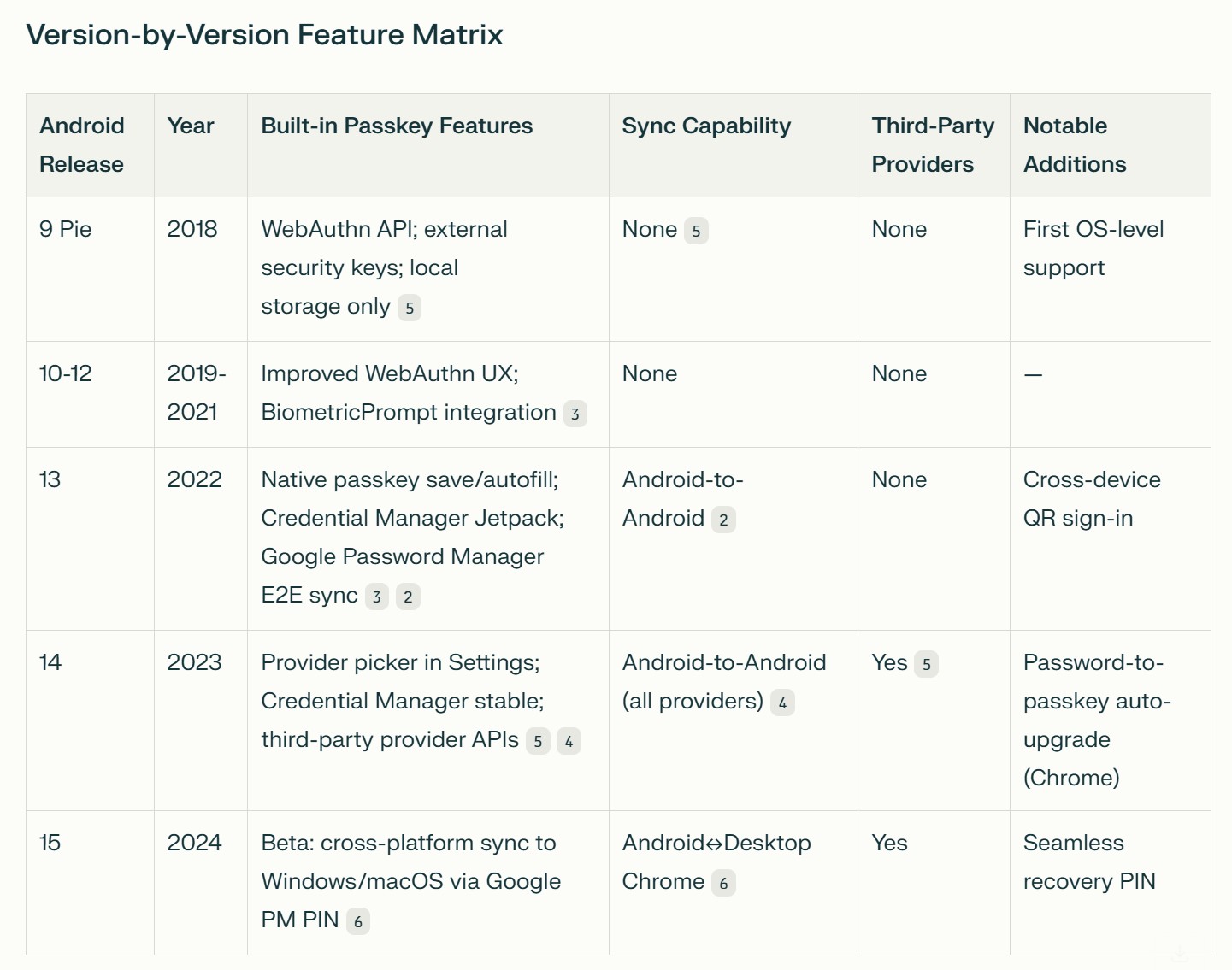
For an Android device to support passkeys, specific software and hardware criteria must be met. Compatibility and features vary depending on the Android version.
Core Requirements
To use passkeys on an Android device, the following are necessary:
- Operating System: The device must be running at least Android 9 (Pie) or a newer version.
- Screen Lock: A secure screen lock method, such as a biometric sensor (fingerprint or facial recognition), a PIN, or a pattern, must be enabled.
- Google Play Services: The device needs an up-to-date version of the Google Play Services app.
- Supported Browser: A compatible web browser is required, such as Chrome 109, Safari 16, Edge 109, Firefox 122, or newer versions
Compatibility Across Android Versions
While the baseline for passkey functionality starts with Android 9, the level of support and features have evolved with subsequent releases.
Passkey Providers and Management
On Android devices, passkeys are managed and stored by a passkey provider.
- Google Password Manager: This is the default provider for devices running Android 13 and later, offering to save and sync passkeys across all Android devices linked to the same Google account.
- Third-Party Password Managers: Starting with Android 14, users can select other password managers to handle their passkeys.
- Credential Manager API: Android apps use the Credential Manager API to support various sign-in methods, including passkeys, in a unified way. This API is supported on devices running Android 9 or higher.
Cryptographic Foundation of Passkeys on Android
Passkeys on Android are built on robust cryptographic principles that prioritize security, privacy, and usability. They leverage public-key cryptography to enable passwordless authentication, drawing from established standards like FIDO2 and WebAuthn. This foundation ensures that passkeys are resistant to common threats such as phishing and credential stuffing, while integrating seamlessly with Android’s hardware security features.
Underlying Standards and Protocols
The cryptographic backbone of passkeys is rooted in industry-standard protocols designed for secure authentication.
- FIDO2 and WebAuthn: Passkeys adhere to the FIDO2 specification, which combines WebAuthn (for web-based authentication) and CTAP2 (Client-to-Authenticator Protocol) for device-server communication. WebAuthn allows browsers and apps to interact with authenticators, enabling the creation and use of cryptographic credentials without passwords.
- Public-Key Cryptography: At its core, this involves asymmetric encryption where a key pair is used—one public and one private. This method ensures that sensitive operations (like signing challenges) occur only on the device, preventing exposure of secrets.
- Attestation Mechanisms: During key generation, Android provides attestation statements that verify the authenticity and security level of the device, helping relying parties (e.g., apps or websites) confirm that the passkey was created on a genuine, secure platform.
These standards make passkeys interoperable across platforms while maintaining high security, as they eliminate the need for shared secrets like passwords.
Security Properties Enabled by Cryptography
The cryptographic design imparts several key security benefits tailored to Android’s ecosystem.
- Phishing Resistance: Keys are bound to specific domains, ensuring they can only authenticate legitimate requests. Cryptographic signatures prevent misuse on fake sites.
- Replay Attack Prevention: Each authentication involves a unique, nonce-based challenge that is signed, making intercepted data useless for future attacks.
- Forward Secrecy and Zero-Knowledge Proofs: The system uses zero-knowledge techniques, where the device proves possession of the private key without revealing it, enhancing privacy.
Android enhances this foundation by tying cryptography to hardware elements like the Trusted Execution Environment (TEE), ensuring keys are protected even if the OS is compromised.
Key Generation Process on Android Devices
Key generation is a critical phase where the Android device creates the cryptographic key pair for a passkey. This process occurs locally, leveraging the device’s secure hardware, and is triggered when a user opts to create a passkey for a supported app or website. It is designed to be efficient, secure, and user-friendly, typically completing in seconds.
Prerequisites for Key Generation
Before generation begins, certain conditions must be met to ensure security and compatibility.
- Device Requirements: Android 9 or later, with an enabled screen lock (biometrics, PIN, or pattern) to protect the generated keys.
- API Integration: The process uses Android’s Credential Manager API, which handles the interaction between the app/website and the device’s authenticator.
- Relying Party Initiation: The app or website (relying party) must support FIDO2/WebAuthn and request key creation, providing details like the domain and user ID.
Step-by-Step Key Generation Flow
The generation process is orchestrated by Android’s security subsystems, ensuring all operations are hardware-protected.
- Initiation and User Consent:
- The relying party sends a creation request via the Credential Manager API, prompting a system dialog for user approval.
- The user authenticates using their screen lock (e.g., via BiometricPrompt for fingerprints or Gatekeeper for PINs), confirming intent without transmitting sensitive data.
- Key Pair Creation:
- Android’s Keystore system generates an asymmetric key pair using algorithms like ECDSA (Elliptic Curve Digital Signature Algorithm) or RSA, compliant with FIDO2 standards.
- Private Key: Created and immediately stored in hardware-backed storage, such as the TEE or StrongBox Keymaster. This key never leaves the device and is encrypted, accessible only after local authentication.
- Public Key: Derived from the private key and prepared for transmission. It includes metadata like the algorithm used and attestation data.
- Attestation and Binding:
- The device attaches a cryptographic attestation, signed by a hardware root of trust, proving the key was generated securely (e.g., in a TEE).
- The key pair is bound to the relying party’s domain, embedding identifiers to prevent cross-origin misuse.
- Transmission and Storage:
- Only the public key and attestation are sent to the relying party’s server over a secure channel (e.g., HTTPS).
- The private key is saved locally in the chosen passkey provider (e.g., Google Password Manager), encrypted for syncing if enabled.
- Completion and Verification:
- The system notifies the user of success, and the passkey is ready for use. A test authentication may occur to validate the setup.
Hardware Integration in Key Generation
Android’s key generation leverages device-specific hardware to enhance security.
- Trusted Execution Environment (TEE): Isolates key operations from the main OS, preventing software-based attacks.
- StrongBox Keymaster: On supported devices (e.g., Pixel series), provides dedicated hardware security modules for even stronger protection against physical attacks.
- Algorithm Flexibility: Supports multiple cryptographic algorithms, with preferences for elliptic curves (e.g., NIST P-256) for efficiency on mobile devices.
Potential Variations and Edge Cases
- Third-Party Providers (Android 14+): Key generation may route through providers like 1Password, which handle storage but still use Android’s Keystore for the actual creation.
- Error Handling: If generation fails (e.g., due to weak screen lock), the system falls back to passwords and logs the issue for debugging.
- Cross-Device Considerations: Generated keys can sync encrypted via providers, but initial creation is always device-local.
This detailed cryptographic foundation and generation process make passkeys a reliable, secure alternative to passwords on Android, balancing advanced security with everyday usability.
Android-Specific Integration Components for Passkeys
Passkeys on Android rely on a set of specialized integration components that work together to enable secure, passwordless authentication. These components are deeply embedded in the Android ecosystem, leveraging hardware and software features to handle key generation, storage, synchronization, and authentication. They are built around standards like FIDO2 and WebAuthn, ensuring compatibility while prioritizing user privacy and security. Below, we explore each major component in detail, including its role, functionality, and practical usage in passkey workflows.
Credential Manager API
Credential Manager API is a Jetpack library for Android that streamlines user authentication by consolidating various sign-in methods into a single, unified interface. It supports traditional passwords, passkeys (a passwordless alternative using biometrics or device locks), and federated options like Sign-in with Google, making it easier for developers to implement secure logins while improving the user experience. Introduced as a replacement for older APIs like Smart Lock for Passwords, it emphasizes security features such as phishing resistance through passkeys and seamless credential syncing.
This API is particularly useful for apps needing robust authentication, as it handles credential creation, storage, and retrieval across devices. By providing a consistent bottom-sheet UI for sign-in prompts, it reduces confusion for users who might otherwise juggle multiple login types. On Android devices running version 9 or higher, it integrates with Google Password Manager for syncing passkeys, allowing access on linked devices without re-entering details.
Key Features of Credential Manager API
Credential Manager stands out for its developer-friendly design and security enhancements. Here’s a breakdown:
- Unified Authentication Support: Combines passwords, passkeys, and federated sign-ins into one API, eliminating the need for separate integrations.
- Passkey Management: Enables creation and storage of passkeys, which use public-key cryptography for secure, biometric-based logins without passwords.
- User Interface Consistency: Displays a standardized bottom-sheet for credential selection, autofill, and saving, improving usability across apps.
- Backward Compatibility: Works on older Android versions via optional Google Play Services integration, extending support to a wider range of devices.
- Provider Flexibility: From Android 14 onward, it allows integration with third-party credential providers, not just Google Password Manager.
- Security Protections: Includes end-to-end encryption for synced credentials and domain-binding to prevent phishing.
These features make it a go-to tool for modernizing app authentication, with ongoing updates like digital credential support in recent betas.
Developers integrate the Credential Manager API to initiate passkey creation or authentication. For example, during registration, an app calls the API to prompt key generation, where the user authenticates via screen lock. In a sign-in flow, the API retrieves stored credentials, presents an account selector, and verifies the user locally before signing a server challenge. This API is protocol-agnostic, treating credential data as opaque blobs, which allows flexibility for custom matchers in advanced scenarios like digital credential management. In practice, apps like those using WebView can extend this API to support embedded authentication, ensuring seamless experiences even in non-native contexts.
Passkey Provider
A passkey provider is the software responsible for storing, syncing, and managing passkeys, acting as a secure vault integrated with Android’s ecosystem. By default, this is Google Password Manager, but Android 14+ allows third-party options like 1Password or Keeper.
Key Features
- Storage and Encryption: Stores private keys in end-to-end encrypted formats, often using hardware-backed mechanisms to prevent unauthorized access.
- Synchronization: Enables cross-device syncing via cloud services, ensuring passkeys are available on all devices linked to the same account.
- Provider Selection: Users can choose or switch providers through system settings, with migration prompts to transfer existing passkeys.
How It Is Used
When creating a passkey, the Credential Manager API routes the process to the selected provider, which generates and stores the key pair. For instance, Google Password Manager encrypts and syncs passkeys across Android devices, allowing recovery on a new phone via account sign-in. In cross-platform scenarios, providers facilitate authentication by handling QR code-based flows or persistent linking. Developers configure this in apps by specifying the provider during API calls, while users manage it via Settings > Passwords, passkeys & accounts, toggling options for seamless integration. This component is crucial for resilience, as it supports revocation and deletion through web portals or app interfaces.
Platform Authenticator
The platform authenticator refers to the Android device itself, which acts as the hardware-based entity for generating and verifying passkeys. It integrates with the device’s security features to perform local authentication without exposing sensitive data.
Key Features
- Local Key Management: Utilizes Android Keystore for hardware-backed storage, often in a Trusted Execution Environment (TEE) or StrongBox for enhanced protection.
- Authentication Methods: Supports biometrics (e.g., fingerprint or face recognition) via BiometricPrompt, or fallback to PIN/pattern through Gatekeeper.
- Cross-Device Capabilities: Enables FIDO Cross-Device Authentication (CDA), allowing the device to authenticate for nearby platforms via Bluetooth Low Energy.
How It Is Used
In passkey flows, the platform authenticator is invoked during registration to create the key pair locally, binding it to the device’s screen lock. For sign-in, it verifies the user on-device and signs server challenges without transmitting the private key. Developers access this through the Credential Manager API, specifying “platform authenticator” in requests for device-bound passkeys. It’s particularly useful in hybrid scenarios, such as scanning a QR code on a desktop to authenticate via the Android phone, ensuring phishing resistance and seamless multi-device use. On Android 15+, it supports improved persistent linking for browsers like Chrome, reducing the need for repeated QR scans.
Integration and Usage in Passkey Workflows
These components interconnect to form a cohesive system for passkey management on Android. A typical workflow begins with the Credential Manager API initiating a request, which engages the platform authenticator for local verification and the passkey provider for storage/sync. For developers, integration involves adding Jetpack dependencies, handling API responses, and ensuring compliance with WebAuthn standards. Users interact via intuitive UIs, like account selectors or provider toggles, making passkeys accessible even for non-technical audiences.
In enterprise or advanced setups, these components support features like credential registration for digital wallets or protocol-agnostic matching for custom authentication. Overall, they enhance security by minimizing attack surfaces while streamlining user experiences, with ongoing updates like Android 15’s cross-platform improvements continuing to evolve their capabilities.
Platform Authenticator in Android Passkeys
The platform authenticator in Android’s passkey system refers to the device itself serving as a built-in security mechanism for generating, storing, and verifying cryptographic credentials. Unlike external hardware tokens (roaming authenticators), the Android device acts as the authenticator, leveraging its hardware and software to enable secure, passwordless authentication via standards like FIDO2 and WebAuthn. This integration simplifies logins while enhancing security, as private keys never leave the device and are protected by local verification methods such as biometrics or PIN.
Core Concept and Functionality
In the FIDO ecosystem, a platform authenticator is an embedded component that performs authentication tasks directly on the user’s device, making it ideal for mobile environments like Android.
- Definition and Role: The Android device functions as the platform authenticator by creating and managing passkey key pairs locally. It handles registration (creating credentials) and assertion (verifying identity) without relying on external devices.
- Key Operations: During passkey creation, the device generates a public-private key pair, stores the private key securely, and sends only the public key to the relying party (e.g., an app or website). For sign-in, it signs server challenges using the private key after local user verification.
- Standards Compliance: This aligns with WebAuthn Level 2, where the authenticator is “platform-attached,” ensuring compatibility with browsers like Chrome 109+ and supporting features like resident keys for multiple credentials.
This setup eliminates the need for separate hardware, making passkeys more accessible on Android 9+ devices.
Integration with Android Hardware and Software
The platform authenticator deeply integrates with Android’s security architecture to ensure robust protection and seamless operation.
Hardware Components
- Trusted Execution Environment (TEE): Isolates key storage and cryptographic operations, preventing access from the main OS. Private keys are generated and signed within the TEE, resisting software exploits.
- StrongBox Keymaster: On supported devices (e.g., Google Pixel), this dedicated hardware module provides enhanced security for key storage, offering resistance to physical attacks like fault injection.
- Biometric Sensors: Fingerprint or facial recognition hardware enables local verification, binding passkeys to the user’s physical presence without transmitting biometric data externally.
Software Components
- Credential Manager API: Serves as the interface for apps to interact with the platform authenticator, handling unified prompts for passkey creation and retrieval.
- Gatekeeper and BiometricPrompt: Manage non-biometric (PIN/pattern) and biometric verification, respectively, ensuring the private key is only unlocked after successful authentication.
- Keystore System: Manages hardware-backed storage of private keys, enforcing policies like key invalidation on device reset.
| Component | Role in Platform Authenticator | Security Benefit |
|---|---|---|
| TEE | Isolates key operations | Protects against OS compromises |
| StrongBox | Dedicated key storage | Resists physical tampering |
| Credential Manager API | Handles user prompts | Ensures consistent, secure flows |
Authentication Flow Using the Platform Authenticator
The process demonstrates how the Android device authenticates without external dependencies.
- Registration: An app requests passkey creation via Credential Manager. The device (as authenticator) generates the key pair, prompts for user verification (e.g., fingerprint), and sends the public key to the server.
- Sign-In: The server issues a challenge; the device verifies the user locally, signs the challenge with the private key, and returns the response.
- Cross-Device Extension: While platform-bound, it supports hybrid flows like QR code scanning for nearby devices, extending authentication without exposing keys.
This flow ensures phishing resistance, as keys are domain-bound and operations are local.
Authentication Flow Architecture of Passkeys on Android
Passkeys on Android enable a secure, passwordless authentication system that integrates cryptographic protocols with device hardware, allowing users to sign in using biometrics, PIN, or pattern. This architecture is built on FIDO2 and WebAuthn standards, involving key components like the Credential Manager API, passkey providers, and the platform authenticator to handle flows from registration to verification.
Core Components in the Architecture
The authentication flow relies on interconnected Android-specific elements that ensure local processing and secure communication.
- Credential Manager API: Acts as the unified interface for initiating and managing authentication requests, consolidating passkeys with other methods like passwords.
- Passkey Provider: Manages storage and syncing of passkeys, defaulting to Google Password Manager but supporting third-party options from Android 14.
- Platform Authenticator: The Android device itself, which generates keys and performs local verification using hardware like Trusted Execution Environment.
- Relying Party (RP): The app or website server that issues challenges and verifies responses, communicating via secure channels.
These components interact to maintain phishing resistance and end-to-end encryption throughout the process.
Registration Flow (Creating a Passkey)
Registration establishes the cryptographic key pair and binds it to the user’s device and account, occurring when a user first sets up a passkey for a service.
Initiation and Request
- The RP (app or website) initiates by calling the Credential Manager API with parameters like RP ID, user details, and excluded credentials to avoid duplicates.
- The API prompts the user via a system dialog, displaying the service’s domain for verification.
User Consent and Local Authentication
- The user confirms via device screen lock, such as fingerprint or PIN, handled by BiometricPrompt or Gatekeeper.
- This step ensures user presence without transmitting biometric data externally.
Key Pair Generation
- The platform authenticator generates a public-private key pair using hardware-backed storage like Android Keystore.
- The private key remains on the device, encrypted and bound to the domain.
Transmission and Storage
- The public key and attestation data are sent to the RP server over HTTPS for storage.
- The passkey provider (e.g., Google Password Manager) encrypts and stores the credential locally, with optional syncing to the cloud.
Completion
- The system notifies success, and the passkey is ready for future use, often with a test authentication.
Authentication Flow (Signing In)
Authentication verifies the user’s identity using the stored passkey, involving a challenge-response mechanism to prevent replays.
Challenge Request
- The RP server generates and sends a unique cryptographic challenge to the app via the Credential Manager API.
- This challenge includes a nonce to ensure freshness and domain binding.
Account Selection
- The API displays an autofill dialog listing available passkeys for the user to select.
- If multiple providers are available (Android 14+), the user chooses one.
Local Verification
- The platform authenticator prompts for screen unlock to access the private key.
- Verification occurs entirely on-device, using biometrics or PIN without sending data to the server.
Cryptographic Signing
- The private key signs the challenge, producing a signed response.
- This signature proves possession without revealing the key.
Server Validation
- The app sends the signed response to the RP server.
- The server verifies it against the stored public key; if valid, access is granted.
Completion
Creating and Saving Passkeys on Android
Passkeys provide a secure, passwordless authentication method on Android devices, leveraging cryptographic key pairs tied to your device’s hardware security. Creating and saving them is a straightforward process integrated into Android’s Credential Manager system, but it requires compatible software and user confirmation. Below, we break down the prerequisites, step-by-step creation process, saving mechanisms, and related considerations in detail.
Prerequisites for Creating Passkeys
Before you can create a passkey, ensure your setup meets these requirements to avoid compatibility issues:
- Device Compatibility: Your Android device must run Android 9 (Pie) or later. Full native support, including syncing, starts with Android 13.
- Screen Lock Enabled: A secure unlock method is mandatory, such as biometrics (fingerprint or facial recognition), PIN, or pattern. This protects the private key.
- Google Play Services: Ensure it’s updated, as it handles the underlying authentication APIs.
- Supported App or Website: The service (relying party) must support FIDO2/WebAuthn standards. Common examples include Google services, Amazon, PayPal, and many banking apps.
- Passkey Provider: By default, Google Password Manager handles saving on Android 13+. From Android 14 onward, third-party options like 1Password or Keeper are available.
- Internet Connection: Required for initial key upload to the relying party’s server, though local generation can occur offline.
If any prerequisite is missing, the creation prompt won’t appear, and you’ll fall back to traditional passwords.
Step-by-Step Process for Creating a Passkey
The creation flow is user-initiated but guided by the app or website. It typically takes under a minute and involves local key generation without exposing sensitive data.
- Navigate to the Supported Service:
- Open the app or website that supports passkeys. For new accounts, this often happens during signup; for existing ones, check account or security settings (e.g., under “Passwordless options”).
- Look for prompts like “Create a passkey” or “Sign in without a password.”
- Initiate the Creation Request:
- The relying party (app/website) calls Android’s Credential Manager API to request a new credential.
- A system dialog or bottom sheet appears, asking if you’d like to create a passkey for that service. This includes the service’s name and domain for verification.
- Select or Confirm the Passkey Provider:
- On Android 13, it defaults to Google Password Manager.
- On Android 14+, a provider picker lets you choose from installed options (e.g., Google, 1Password). If none are selected, it prompts you to set one up.
- Confirm your choice; this determines where the passkey will be saved and synced.
- Authenticate Locally:
- Use your device’s screen lock to approve. This could be a fingerprint scan, face unlock, PIN entry, or pattern draw.
- Authentication occurs entirely on-device via Android’s BiometricPrompt or Gatekeeper system, ensuring no external servers are involved at this stage.
- Generate the Key Pair:
- Once authenticated, Android’s hardware-backed Keystore (using Trusted Execution Environment or StrongBox) generates a unique cryptographic key pair:
- Private Key: Stored securely on your device, never shared.
- Public Key: Sent to the relying party’s server along with attestation data proving the key’s authenticity.
- The process is FIDO2-compliant, binding the passkey to the specific domain to prevent phishing.
- Once authenticated, Android’s hardware-backed Keystore (using Trusted Execution Environment or StrongBox) generates a unique cryptographic key pair:
- Complete and Verify:
- The system confirms successful creation with a notification or on-screen message.
- Test by signing out and back in using the passkey to ensure it works.
Saving and Storage Mechanisms
Saving happens automatically after creation, but the details depend on your Android version and chosen provider. Passkeys are encrypted and stored in a way that prioritizes security and accessibility.
Default Saving with Google Password Manager (Android 13+)
- Local Storage: The private key is saved in the device’s secure Keystore, protected by your screen lock.
- Cloud Backup: An end-to-end encrypted version syncs to your Google account, allowing recovery on other devices.
- Encryption: Uses keys derived from your device unlock method; even Google can’t access the private key.
- Autofill Integration: Once saved, the passkey appears in autofill prompts for that service.
Third-Party Providers (Android 14+)
- Selection: Choose during creation or via Settings > Passwords, Passkeys & Accounts > Password Manager.
- Storage: Providers like 1Password use their own encrypted vaults, often with additional master passwords.
- Sync: Handled by the provider’s cloud service, independent of Google. For example, 1Password syncs across its apps on multiple platforms.
- Migration: If switching providers, Android prompts to transfer existing passkeys securely.

Security Considerations During Creation and Saving
- Phishing Protection: Keys are domain-bound, so they can’t be tricked into signing for fake sites.
- Attestation: Android includes hardware attestation to prove the key was generated on a secure device.
- Privacy: No personal data is stored with the key; it’s purely cryptographic.
- Best Practices:
- Verify the domain in the prompt to avoid malicious sites.
- Use strong biometrics for better security.
- Regularly review saved passkeys in Settings to remove unused ones.
Security Benefits of Using Passkeys on Android
Passkeys on Android devices introduce a passwordless authentication system that leverages cryptographic keys and device hardware for enhanced protection. By replacing traditional passwords with secure key pairs, they address common vulnerabilities like weak credentials and phishing. Below, we explore the key security advantages in detail, focusing on how they mitigate risks and improve overall protection.
Phishing Resistance
One of the primary benefits of passkeys is their inherent defense against phishing attacks, which are a leading cause of data breaches.
- Domain-Bound Authentication: Passkeys are cryptographically tied to the specific domain or app they were created for. This prevents them from being used on fake websites, as the private key won’t sign challenges from unauthorized origins.
- No Shared Secrets: Unlike passwords, which can be tricked out of users via deceptive emails or sites, passkeys never require entering sensitive information. Authentication occurs locally on the device, eliminating the risk of credential interception.
- Replay Attack Prevention: Each sign-in uses a unique, one-time challenge from the server, making it impossible for attackers to reuse captured data.
Protection Against Data Breaches and Leaks
Passkeys minimize the impact of server-side breaches by design, reducing reliance on centralized credential storage.
- No Password Database Risks: Traditional passwords stored on servers can be stolen in bulk during hacks. With passkeys, only the public key is stored remotely, which is useless without the private key on the user’s device.
- End-to-End Encryption for Sync: When synced via Google Password Manager or third-party providers, passkeys are encrypted such that even the provider (e.g., Google) cannot access the private key. This protects against cloud service compromises.
- Hardware-Backed Security: Private keys are stored in Android’s Keystore system, often using Trusted Execution Environment (TEE) or StrongBox hardware, making extraction extremely difficult even if the device is compromised.
Built-In Multi-Factor Authentication
Passkeys inherently incorporate multiple factors of authentication, providing stronger verification without extra steps.
- Possession and Knowledge/Inherence Factors: Access requires both the device (possession) and a successful screen lock unlock (e.g., biometrics like fingerprint or face recognition, or a PIN/pattern as knowledge/inherence). This makes passkeys multi-factor by default.
- Local Verification: Authentication happens on-device via systems like BiometricPrompt or Gatekeeper, reducing exposure to network-based attacks and ensuring no biometric data leaves the device.
Resilience to Device Loss or Theft
Passkeys include features that maintain security even in worst-case scenarios, such as a lost or stolen phone.
- Private Key Isolation: The private key is sealed behind the device’s screen lock and hardware protections. An attacker would need to bypass biometrics or PIN, which is challenging without physical access and time.
- Remote Revocation and Recovery: Users can revoke passkeys via web portals (e.g., g.co/passkeys) and restore them on a new device through encrypted backups. Features like Google Password Manager PIN add an extra layer for cross-device recovery without exposing keys.
- No Single Point of Failure: Since keys are device-bound and synced encrypted, losing one device doesn’t compromise all access—passkeys can be regenerated or restored securely.
Additional Security Enhancements
Beyond core protections, passkeys offer broader improvements to Android’s security ecosystem.
- Reduced Attack Surface: By eliminating password entry, passkeys avoid risks like keyloggers, shoulder surfing, or brute-force attacks on weak passwords.
- Compliance with Standards: Built on FIDO2 and WebAuthn protocols, passkeys ensure interoperability and adherence to industry-best security practices, including hardware attestation to verify device integrity.
- Phishing-Resistant Cross-Device Use: When using passkeys across devices (e.g., scanning a QR code), the process maintains encryption and local signing, preventing man-in-the-middle attacks.
In essence, passkeys on Android shift authentication from vulnerable, user-managed passwords to a robust, device-secured system. This not only simplifies logins but also significantly lowers the risk of common cyber threats, making them a recommended upgrade for enhanced digital security.
Integration of Gatekeeper, Keystore, and TEE in Android Device Security
The integration of Gatekeeper, Android Keystore, and the Trusted Execution Environment (TEE) forms a robust security framework on Android devices. This layered system protects sensitive operations like authentication and key management by isolating them from potential threats in the main operating system. By combining hardware isolation with secure verification and storage, it enhances resistance to attacks, ensures data privacy, and supports features like passkeys. Below, we explore the key ways this integration strengthens overall device security.
Enhanced Isolation and Tamper Resistance
The TEE provides a secure enclave for critical computations, while Gatekeeper and Keystore leverage it to prevent unauthorized access.
- Hardware-Level Isolation: The TEE creates a separate execution domain using technologies like ARM TrustZone, shielding sensitive processes from the Android OS. Gatekeeper runs its verification logic here, ensuring PIN or pattern checks are immune to malware or kernel exploits.
- Key Protection: Keystore stores cryptographic keys in hardware-backed storage within the TEE, making them non-exportable. Gatekeeper’s authentication tokens unlock these keys only after successful verification, preventing extraction even if the device is rooted.
- Tamper Detection: Integration allows for attestation mechanisms where the TEE verifies the integrity of Gatekeeper and Keystore operations, alerting or halting processes if tampering is detected.
This setup significantly reduces the attack surface, as attackers cannot access or manipulate keys or credentials without breaching hardware protections.
Secure Authentication and Access Control
Gatekeeper acts as the verifier for non-biometric locks, feeding into Keystore for controlled access, all orchestrated in the TEE.
- Multi-Layered Verification: Gatekeeper performs HMAC-based credential checks in the TEE, generating signed tokens that Keystore uses to authorize key usage. This ensures that only authenticated users can access protected resources, like passkey private keys.
- Brute-Force Mitigation: Gatekeeper’s throttling (e.g., exponential backoffs on failed attempts) is enforced in the TEE, protecting Keystore-managed keys from exhaustive attacks without relying on vulnerable OS-level controls.
- Fallback and Hybrid Security: In scenarios where biometrics fail, Gatekeeper provides a secure alternative, maintaining Keystore’s access controls and ensuring seamless integration with features like passkeys or app encryption.
These mechanisms enforce strict access policies, making unauthorized entry far more difficult.
Improved Key Management and Cryptographic Operations
Keystore centralizes key handling, with Gatekeeper providing authentication proofs and the TEE ensuring operational security.
- Hardware-Backed Key Storage: Keys generated or stored in Keystore are bound to the TEE, preventing migration or exposure. Gatekeeper’s tokens enable time-bound access, limiting risks from temporary compromises.
- Secure Key Derivation and Signing: Cryptographic tasks, such as signing passkey challenges, occur in the TEE using Keystore-managed keys, verified by Gatekeeper. This supports standards like FIDO2 while resisting side-channel attacks.
- Revocation and Recovery: Integration allows for secure key invalidation (e.g., on password changes) and recovery, where Gatekeeper re-verifies credentials in the TEE before Keystore restores access.
This results in reliable, attack-resistant cryptography essential for modern features like secure boot and encrypted storage.
The combined system not only protects individual components but also elevates overall ecosystem resilience.
Android’s Passkey Integration with Biometric Authentication
Android’s passkey implementation leverages the device’s hardware security features to provide a seamless, passwordless authentication experience. Biometric authentication, such as fingerprint or facial recognition, is deeply integrated into this system, enabling local verification that unlocks passkey private keys without exposing sensitive data. This integration enhances security by combining cryptographic protocols with hardware-rooted biometrics, ensuring passkeys are resistant to phishing and unauthorized access.
Overview of Biometric Authentication in Android
Android’s biometric system uses dedicated hardware sensors and secure processing environments to verify user identity. It supports multiple modalities, including fingerprints, facial scans, and iris recognition, processed in isolated hardware to maintain privacy and integrity.
- Hardware Components: Biometric sensors (e.g., under-display fingerprint readers or front-facing cameras) capture data, which is then matched against enrolled templates stored in secure hardware like the Trusted Execution Environment (TEE).
- Biometric Strength Levels: Android classifies biometrics into classes (e.g., Class 3 for strong, like fingerprints; Class 2 for convenient, like basic face unlock), ensuring only high-security methods are used for sensitive operations like passkeys.
- Fallback Mechanisms: If biometrics fail, the system defaults to non-biometric locks (e.g., PIN via Gatekeeper), maintaining access to passkeys without compromising security.
This foundation allows biometrics to act as a gatekeeper for passkey operations, verifying user presence locally on the device.
Deep Integration with Passkey Implementation
Passkeys on Android use public-key cryptography, where the private key is stored securely and unlocked via biometrics. The integration ensures authentication happens entirely on-device, aligning with FIDO2 and WebAuthn standards for passwordless logins.
BiometricPrompt API Role
The BiometricPrompt API is the central interface for biometric authentication in passkeys, providing a unified, secure prompt for user verification.
- Prompt Invocation: During passkey creation or sign-in, the Credential Manager API triggers BiometricPrompt to display a system dialog, prompting biometric input (e.g., “Place your finger on the sensor”).
- Local Matching: Biometric data is matched against templates in hardware-secured storage, without sending raw data to apps or servers. Successful matches generate authentication proofs that unlock the passkey private key.
- API Compatibility: Supported on Android 9+ with enhancements in Android 11 for stronger biometrics, ensuring passkeys work across devices while enforcing security policies like timeout limits.
This API integrates with the Android Keystore to bind passkey keys to biometric verification, preventing use without user consent.
Hardware Security Features Utilization
Android passkeys exploit device hardware for end-to-end protection, making biometrics an integral part of the security chain.
- Trusted Execution Environment (TEE) Integration: Biometric matching occurs in the TEE, isolating it from the main OS to prevent tampering. For passkeys, this ensures private keys are only signed after TEE-verified biometrics.
- StrongBox Support: On devices like Google Pixel, StrongBox (a dedicated security chip) stores biometric templates and passkey keys, providing resistance to physical attacks and enhancing encryption.
- Sensor and Chipset Collaboration: Hardware sensors feed data to secure processors (e.g., Qualcomm’s Secure Processing Unit), where algorithms like liveness detection prevent spoofing, directly securing passkey authentications.
These features ensure that passkey private keys remain inaccessible without biometric approval, even if the device is compromised.
Security Benefits of Biometric Integration
The fusion of biometrics with passkeys offers multi-layered protection, making it a superior alternative to traditional passwords.
- Phishing and Spoofing Resistance: Biometrics are processed locally, binding passkeys to the device and user, which prevents remote attacks or fake prompts.
- Multi-Factor Inherence: Passkeys inherently include biometrics as an inherence factor (something you are), combined with device possession, providing built-in two-factor security without extra steps.
- Privacy Enhancements: No biometric data leaves the device; templates are encrypted and hardware-protected, complying with regulations like GDPR.
Limitations and Considerations
While powerful, this integration has some constraints tied to hardware and software variability.
- Device Dependency: Not all Android devices support advanced biometrics (e.g., older models may lack Class 3 support), limiting passkey usability to PIN fallbacks.
- Spoofing Risks: Although mitigated by liveness detection, weaker biometrics (e.g., basic face unlock) may be vulnerable, potentially affecting passkey trust.
- Compatibility Across Versions: Full integration requires Android 13+ for native syncing, with third-party biometric providers available from Android 14, but inconsistencies can arise on custom ROMs or non-Google devices.
This deep hardware integration makes Android passkeys a convenient and secure authentication method, leveraging biometrics to simplify logins while upholding robust protection standards.
Hardware-Backed Storage in Android Devices
Hardware-backed storage in modern Android devices provides a secure environment for storing sensitive cryptographic keys, such as those used in passkeys for passwordless authentication. This system leverages specialized hardware to protect keys from extraction or tampering, ensuring they remain isolated even if the device’s software is compromised. By utilizing Trusted Execution Environment (TEE)-based or StrongBox implementations, Android enhances security for features like passkeys, where private keys must never leave the device.
Overview of Hardware-Backed Storage
Hardware-backed storage refers to the use of dedicated hardware components to safeguard cryptographic materials, preventing unauthorized access through physical or software means. In Android, this is managed via the Android Keystore system, which generates, stores, and operates on keys in a protected manner.
- Key Principles: Keys are bound to the device’s hardware, making them non-exportable and resistant to cloning. Operations like signing (e.g., for passkey authentication challenges) occur within the secure environment, reducing exposure risks.
- Relevance to Passkeys: For passkeys, hardware-backed storage ensures the private key is generated and stored securely, unlocked only after local authentication (e.g., biometrics or PIN), aligning with FIDO2 standards for phishing-resistant logins.
- Evolution: Introduced in Android 4.3 with basic Keystore, it advanced with TEE support in Android 6.0 and StrongBox in Android 9.0, supporting devices like Google Pixel series.
This approach minimizes attack surfaces by isolating keys from the main operating system.
TEE-Based Implementations
The Trusted Execution Environment (TEE) is a secure area within the device’s processor that runs isolated code and stores data separately from the Android OS. TEE-based storage uses this enclave for key management, providing a balance of security and performance.
How TEE Works for Key Storage
- Isolation Mechanism: TEE creates a “secure world” using hardware like ARM TrustZone, where the normal OS (rich execution environment) cannot access TEE resources. Keys are stored and processed here, protected by memory isolation and secure boot processes.
- Key Generation and Operations: When creating a passkey, the Keystore API requests the TEE to generate asymmetric keys (e.g., ECDSA). Signing operations for authentication challenges happen entirely within the TEE, ensuring the private key never enters vulnerable OS memory.
- Authentication Binding: Keys can be bound to user verification, requiring Gatekeeper or BiometricPrompt confirmation before use, which is crucial for passkey flows.
Security Features
- Resistance to Attacks: TEE defends against software exploits, rootkits, and some physical attacks by encrypting data at rest and in transit within the hardware.
- Attestation Capabilities: It generates hardware-backed attestations proving key authenticity, used during passkey registration to verify device security to relying parties.
- Compatibility: Available on most modern Android devices, including those from Samsung and Qualcomm chipsets, supporting Android 6.0 and later.
TEE-based storage is efficient for everyday use but may be vulnerable to advanced side-channel attacks if not properly implemented.
StrongBox Implementations
StrongBox is an enhanced hardware security module (HSM) introduced in Android 9.0, offering higher protection than standard TEE by using a dedicated secure element chip. It provides “strong” isolation for the most sensitive keys, such as those in passkeys.
How StrongBox Works for Key Storage
- Dedicated Hardware: StrongBox uses a separate microcontroller or chip (e.g., Titan M in Google Pixel devices) with its own processor, memory, and crypto accelerator, physically isolated from the main SoC.
- Key Lifecycle: For passkeys, StrongBox generates keys using tamper-resistant random number generators. The private key is stored encrypted, with operations like decryption or signing performed solely within the module.
- Integration with Keystore: Developers specify StrongBox via KeyGenParameterSpec in the Keystore API, ensuring passkey keys are hardware-bound and invalidated on events like factory resets.
Security Features
- Advanced Protections: Offers resistance to physical attacks (e.g., fault injection or probing) through features like active shielding and secure boot, exceeding TEE’s capabilities.
- Rate Limiting and Auditing: Built-in mechanisms limit key usage rates, preventing brute-force attempts, and log access for forensic analysis.
- Certification Standards: StrongBox modules often meet Common Criteria EAL4+ or FIPS 140-2 Level 3, providing verifiable security for enterprise or high-stakes passkey use.
StrongBox is optional and device-specific, primarily found in premium models like Pixels, but it significantly bolsters security for passkeys on supported hardware.
Comparison of TEE-Based and StrongBox Implementations
| Feature | TEE-Based | StrongBox |
|---|---|---|
| Isolation Level | Software/hardware hybrid within main SoC | Dedicated secure chip with physical separation |
| Performance | Faster for general use | Slightly slower due to off-chip communication |
| Attack Resistance | Good against software threats; moderate physical | Excellent against both software and advanced physical attacks |
| Availability | Widespread on Android 6.0+ devices | Limited to select models (e.g., Pixel 3+) with Android 9.0+ |
| Use Case for Passkeys | Standard secure storage | High-security scenarios like financial apps |
Both implementations ensure keys are hardware-protected, but StrongBox is preferred for maximum assurance.
Benefits and Implications for Passkey Security
Integrating hardware-backed storage with passkeys provides substantial advantages in a mobile context.
- Enhanced Privacy: Private keys never leave the secure environment, supporting end-to-end encrypted syncing via providers like Google Password Manager.
- Resilience to Compromise: Even if the device is rooted or infected, keys remain inaccessible without hardware breaches, which are resource-intensive.
- User Experience: Enables seamless biometric unlocking for passkeys, reducing reliance on vulnerable passwords while maintaining high security.
This hardware-centric approach makes Android passkeys a reliable option for secure authentication, though effectiveness depends on device capabilities and software updates.
Cloud Synchronization of Passkeys in Google Password Manager
Google Password Manager enables seamless cloud synchronization of passkeys, allowing users to access these secure, passwordless credentials across multiple devices. This feature enhances convenience while maintaining high security standards, ensuring passkeys are backed up and available even if a device is lost or replaced. Below, we explore the process, mechanisms, security features, and practical aspects in detail.
How Cloud Synchronization Works
Passkeys stored in Google Password Manager are automatically synced via Google’s cloud infrastructure, making them accessible on linked devices without manual intervention.
- Initiation and Storage: When you create a passkey on an Android device (running Android 9 or higher with a screen lock enabled), it is saved to Google Password Manager by default. The passkey consists of a public-private key pair, with the private key remaining on the device and an encrypted version backed up to the cloud for syncing.
- Automatic Sync Process: Once saved, passkeys sync across all devices signed into the same Google account. This includes automatic propagation to new devices upon sign-in, ensuring consistent access. For example, a passkey created on an Android phone can be used on another Android device or even desktop platforms like Chrome on Windows.
- Cross-Device Flow: On non-Android devices, you may initially need to scan a QR code from your Android phone to authenticate, but once synced, passkeys become directly available. Synchronization occurs over secure channels, with updates happening in the background via Wi-Fi or mobile data.
This process simplifies logins, as passkeys autofill during sign-in prompts, using your device’s biometric or screen lock for verification.
Cross-Platform and Cross-Device Compatibility
Originally limited to Android, synchronization has expanded to support broader ecosystems as of September 2024.
- Supported Platforms: Passkeys now sync to Windows, macOS, Linux, and Android devices, with ChromeOS in beta and iOS support planned soon. This allows creation and use of passkeys in Chrome on desktops, which then sync back to mobile devices.
- Multi-Device Usage: If you have multiple Android devices, passkeys sync automatically across them. For cross-platform scenarios, such as using a passkey from an Android phone on a Windows PC, the system prompts for verification but enables persistent access after initial setup.
- Limitations: Sync requires the same Google account on all devices, and iOS integration is not yet available. Third-party password managers can be selected on Android 14+ but may not offer identical cloud sync capabilities.
| Platform | Sync Status | Key Requirements |
|---|---|---|
| Android | Fully supported | Android 9+, screen lock |
| Windows/macOS/Linux | Fully supported | Chrome browser, Google account |
Security Features and Encryption
Security is paramount in cloud synchronization, with end-to-end encryption ensuring passkeys remain private and inaccessible to unauthorized parties, including Google.
- End-to-End Encryption: Passkeys are encrypted using keys derived from your device’s screen lock or a dedicated PIN, with private keys never leaving the device in unencrypted form. During sync, only encrypted blobs are uploaded to Google’s cloud, decryptable solely on your authorized devices.
- Google Password Manager PIN: Introduced for enhanced protection, this six-digit (or longer alphanumeric) PIN is required when accessing synced passkeys on a new device. It adds an extra layer, preventing access even if someone gains your Google account credentials. Android devices can alternatively use the original screen lock for recovery.
- Protection Against Threats: Encryption safeguards against data breaches, while features like hardware-backed storage (e.g., TEE or StrongBox) on devices prevent key extraction. If a device is lost, passkeys can be restored on a new one by entering the PIN or original lock, without compromising security.
These measures ensure passkeys are phishing-resistant and secure during transit, with no access possible by Google or external attackers.
Managing Synced Passkeys
Users can easily view, edit, or delete synced passkeys through Google Password Manager interfaces.
- Access and Management: On Android, go to Settings > Passwords (or search for “Passwords”) to view and manage passkeys. On desktops, access via Chrome > More > Passwords and autofill > Google Password Manager > Settings.
- Recovery and Troubleshooting: To restore on a new device, sign into your Google account and verify with the PIN or screen lock. If sync issues arise, ensure devices are online and updated; passkeys remain usable locally even without immediate sync.
- Best Practices: Enable strong biometrics for verification, regularly review synced passkeys, and use the PIN for added security on shared devices.
This cloud synchronization feature, rolled out in September 2024, makes passkeys more versatile across ecosystems, promoting a shift toward passwordless authentication while prioritizing user privacy and security.
How do passkeys stored in Google Password Manager sync securely across different devices
Passkeys in Google Password Manager offer a streamlined way to handle authentication across your devices, syncing them securely so you can log in effortlessly whether you’re on your phone, tablet, or computer. This process relies on Google’s cloud infrastructure but prioritizes privacy and protection, ensuring your passkeys aren’t exposed during transfer or storage. Let’s dive into the details of how this secure syncing happens, focusing on the mechanisms that keep everything locked down.
The Syncing Process Overview
When you create or save a passkey in Google Password Manager on one device, it’s designed to propagate automatically to others linked to your Google account. This isn’t just a simple copy-paste—it’s a controlled, encrypted flow that happens in the background.
- Triggering Sync: Passkeys sync whenever you add or update one, as long as your device is online and signed into your Google account. For instance, if you generate a passkey on your Android phone for a site like Amazon, it becomes available on your linked Windows laptop via Chrome without manual effort.
- Device Linkage: Sync works across Android devices (version 9+), Windows, macOS, Linux, and ChromeOS (with beta support). It uses your Google account as the common thread, pulling encrypted data from Google’s servers to authorized devices.
- Initial Setup on New Devices: When you sign into a new device, Google Password Manager prompts for verification (like your screen lock or a dedicated PIN) before downloading and decrypting the passkeys, ensuring they’re not accessible until you’re confirmed as the owner.
This automation makes switching devices feel seamless, but it’s built on layers of security to prevent any weak links.
Encryption and Key Protection Mechanisms
Security starts with how passkeys are encrypted and handled during sync, making sure no one—not even Google—can peek at your private keys.
- End-to-End Encryption: Passkeys are encrypted using keys derived from your device’s local authentication methods (e.g., biometrics or PIN). Only an encrypted “blob” travels to Google’s cloud; decryption happens solely on your devices after local verification. This means if someone intercepts the data in transit, it’s useless without your device’s unlock method.
- Private Key Isolation: The sensitive private key of a passkey never leaves your original device in plaintext form. Instead, sync shares metadata and public components, with the full passkey reconstructed only on trusted devices using hardware-backed decryption.
- Password Manager PIN: For added safeguarding, especially on non-Android devices, you set a six-digit (or longer) PIN specific to Google Password Manager. This must be entered on first access to synced passkeys, acting as a barrier against unauthorized use even if your Google account is compromised.
These encryption practices align with industry standards like FIDO2, ensuring passkeys remain phishing-resistant throughout the sync cycle.
Cross-Device Security Protocols
Syncing across different devices introduces unique challenges, but Android addresses them with protocols that verify identity and maintain integrity at every step.
- Secure Communication Channels: Data transfers use HTTPS and Google’s authenticated APIs, with additional checks like device attestation to confirm the receiving device is genuine and uncompromised. For example, when syncing to a desktop via Chrome, Bluetooth Low Energy or QR codes may facilitate initial pairing, but ongoing sync relies on encrypted cloud pulls.
- Revocation and Access Controls: If you lose a device, you can remotely revoke access via your Google account settings, invalidating synced passkeys on that hardware. Sync also respects device-specific policies, like requiring biometric confirmation on Android before allowing passkey use on a linked PC.
- Hardware Integration: On Android devices, sync ties into the Trusted Execution Environment (TEE) or StrongBox for key storage, ensuring decrypted passkeys are handled in isolated hardware that resists tampering. This extends to cross-platform use, where a passkey from your phone can securely authenticate a desktop session without exposing keys over the network.
Potential Risks and Mitigation Strategies
While the system is robust, no setup is foolproof, so Google builds in mitigations to handle edge cases.
- Account Compromise Safeguards: Even if an attacker accesses your Google account, the end-to-end encryption and PIN requirement block passkey decryption. Regular security checkups in Google Password Manager can alert you to unusual activity.
- Offline and Recovery Handling: Passkeys work locally even without sync, and recovery on a new device involves verifying your identity through multiple factors, reducing risks from device theft.
- User Controls: You can manage sync preferences in Settings > Passwords on Android or via Chrome’s Password Manager, including opting out of cloud backup if privacy concerns outweigh convenience.
This secure syncing turns passkeys into a truly portable authentication tool, letting you focus on what matters without worrying about the underlying protections. If you’re setting this up, starting with a strong PIN and enabling two-factor on your Google account amps up the safety net.
Examples of Using Passkeys on Android
Passkeys on Android devices enable passwordless authentication for various apps and services, leveraging your device’s biometrics or screen lock for secure, convenient logins. Below, we explore practical examples across different scenarios, highlighting how they work in everyday use. These examples assume an Android device running version 9 or higher with a secure screen lock enabled, and passkeys stored in Google Password Manager for syncing.
Signing Into Google Services
One of the most common uses is for Google accounts, where passkeys simplify access to services like Gmail or YouTube.
- Gmail Login: Open the Gmail app and select your account. Instead of entering a password, authenticate with your fingerprint or face scan. The device signs a server challenge locally, granting access instantly without typing.
- YouTube Account Switch: When switching profiles in the YouTube app, choose the passkey option. Verify with your PIN or biometric, and the app logs you in seamlessly, syncing watch history across devices.
- Google Drive Access: Upload files or view documents by selecting your synced passkey. This is especially useful on shared devices, as the private key remains protected on your phone.
These integrations reduce login friction while providing phishing resistance, as keys are bound to Google’s domain.
App and Website Logins
Passkeys extend to third-party apps and browsers, offering passwordless entry for shopping, banking, and social media.
- Amazon Shopping: In the Amazon app, during checkout or account login, opt for passkey setup. Future logins prompt a biometric scan on your Android device, confirming purchases without passwords and syncing across your phone and tablet.
- Banking Apps (e.g., Chase or PayPal): Set up a passkey in the app’s security settings. For transactions, authenticate locally with face recognition—the app verifies your identity without sending sensitive data, enhancing security for financial activities.
- Social Media (e.g., WhatsApp or TikTok): During initial setup, create a passkey. Subsequent logins use your device’s screen lock, allowing quick access while protecting against unauthorized entry if your phone is lost.
In browsers like Chrome, passkeys autofill on supported sites, with the Android device acting as the authenticator for web-based logins.
Cross-Device and Multi-Platform Scenarios
Passkeys shine in multi-device environments, enabling authentication beyond a single Android phone.
- Desktop Login via QR Code: On a Windows PC, attempt to log into a site like PayPal. Scan the displayed QR code with your Android phone’s camera, then confirm with biometrics. Your phone signs the challenge, granting access to the desktop session.
- Tablet Sync for Productivity Apps: On an Android tablet linked to the same Google account, access synced passkeys for apps like Microsoft Office. Log in to OneDrive by verifying on the tablet’s screen lock, with passkeys pulled from cloud sync.
- Hybrid Use with Non-Android Devices: For macOS Chrome logins, use your Android phone as the authenticator. Select “Use another device” on the Mac, scan the QR, and authenticate locally on your phone to complete the sign-in.
This cross-device capability relies on encrypted syncing, ensuring passkeys remain secure during transfer.
Enterprise and Specialized Use Cases
In professional settings, passkeys support secure access to work tools.
- Corporate Email (e.g., Outlook): In enterprise-managed apps, set up a passkey for Microsoft accounts. Authenticate with your device’s fingerprint to access emails, with IT policies enforcing strong biometrics for compliance.
- VPN Access: For apps like Cisco AnyConnect, create a passkey during setup. Connect to your work network by verifying locally, reducing risks from shared passwords in remote work scenarios.
- Two-Factor Replacement: In apps requiring multi-factor authentication, passkeys serve as both possession and inherence factors, simplifying logins for services like Slack without separate codes.
These examples demonstrate passkeys’ versatility, but availability depends on app support—always check for the “Use passkey” option during login. For optimal use, enable syncing in Google Password Manager and keep your device updated to leverage the latest security enhancements.
end