Usage of netsh interface command in Windows
netsh interface is a command used in the Windows Command Prompt (cmd.exe) or PowerShell to configure and manage network interfaces through the Command Prompt. It allows you to view, set, or modify network interface settings, such as IP addresses, DNS servers, and interface states. Below is a concise overview:
Syntax
- netsh interface [context] [command]
- Context: Specifies the type of interface or protocol (e.g., ipv4, ipv6, portproxy, tcp).
- Command: The action to perform (e.g., show, set, reset).
Common Contexts
- ipv4: Manage IPv4 settings.
- ipv6: Manage IPv6 settings.
- portproxy: Configure port proxy settings.
- http: Manage HTTP settings.
- tcp: Configure TCP parameters.
Common Commands
- show: Displays information (e.g., show interface, show config).
- set: Configures settings (e.g., set address, set dns).
- enable: Enables an interface.
- disable: Disables an interface.
- reset: Resets interface configurations.
Examples
- Show all network interfaces:
- netsh interface show interface
Output: Lists all network interfaces with their status (enabled/disabled, connected/disconnected).
2. Set a static IP address:
- netsh interface ipv4 set address name=”Ethernet” source=static address=192.168.1.100 mask=255.255.255.0 gateway=192.168.1.1
3. Enable an interface:
- netsh interface set interface “Wi-Fi” enabled
4. Set DNS server:
- netsh interface ipv4 set dns name=”Ethernet” source=static address=8.8.8.8
Use of the Windows Command: netsh interface ipv4 show interfaces
The Windows command netsh interface ipv4 show interfaces is a powerful tool used to display detailed information about the IPv4 network interfaces on a system. It is part of the netsh (Network Shell) utility, which allows users to configure and monitor network settings from the command line. This command provides a snapshot of the current status and basic configuration of all IPv4 network interfaces, making it a valuable resource for troubleshooting, network management, and configuration verification.
What Does the Command Do?
When you run netsh interface ipv4 show interfaces, it generates a table listing all IPv4 network interfaces on the system—both physical (e.g., Ethernet or Wi-Fi adapters) and virtual (e.g., VPN connections or the loopback interface). The output includes key details such as:
- Interface Index (Idx): A unique number assigned to each interface, used to reference it in other commands or scripts.
- Metric (Met): The routing metric, which indicates the priority of the interface for sending network traffic (lower values mean higher priority).
- Maximum Transmission Unit (MTU): The maximum packet size (in bytes) the interface can handle without fragmentation.
- State: Whether the interface is “connected” (active) or “disconnected” (inactive).
- Name: A descriptive name for the interface, such as “Wi-Fi,” “Ethernet,” or “Loopback Pseudo-Interface 1.”

How to Use It
To run the command:
- Open Command Prompt:
- Press Win + R, type cmd, and press Enter. No administrative privileges are needed since it only displays information.
- Type the command:
netsh interface ipv4 show interfaces - Press Enter to view the output.
Practical Uses
The netsh interface ipv4 show interfaces command serves several purposes, making it useful for both casual users and IT professionals:
- Checking Interface Status
- Quickly see which interfaces are connected or disconnected. For instance, if “Ethernet” shows as “disconnected,” it might indicate a loose cable or disabled adapter.
- Identifying Interfaces
- Retrieve the index and name of each interface. This is essential for further configuration tasks, such as enabling/disabling an interface or adjusting its settings using other netsh commands.
- Verifying Routing Priorities
- The metric value shows how the system prioritizes interfaces for network traffic. If both Wi-Fi and Ethernet are connected, the one with the lower metric is preferred.
- Troubleshooting Network Issues
- Use the state and MTU to diagnose connectivity problems. For example, an incorrect MTU might cause performance issues, or a “disconnected” state could pinpoint a hardware failure.
- Scripting and Automation
- The command’s text-based output can be used in scripts to automate network monitoring or perform actions based on interface status (e.g., alerting if Wi-Fi disconnects).
Netsh command to display current runtime configuration about a specific IPv4-enabled network interface
The command netsh interface ipv4 show interfaces interface=[interface_name or index] level=verbose store=active is used in Windows to display detailed information about a specific IPv4-enabled network interface. By specifying the interface (via its name or index), setting the detail level to verbose, and targeting the active configuration store, this command provides comprehensive details about the interface’s configuration, status, and metrics. The verbose option ensures that all available details are included, making it particularly useful for troubleshooting, scripting, or auditing network configurations. The store=active parameter ensures the output reflects the interface’s current runtime state, which may differ from the persistent configuration if temporary changes have been made (e.g., via a script or manual intervention).
Command Breakdown
Let’s break down the command components:
- netsh: The Windows command-line utility for managing network configurations.
- interface ipv4: Specifies the context for IPv4-related interface commands.
- show interface: Displays information about network interfaces.
- [interface_name_or_index]: Identifies the specific interface to display, either by its name (e.g., “Wi-Fi”, “Ethernet”) or its index (e.g., 17).
- level=verbose: Requests detailed output, including additional parameters not shown in the default normal level.
- store=active: Specifies that the command should display the current (active) configuration, as opposed to the persistent (saved) configuration that applies after a reboot.
Syntax
netsh interface ipv4 show interfaces [[interface=]<interface_name or index>] [[level=]normal|verbose] [[store=]active|persistent]- [interface=]<interface_name or index>: The name (e.g., “Wi-Fi”) or index (e.g., 17) of the interface. If omitted, the command lists all interfaces.
- level=normal|verbose: Controls the detail level. normal provides a concise summary; verbose includes additional details like interface type, MTU, and metrics.
- store=active|persistent: Specifies whether to show the current runtime configuration (active) or the saved configuration (persistent). The default is active.
Example_1
To display current runtime configuration about a specific IPv4-enabled network interface, user must know the name of the network interface or the Interface Index (Idx).
In this case the name of the IPv4-enabled network interface is “IntelAx” and the Interface Index (Idx) is “16“.
The command to show detailed info is : netsh interface ipv4 show interfaces interface=”IntelAX” level=verbose store=active

Detailed Explanation of Parameters
| Parameter | Description |
|---|---|
| IfLuid | A unique identifier (Locally Unique Identifier) assigned to the network interface by the system. |
| IfIndex | The index number of the interface, used to reference it in commands. |
| State | Indicates whether the interface is up (connected) or down (disconnected). |
| Metric | The cost associated with using this interface; lower values are preferred. |
| Link MTU | Maximum Transmission Unit for the link. Defines the largest packet size that can be transmitted without fragmentation. |
| Reachable Time | The time (in ms) that a neighbor is considered reachable after it has been confirmed as reachable. |
| Base Reachable Time | The base time (in ms) used to calculate the Reachable Time dynamically. |
| Retransmission Interval | Interval (in ms) between Neighbor Solicitation messages during address resolution. |
| DAD Transmits | Number of Duplicate Address Detection attempts to ensure an IP address is not already in use. |
| Site Prefix Length | Default prefix length used for address configuration within a site. |
| Site Id | Identifier for the local site the interface belongs to, used for site-local addressing. |
| Forwarding | Indicates whether this interface forwards packets to other interfaces (routing). |
| Advertising | Whether the interface advertises itself as a router (typically disabled unless acting as a router). |
| Neighbor Discovery | Indicates if IPv4 Neighbor Discovery is enabled (important for resolving MAC addresses). |
| Neighbor Unreachability Detection | Determines if NUD is active; this helps in detecting unreachable neighbors. |
| Router Discovery | Whether the interface participates in IPv4 router discovery. |
| Managed Address Configuration | Specifies if addresses are configured via DHCPv4 or another managed method. |
| Other Stateful Configuration | Indicates if other information (e.g., DNS servers) is configured using DHCP or similar. |
| Weak Host Sends | Allows the interface to send packets even if the source IP doesn’t match the interface. |
| Weak Host Receives | Allows the interface to receive packets for IPs that aren’t assigned to it. |
| Use Automatic Metric | Indicates whether Windows automatically calculates the interface metric. |
| Ignore Default Routes | If enabled, default routes from this interface are ignored in routing decisions. |
| Advertised Router Lifetime | Time (in seconds) that the interface is considered a router if advertising is enabled. |
| Advertise Default Route | Specifies if the interface advertises itself as a default gateway. |
| Current Hop Limit | Default TTL (Time-To-Live) value used for outbound packets. |
| Force ARPND Wake Up Patterns | Enables pattern matching on ARP/ND packets to wake the system from low power states. |
| Directed MAC Wake Up Patterns | Allows directed MAC address packets to wake the machine from sleep. |
| ECN Capability | Indicates if Explicit Congestion Notification is enabled (used for TCP/IP congestion management). |
| RA Based DNS Config (RFC 6106) | Enables configuration of DNS information via Router Advertisements. |
| DHCP/Static IP Coexistence | Determines whether static IP and DHCP can coexist on the interface. |
Key Considerations
- Verbose Mode:
- The level=verbose option significantly increases the amount of information displayed, including performance statistics and hardware details. This is useful for in-depth analysis but may be overwhelming for quick checks. Use level=normal for a concise summary if detailed stats are not needed.
- Interface Name vs. Index:
- You can specify the interface by its name (e.g., “Wi-Fi”) or index (e.g., 17). The index is useful for scripting, as names may vary across systems or languages.
- To find the index, run netsh interface ipv4 show interfaces to list all interfaces with their indices.
Usage of the Command: netsh interface ipv4 set interface
The Windows command netsh interface ipv4 set interface is a powerful tool used to configure various settings for IPv4 network interfaces. It allows administrators to fine-tune how a specific network interface behaves with respect to routing, packet handling, and other network-related functionalities.
Syntax
The general syntax for the command is:
- netsh interface ipv4 set interface [interface=]<interface_name_or_index> [[store=]active|persistent] [parameter=value] …
- Parameters
- [interface=]<interface_name_or_index>: Specifies the interface to configure. Required. Can be:
- The interface name (e.g., “Ethernet”, “Wi-Fi”).
- The interface index (a numeric ID, obtainable from netsh interface ipv4 show interfaces).
- [[store=]active|persistent]: Specifies where to apply the configuration.
- [interface=]<interface_name_or_index>: Specifies the interface to configure. Required. Can be:
You specify the interface to configure (by name or index) and then provide one or more parameters with their desired values.

Parameter Descriptions
| Parameter | Description |
|---|---|
interface | Identifies the network interface to be configured (by name or index). |
forwarding | Enables or disables IP forwarding. When enabled, the system can forward packets between interfaces, allowing it to act as a router. |
advertise | Controls whether router advertisements (RAs) are sent from this interface. Useful in router setups. Disabled by default. |
mtu | Sets the Maximum Transmission Unit in bytes for the interface. If not set, the system uses the natural MTU of the link (e.g., 1500 for Ethernet). |
metric | Defines the interface metric, which is used in routing decisions. Lower values have higher priority. |
siteprefixlength | Specifies the prefix length for the site when using global addresses. Influences address aggregation and routing decisions. |
nud | Enables or disables Neighbor Unreachability Detection, which ensures the reachability of neighbors. |
basereachable | Sets the base reachable time (in milliseconds) used by NUD. Determines how long a neighbor is considered reachable. |
retransmittime | Specifies the time between retransmissions of neighbor solicitations (in ms). Impacts how quickly lost neighbors are retried. |
dadtransmits | Number of Duplicate Address Detection (DAD) messages sent. A value of 0 disables DAD. |
routerdiscovery | Controls router discovery: can be enabled, disabled, or controlled by DHCP. |
managedaddress | Enables stateful address configuration (typically via DHCP). Note: No effect if routerdiscovery=enabled and advertise=disabled; controlled by router discovery in that case.. |
otherstateful | Enables collection of other stateful information (e.g., DNS via DHCP). Similar limitations as managedaddress. |
weakhostsend | Enables weak host send mode. Allows an interface to send packets using IP addresses not assigned to that interface. |
weakhostreceive | Enables weak host receive mode. Allows receipt of packets for IPs bound to other interfaces. |
ignoredefaultroutes | When enabled, ignores default routes advertised on this interface. Useful in multi-homed scenarios. |
advertisedrouterlifetime | Sets the router lifetime (in seconds) advertised to hosts. Default is 1800 seconds (30 minutes). |
advertisedefaultroute | Controls whether this interface advertises itself as a default router. |
currenthoplimit | Sets the default Hop Limit value for outgoing packets from this interface. |
store | Determines whether the change is temporary or persistent:active — lasts until reboot,persistent — survives reboots. |
forcearpndwolpattern | Enables wake-on-LAN (WoL) patterns for ARP and neighbor discovery traffic. |
enabledirectedmacwolpattern | Enables WoL on directed MAC patterns, allowing a system to wake up from sleep on specific Ethernet frames. |
ecncapability | Enables Explicit Congestion Notification (ECN) marking on outgoing packets for better congestion control. |
rabaseddnsconfig | Enables RA-based DNS configuration (per RFC 6106). Allows DNS info to be received via RAs. |
dhcpstaticipcoexistence | Enables coexistence of DHCP and static IP on the same interface. Useful for advanced or transitional configurations. |
Usage Examples
- Set the MTU for an interface (active configuration):
- netsh interface ipv4 set interface interface=Ethernet mtu=1400 store=active
- Sets the MTU to 1400 bytes for the “Ethernet” interface in the current session.
- Output: Ok.
- netsh interface ipv4 set interface interface=Ethernet mtu=1400 store=active
2. Set the metric for an interface (persistent configuration):
- netsh interface ipv4 set interface interface=Wi-Fi metric=10 store=persistent
- Sets the routing metric to 10 for the “Wi-Fi” interface and saves it across reboots.
- Output: Ok.
Usage of the Command: netsh interface ipv6 show interfaces
The Windows command netsh interface ipv6 show interfaces is part of the netsh (Network Shell) utility and is used to display detailed information about the IPv6 network interfaces on a system. This command provides a snapshot of the status, configuration, and properties of all IPv6-capable network interfaces, including both physical adapters (e.g., Ethernet, Wi-Fi) and virtual interfaces (e.g., loopback, VPN connections). It is an essential tool for network administrators, IT professionals, and advanced users who need to manage or troubleshoot IPv6 connectivity.
Below, I’ll elaborate on the purpose, output, and practical uses of the netsh interface ipv6 show interfaces command, ensuring a comprehensive and accurate response.
What Does the Command Do?
The netsh interface ipv6 show interfaces command retrieves and displays configuration and status information for all IPv6 network interfaces on the system. It focuses on IPv6-specific settings and properties, such as connectivity status, routing metrics, and IPv6 protocol-related configurations. The output is presented in a tabular format, making it easy to review the state and settings of each interface.
The command is particularly useful in environments where IPv6 is deployed, as it helps verify whether interfaces are properly configured for IPv6, check their operational status, and troubleshoot connectivity issues.
Information Displayed
When you execute netsh interface ipv6 show interfaces, the command generates a table with the following key details for each IPv6 interface:
- Idx: The interface index, a unique number assigned to each interface, used for reference in other
netshcommands or scripts. - Met: The routing metric, which determines the preference of the interface for routing IPv6 traffic (lower values indicate higher priority).
- MTU: The Maximum Transmission Unit, indicating the maximum packet size (in bytes) the interface can handle for IPv6 traffic. IPv6 requires a minimum MTU of 1280 bytes.
- State: The operational status of the interface, such as “connected” (active and linked to a network) or “disconnected” (inactive or no link).
- Name: The descriptive name of the interface, such as “Wi-Fi,” “Ethernet,” “Local Area Connection,” or “Loopback Pseudo-Interface 1.”
Example Output (simplified):
Idx       Met                MTU               State                                    Name
---       ----------    --------------------     ---------------          ------------------------------------------------
  1           50        4294967295       connected          Loopback Pseudo-Interface 1
 12          25                    1500        connected          Wi-Fi
 10          35                    1500        disconnected     Ethernet
In this example:
- The loopback interface is always connected with a large MTU and a metric of 50.
- The Wi-Fi interface is connected with a metric of 25 and an MTU of 1500.
- The Ethernet interface is disconnected, indicating no active link.
Additional Notes on Output:
- The output focuses on IPv6-specific settings, but the interfaces listed are typically the same as those for IPv4, as most modern adapters support both protocols.
- If IPv6 is disabled on an interface or system-wide, the command may show limited or no IPv6-specific information for those interfaces.
- The MTU value reflects the configured MTU for the interface, which must comply with IPv6’s minimum requirement of 1280 bytes.
Primary Uses of the Command
The netsh interface ipv6 show interfaces command serves several practical purposes, making it valuable for network management and troubleshooting. Below are the key use cases:
- Checking IPv6 Interface Status
- The command quickly shows whether IPv6 interfaces are connected or disconnected, helping identify issues like a disabled adapter, unplugged cable, or network disconnection.
- Example: If the Wi-Fi interface shows as “disconnected,” it may indicate a physical issue (e.g., no Wi-Fi signal) or a configuration problem (e.g., IPv6 disabled).
- Verifying IPv6 Configuration
- The command displays critical configuration details like MTU and metric, which are essential for ensuring IPv6 traffic is handled correctly.
- Example: An MTU below 1280 could cause IPv6 packets to be dropped, signaling a need to adjust the interface settings.
- Managing Routing Priorities
- The metric value indicates which interface is preferred for IPv6 traffic when multiple interfaces are active (e.g., Wi-Fi and Ethernet). This is crucial in multi-homed systems to ensure traffic uses the desired path.
- Example: If Wi-Fi has a lower metric (e.g., 25) than Ethernet (e.g., 35), IPv6 traffic will prioritize Wi-Fi.
- Troubleshooting IPv6 Connectivity
- By checking the state, MTU, and metric, users can diagnose IPv6-specific issues, such as failure to connect to IPv6-enabled websites or services.
- Example: A disconnected interface or incorrect metric could explain why a system cannot reach an IPv6-only server.
- Identifying Interfaces for Configuration
- The command provides the interface name and index, which are needed for other
netshcommands to configure or modify IPv6 settings (e.g., enabling/disabling IPv6, setting MTU). - Example: To change the MTU for the Wi-Fi interface, you need its name (“Wi-Fi”) or index (e.g., 12).
- The command provides the interface name and index, which are needed for other
- Scripting and Automation
- The text-based output is easily parsed in scripts or batch files, enabling automation of network monitoring tasks, such as checking interface status or logging connectivity changes.
- Example: A script could alert administrators if any IPv6 interface becomes disconnected.
- Auditing Network Setup
- In enterprise environments, the command helps verify that IPv6 is properly enabled and configured across systems, ensuring compliance with network policies.
- Example: An administrator might use it to confirm that all client machines have IPv6 enabled with appropriate MTUs.
How to Use the Command
To run netsh interface ipv6 show interfaces, follow these steps:
- Open Command Prompt:
- Press
Win + R, typecmd, and press Enter. Administrative privileges are not required, as this command only displays information.
- Press
- Execute the Command:
- Type:
netsh interface ipv6 show interfaces - Press Enter to view the output.
- Type:
- Filter the Output (Optional):
- To focus on a specific interface, use
findstrto filter the results. For example:netsh interface ipv6 show interfaces | findstr "Wi-Fi"
This displays only the Wi-Fi interface’s details.
- To focus on a specific interface, use
Practical Scenarios
Here are real-world examples of how the command is used:
- Diagnosing IPv6 Connectivity Issues:
- A user cannot access an IPv6-only website. They run
netsh interface ipv6 show interfaces and notice the Wi-Fi interface is “disconnected.” This prompts them to check the Wi-Fi connection or enable IPv6 on the adapter.
- A user cannot access an IPv6-only website. They run
- Troubleshooting MTU Issues:
- A user experiences slow IPv6 performance. Running the command reveals an MTU of 1280 on the Wi-Fi interface, lower than the network’s standard 1500. They adjust the MTU using
netsh interface ipv6 set interfaceto improve performance.
- A user experiences slow IPv6 performance. Running the command reveals an MTU of 1280 on the Wi-Fi interface, lower than the network’s standard 1500. They adjust the MTU using
Additional Notes
- IPv6-Specific Focus:
- The command is tailored to IPv6, unlike
netsh interface ipv4 show interfaces, which focuses on IPv4. However, the interfaces listed (e.g., Wi-Fi, Ethernet) are typically the same, as most adapters support both protocols. - If IPv6 is disabled system-wide (e.g., via registry settings) or on specific interfaces, the command may show limited information or indicate that IPv6 is not operational.
- The command is tailored to IPv6, unlike
- No Administrative Privileges Required:
- Since the command only retrieves information, it can be run by standard users without elevated permissions.
- Driver and Hardware Dependency:
- The accuracy of the output depends on the network adapter’s driver. Modern adapters support IPv6 natively, but outdated drivers may report incorrect MTUs or limited IPv6 capabilities.
Conclusion
The netsh interface ipv6 show interfaces command is a critical tool for managing and troubleshooting IPv6 network interfaces on a Windows system. By displaying details like interface status, routing metrics, MTU, and names, it helps users verify IPv6 connectivity, prioritize interfaces for routing, and diagnose issues in IPv6-enabled networks. Whether you’re a home user checking Wi-Fi status, an administrator deploying IPv6 in an enterprise, or a developer scripting network automation, this command provides essential insights into the IPv6 configuration of your system. Its simplicity and text-based output make it versatile for both manual use and integration into automated workflows.
Netsh command to display detailed current(active) runtime configuration of a specific IPv6-enabled network interface
The command netsh interface ipv6 show interfaces interface= <interface_name_or_index> level=verbose store=active is used in Windows to display detailed information about a specific IPv6-enabled network interface. By specifying the interface (via its name or index), setting the detail level to verbose, and targeting the active configuration store, this command provides comprehensive details about the interface’s IPv6 configuration, status, and metrics.
Command Breakdown
Let’s dissect the components of the command:
- netsh: The Windows command-line utility for managing network configurations.
- interface ipv6: Specifies the context for IPv6-related interface commands.
- show interfaces: Displays information about network interfaces configured for IPv6.
- interface=<interface_name_or_index>: Identifies the specific interface to display, either by its name (e.g., “Wi-Fi”, “Ethernet”) or its index (e.g., 17).
- level=verbose: Requests detailed output, including additional parameters not shown in the default normal level.
- store=active: Specifies that the command should display the current (active) runtime configuration, as opposed to the persistent (saved) configuration that applies after a reboot.
Syntax
netsh interface ipv6 show interfaces [[interface=]<string>] [[rr=]<integer] [[level=]normal|verbose] [[store=]active|persistent]
Parameters
- [[interface=]<string>]: Specifies the name of the network interface (e.g., “Ethernet”, “Wi-Fi”) or index (e.g., 17). If omitted, all IPv6 interfaces are shown.
- [[rr=]<integer>]: Specifies the Router Reachable time in milliseconds. This parameter is rarely used in show commands and may not affect the output directly; it is more relevant for configuration commands. If omitted, it does not impact the display.
- [[level=]normal|verbose]: Controls the detail level of the output.
- normal: Displays standard details (default).
- verbose: Includes additional details, such as packet statistics and timing parameters.
- [[store=]active|persistent]: Specifies which configuration to display.
- active: Shows the current active configuration (default).
- persistent: Shows the configuration stored for use after a reboot.
Example_1
To display the current active configuration information about a specific IPv6-enabled network interface, user must know the name of the network interface or the Interface Index (Idx).
Command to display the interface name and interface index of network interface in the system: netsh interface ipv6 show interface
In this case the name of the IPv6-enabled network interface is “IntelAx” and the Interface Index (Idx) is “16“.
The command to show current active configuration is : netsh interface ipv6 show interfaces interface=”IntelAX” level=verbose store=active

Detailed Explanation of Parameters
| Parameter | Description |
|---|---|
| IfLuid | Interface Locally Unique Identifier – a unique identifier for the interface used internally by the system. |
| IfIndex | Interface Index – numerical index used to refer to the interface in networking commands. |
| State | Indicates whether the interface is connected, disconnected, or disabled. |
| Metric | Interface metric value used to prioritize routes; lower metrics are preferred. |
| Link MTU | Maximum Transmission Unit for the link, defining the largest IPv6 packet that can be sent without fragmentation. |
| Reachable Time | Time (in ms) that a neighbor is considered reachable after it has been verified. |
| Base Reachable Time | Base time (in ms) used to compute Reachable Time for Neighbor Unreachability Detection (NUD). |
| Retransmission Interval | Interval (in ms) between sending neighbor solicitation messages for address resolution. |
| DAD Transmits | Number of Duplicate Address Detection (DAD) attempts to ensure an IPv6 address is unique. |
| Site Prefix Length | Default prefix length used for address generation within a site (commonly 64 for IPv6). |
| Site Id | Identifier of the local site to which this interface belongs; used in site-local addressing. |
| Forwarding | Indicates if the interface can forward IPv6 packets (enabled for routers, disabled for hosts). |
| Advertising | Shows whether the interface sends router advertisements (typically disabled unless the host is a router). |
| Neighbor Discovery | Indicates whether IPv6 Neighbor Discovery is enabled, which handles address resolution and router discovery. |
| Neighbor Unreachability Detection | Specifies if the system checks whether neighbors are still reachable. |
| Router Discovery | Indicates if the system listens for and processes IPv6 router advertisements. |
| Managed Address Configuration | If enabled, IPv6 addresses are assigned through a DHCPv6 server (stateful configuration). |
| Other Stateful Configuration | Indicates whether the interface uses DHCPv6 to obtain additional configuration like DNS. |
| Weak Host Sends | Allows the interface to send packets with source addresses not bound to it (may introduce security risks). |
| Weak Host Receives | Allows the interface to accept packets for addresses not assigned to it. |
| Use Automatic Metric | When enabled, Windows automatically assigns the interface metric based on link speed. |
| Ignore Default Routes | If enabled, the system ignores default routes learned via this interface. |
| Advertised Router Lifetime | Duration (in seconds) that a router is considered valid when this interface advertises itself as a router. |
| Advertise Default Route | If enabled, the interface advertises itself as a default gateway in router advertisements. |
| Current Hop Limit | Default hop limit (similar to TTL in IPv4) set in the header of outbound IPv6 packets. |
| Force ARPND Wake Up Patterns | Enables the use of address resolution or neighbor discovery packet patterns to wake the system from sleep. |
| Directed MAC Wake Up Patterns | Enables wake-on-LAN using direct MAC address packets. |
| ECN Capability | Indicates whether Explicit Congestion Notification is enabled for the interface. |
| RA Based DNS Config (RFC 6106) | Enables the use of Router Advertisements for delivering DNS configuration (RFC 6106). |
| DHCP/Static IP Coexistence | Determines whether DHCP-assigned and statically assigned IPv6 addresses can coexist on this interface. |
Usage of the Command: netsh interface ipv6 set interface
The Windows command netsh interface ipv6 set interface is a powerful tool within the netsh (Network Shell) utility, designed to configure settings for IPv6 network interfaces on a Windows system. It allows administrators to customize how a specific interface handles IPv6 traffic, including routing behavior, address configuration, packet handling, and more. This command is particularly useful in environments where IPv6 is deployed, providing granular control over interface properties.
Overview of the Command
The netsh interface ipv6 set interface command modifies the configuration of a specified IPv6 interface. It is part of the broader netsh framework, which manages network settings via the command line.
The command’s syntax is:
- netsh interface ipv6 set interface [interface_name_or_index] [parameter=value] …
- [interface_name_or_index]:Specifies the interface to configure. Required. Can be:
- The interface name (e.g., “Ethernet”, “Wi-Fi”).
- The interface index (a numeric ID, obtainable from netsh interface ipv6 show interfaces).
- [[store=]active|persistent]: Specifies where to apply the configuration.
- active: Applies the setting to the current session only (default). Changes are lost after a reboot.
- persistent: Saves the setting to persist across reboots.
- [parameter=value]: Specifies one or more settings to adjust, as detailed below.
- [interface_name_or_index]:Specifies the interface to configure. Required. Can be:

Parameter Descriptions
| Tag | Value/Description |
|---|---|
| interface | The name or numeric index of the interface to be configured (e.g., "Ethernet", "Wi-Fi"). This is used to uniquely identify which network adapter the settings will apply to. |
| forwarding | Enables or disables IPv6 packet forwarding on the interface. When enabled, the interface forwards incoming packets to other interfaces, effectively making the system act as an IPv6 router. This is useful in routing or multi-homed environments. Values: enabled | disabled Default: disabled (routing is off unless explicitly enabled). |
| advertise | Controls whether the interface sends IPv6 router advertisements (RAs). These are essential for Stateless Address Autoconfiguration (SLAAC). By default, advertisement is disabled. Enabling it causes the interface to participate in network prefix dissemination. Values: enabled | disabled Default: disabled |
| mtu | Sets the Maximum Transmission Unit for the interface. If not set, the system uses the natural MTU of the link (for Ethernet, typically 1500 bytes). Adjusting the MTU can help optimize performance or work around issues in certain network paths. Values: Integer (e.g., 1280, 1500) Note: IPv6 requires a minimum MTU of 1280 bytes. |
| metric | Defines the interface metric, which is added to the route metrics for all routes that use this interface. A lower metric gives higher priority when the routing engine selects a route. Values: Integer (e.g., 10) |
| siteprefixlength | Specifies the default length of the global prefix for the site. This setting is relevant in scenarios where an interface participates in IPv6 site-local addressing or when multiple global addresses are managed in the network. Values: Integer (e.g., 64) Example: siteprefixlength=64 sets a 64-bit prefix, common for global IPv6 addresses. |
| nud | Determines whether Neighbor Unreachability Detection is enabled. NUD helps the host detect when a neighboring node becomes unreachable, ensuring that stale entries are updated or removed. The default state depends on the type of interface and its network role. Values: enabled | disabled |
| basereachable | Sets the base reachable time in milliseconds. This value indicates how long a neighbor is considered reachable before a new discovery process begins. Values: Integer (e.g., 30000) Example: basereachable=30000 (30 seconds). |
| retransmittime | Defines the retransmission time in milliseconds. This parameter controls the interval between retransmission attempts for neighbor solicitation messages during address resolution or duplicate address detection. Values: Integer (e.g., 1000) Example: retransmittime=1000 sets a 1-second interval. |
| dadtransmits | Specifies the number of Duplicate Address Detection (DAD) attempts to be performed. A value of 0 indicates that DAD is disabled. DAD is used to ensure the uniqueness of an IPv6 address before it is assigned to an interface. Values: Integer (e.g., 1); 0 disables DAD. Example: dadtransmits=0 skips DAD, though this is rare due to IPv6’s uniqueness requirements. |
| routerdiscovery | Controls IPv6 router discovery behavior. It can be set to enabled, disabled, or controlled by DHCP. This parameter dictates whether the interface actively participates in discovering routers via RAs.Values: enabled | disabled | dhcp Example: routerdiscovery=dhcp delegates discovery to DHCP settings. managedaddress |
| managedaddress | Enables managed address configuration, typically signaling that stateful configuration via DHCPv6 is in use. Note that if router discovery is enabled and advertisement is disabled, the management of this parameter might be controlled automatically by the discovery process. Values: enabled | disabled Note: Ignored if routerdiscovery=enabled and advertise=disabled; controlled by router discovery in that case. Example: managedaddress=enabled enables DHCPv6 address assignment. |
| otherstateful | Enables other stateful configuration features (such as DNS settings) for the interface. Like managedaddress, if router discovery and RA advertisement are configured in a particular manner, these settings may be automatically determined by the router discovery process.Values: enabled | disabled Note: Same constraints as managedaddress. Example: otherstateful=enabled fetches DNS settings via DHCPv6. |
| weakhostsend | Specifies whether weak host send behavior is enabled. When enabled, the interface can send packets with a source IP that is not assigned to it, which might be required in certain multi-homed or complex routing scenarios. Values: enabled | disabled Example: weakhostsend=enabled relaxes sending restrictions. |
| weakhostreceive | Specifies whether weak host receive behavior is enabled. This allows the interface to accept packets destined for an IP address assigned to another interface, which can be useful in overlapping or redundant network configurations. Values: enabled | disabled Example: weakhostreceive=enabled relaxes receiving restrictions. |
| ignoredefaultroutes | Instructs the interface to ignore default routes that might be received. When enabled, default routes from this interface are not used, allowing for more granular control of routing in environments with multiple default gateways. Values: enabled | disabled Default: disabled Example: ignoredefaultroutes=enabled restricts routing behavior. |
| advertisedrouterlifetime | Sets the lifetime (in seconds) of Router Advertisements sent by this interface, indicating how long the router remains valid. The default value is usually 1800 seconds (30 minutes), after which the RA must be refreshed. Values: Integer (e.g., 1800) Default: 1800 (30 minutes). Example: advertisedrouterlifetime=3600 sets it to 1 hour. |
| advertisedefaultroute | Determines whether the interface will be advertised as a default router. This affects whether devices on the network see this interface as the primary route for IPv6 traffic during their auto-configuration process. Values: enabled | disabled |
| currenthoplimit | Sets the default Hop Limit for outbound IPv6 packets leaving this interface. The Hop Limit (analogous to TTL in IPv4) controls the number of hops (routers) that a packet can traverse before it is discarded. Values: Integer (e.g., 64) Example: currenthoplimit=64 caps hops at 64. |
| store | Specifies the persistence of the configuration. Use active for settings that last only until the next reboot, and persistent for settings that are retained across reboots. |
| forcearpndwolpattern | Configures whether specific patterns in address resolution (ARP in IPv4, corresponding neighbor discovery patterns in IPv6) are used to wake up the machine via Wake-on-LAN (WoL). This is part of power management strategies. Values: enabled | disabled Example: forcearpndwolpattern=enabled supports wake-up via ND packets. |
| enabledirectedmacwolpattern | Enables Wake-on-LAN for directed MAC frame patterns, which allows the network adapter to wake the system when it receives a packet aimed at a particular MAC address. Values: enabled | disabled |
| ecncapability | Determines whether outgoing IPv6 packets are ECN (Explicit Congestion Notification) marked. ECN can be utilized to signal network congestion to communicating peers without dropping packets, thereby improving overall performance under heavy load. Values: ecndisabled|ect1|ect0|application |
| rabaseddnsconfig | Enables RA (Router Advertisement) based DNS configuration as defined in RFC 6106. When enabled, DNS information is received via router advertisements rather than via DHCPv6 or manual configuration. |
| dhcpstaticipcoexistence | Specifies whether DHCP and static IP configurations can coexist on the interface. This is useful in transitional setups where both methods may be required or during migration scenarios. |
Use Cases and Considerations
- Routing and Forwarding:
- Enabling forwarding turns the system into an IPv6 router.
- Adjusting metric values can prioritize one route over another in multi-homed environments.
- Address Configuration and Discovery:
- Router discovery, managedaddress, and otherstateful control whether the interface participates in auto-configuration processes.
- dadtransmits ensures address uniqueness, while settings like basereachable and retransmittime optimize neighbor discovery.
- Performance Tuning:
- mtu and currenthoplimit may be tuned for performance based on specific network conditions.
- ecncapability is particularly useful in high-performance environments, as ECN can help reduce packet loss during congestion.
- Power Management:
- forcearpndwolpattern and enabledirectedmacwolpattern are part of the WoL configuration that allows the machine to be awakened by specific network traffic, an important feature in remote management and energy-saving scenarios.
- Persistent vs. Temporary Changes:
- Use the store parameter to decide if your changes should persist after a reboot (
persistent) or only last for the current session (active).
- Use the store parameter to decide if your changes should persist after a reboot (
Key Notes
- IPv6 Focus: Parameters like advertise, nud, and dadtransmits are specific to IPv6’s unique features, such as neighbor discovery and stateless address autoconfiguration.
- Context Matters: Some parameters (e.g., managedaddress, otherstateful) may be overridden by router discovery settings, depending on the configuration.
- Verification: Use netsh interface ipv6 show interface to check current settings after applying changes.
- Applicability: Not all parameters apply to every interface or scenario; some may be ignored if irrelevant.
Enable the ECN (Explicit Congestion Notification) in for each of the IPv4 and IPv6 network interface
The Windows command netsh interface ipv4 set ecncapability is used to configure the Explicit Congestion Notification (ECN) settings for IPv4 interfaces. ECN is a mechanism that allows network devices (such as routers) to signal congestion to endpoints without dropping packets, thereby improving network performance and reducing latency in TCP/IP communications. The ecncapability option, as part of the netsh interface ipv4 set command, allows you to control how an interface handles ECN marking for outgoing packets.
The specific values listed in your query—ecndisabled, ect1, ect0, and application—are options that define the ECN behavior for the interface. Below, I’ll explain these options in detail, their meanings, and how they are used within the context of the command.
Command Syntax
The netsh interface ipv4 set ecncapability command is typically used as part of the broader netsh interface ipv4 set interface command. The syntax for configuring ECN is:
- netsh interface ipv4 set interface [[interface=]<interface_name_or_index>] [[store=]active|persistent] [[ecncapability=]<ecndisabled | ect1 | ect0 | application>]
Parameters
- [[interface=]<interface_name_or_index>]: Specifies the interface to configure. Can be:
- The interface name (e.g., “Ethernet”, “Wi-Fi”).
- The interface index (a numeric ID, obtainable from netsh interface ipv4 show interfaces).
- If omitted, the command may apply to all interfaces (depending on context), but specifying an interface is recommended.
- [[store=]active|persistent]: Specifies where to apply the configuration.
- active: Applies the setting to the current session only (default). Changes are lost after a reboot.
- persistent: Saves the setting to persist across reboots.
- [[ecncapability=]<ecndisabled|ect1|ect0|application>]: Configures the Explicit Congestion Notification (ECN) capability for the interface.
- ecndisabled: Disables ECN (default in most cases).
- ect1: Enables ECN with ECT(1) codepoint (Explicit Congestion Notification Capable Transport).
- ect0: Enables ECN with ECT(0) codepoint.
- application: Allows applications to control ECN settings.
Example_1
Enable ECN on a IPv4 network interface.
First, show the list of IPv4 interface using command: netsh interface ipv4 show interfaces

Note the name of Network Interface. In this case it is “IntelAX“.
Command to enable the ECN on the network interface name IntelAx : netsh interface ipv4 set interface interface=”IntelAx” ecncapability=ect0 store=persistent
Command to check the ecncapability config of IPv4 Interface: netsh interface ipv4 show interfaces interface=”IntelAX” level=verbose store=persistent

Example_2
Enable ECN on a IPv6 network interface.
First, show the list of IPv6 interface using command: netsh interface ipv6 show interfaces

Note the name of Network Interface. In this case it is “IntelAX“.
Command to enable the ECN on the network interface name IntelAx : netsh interface ipv6 set interface interface=”IntelAx” ecncapability=ect0 store=persistent
Command to check the ecncapability config of IPv6 Interface: netsh interface ipv6 show interfaces interface=”IntelAX” level=verbose store=persistent

Sets the Maximum Transmission Unit (MTU) for the IPv4 and IPv6 network interface
The Windows command netsh interface ipv4 set interface [interface_name_or_index] mtu=value store=active is a specific configuration command within the netsh (Network Shell) utility used to modify the Maximum Transmission Unit (MTU) for a designated IPv4 network interface. The MTU defines the largest packet size (in bytes) that can be transmitted over the network interface without requiring fragmentation. Adjusting the MTU can optimize network performance, ensure compatibility, or resolve connectivity issues in specific network environments.
Syntax
- netsh interface ipv4 set interface [[interface=]<interface_name_or_index>] [[mtu=]<integer>] [store=active|persistent]
Parameters
- [[interface=]<interface_name_or_index>]: Specifies the interface to configure. Can be:
- The interface name (e.g., “Ethernet”, “Wi-Fi”).
- The interface index (a numeric ID, obtainable from netsh interface ipv4 show interfaces).
- If omitted, the command may fail or apply to a default interface, so specifying an interface is recommended.
- [[mtu=]<integer>]: Sets the Maximum Transmission Unit (MTU) in bytes for the specified interface. If omitted, the MTU remains unchanged.
- [store=active|persistent]: Specifies where to apply the configuration.
- active: Applies the setting to the current session only (default). Changes are lost after a reboot.
- persistent: Saves the setting to persist across reboots.
What is MTU?
The Maximum Transmission Unit (MTU) represents the largest size of an IP packet (including headers and payload) that can be sent over a network interface in a single transmission. If a packet exceeds the MTU, it must be fragmented (split into smaller packets) by the sender or an intermediate router, which can reduce performance due to additional processing and potential packet loss.
- Default MTU: Most network interfaces default to an MTU of 1500 bytes for Ethernet and Wi-Fi, which is standard for many LANs.
- Range: The MTU can typically range from 576 bytes (the minimum required for IPv4) to 1500 bytes or more (for jumbo frames on supported networks).
- Impact: The MTU affects network efficiency, latency, and compatibility. An incorrect MTU can cause packet loss, fragmentation, or connectivity issues.
Example_1
Set the MTU value of the a IPv4 network interface.
First, show the list of IPv4 interface using command: netsh interface ipv4 show interfaces

Note the name of Network Interface. In this case it is “IntelAX“.
Command to set MTU to 1300 on the IPv4 network interface name IntelAx :
- netsh interface ipv4 set interface interface=”IntelAX” mtu=1300 store=persistent
- netsh interface ipv4 set interface interface=”IntelAX” mtu=1300 store=active
Command to verify the MTU configuration: netsh interface ipv4 show interfaces
Example_2
Set the MTU value of the a IPv6 network interface.
First, show the list of IPv6 interface using command: netsh interface ipv6 show interfaces
Note the name of Network Interface. In this case it is “IntelAX“.
Command to set MTU to 1300 on the IPv6 network interface name IntelAx :
- netsh interface ipv6 set interface interface=”IntelAX” mtu=1300 store=persistent
- netsh interface ipv6 set interface interface=”IntelAX” mtu=1300 store=active
Sets the default Hop Limit for the IPv4 and IPv6 network interface
The Windows command netsh interface ipv4 set interface [interface_name_or_index] currenthoplimit=value is a specific configuration command within the netsh (Network Shell) utility used to set the Time to Live (TTL) value for IPv4 packets sent through a designated network interface. In the context of IPv4, the TTL field in the IP header serves the same purpose as the Hop Limit field in IPv6, limiting the number of routers a packet can traverse before being discarded to prevent infinite loops in the network. Although the parameter is named currenthoplimit in the command (likely for consistency with IPv6 terminology), it configures the TTL for IPv4.
The specific syntax [interface_name_or_index] currenthoplimit=value focuses on setting the TTL for packets sent via a given interface, identified by its name (e.g., “Wi-Fi,” “Ethernet”) or index number.
Syntax
- netsh interface ipv4 set interface [interface_name_or_index] currenthoplimit=value [store=active|persistent]
- [interface_name_or_index]: Specifies the target network interface, either by its name or index.
- currenthoplimit=value: Sets the TTL value for outgoing IPv4 packets on the interface (despite the name, it refers to TTL in IPv4).
- [store=active|persistent]: Optional parameter that determines whether the change is temporary (active, lasts until reboot) or permanent (persistent, saved across reboots). If omitted, the default is persistent.
What is IPv4 TTL (Time to Live)?
The IPv4 Time to Live (TTL) is a field in the IPv4 packet header that specifies the maximum number of hops (routers) a packet can traverse before being discarded. Its primary purpose is to prevent packets from circulating indefinitely in the network due to routing loops or misconfigurations. While the name “Time to Live” suggests a time-based metric, in practice, it is decremented by each router that forwards the packet, effectively functioning as a hop counter, much like the IPv6 Hop Limit. Each router that processes the packet decrements the TTL by 1. If the TTL reaches 0, the router discards the packet and sends an ICMP “Time Exceeded” message back to the sender. This mechanism prevents packets from circulating indefinitely due to routing loops or misconfigurations.
- Default TTL: In Windows, the default TTL for IPv4 is typically 128. Other systems may use different defaults (e.g., 64 for Linux, 255 for some devices).
- Range: The TTL is an 8-bit field, so valid values range from 1 to 255.
- Impact: The TTL affects how far packets can travel in a network, influencing reachability, security, and troubleshooting.
In the context of this command, currenthoplimit=value sets the TTL for IPv4 packets, despite the IPv6-inspired terminology.
IPv6 Hop Limit
The IPv6 Hop Limit is a field in the IPv6 packet header that specifies the maximum number of intermediate routers (hops) a packet can traverse before being discarded.
The Hop Limit is an 8-bit unsigned integer field located in the IPv6 header, allowing values from 0 to 255. It represents the number of routers (or “hops”) a packet can pass through before it is considered undeliverable and discarded. Each router that forwards the packet decrements the Hop Limit by 1. If the Hop Limit reaches 0 before the packet arrives at its destination, the router discards the packet and typically sends an ICMPv6 Time Exceeded message back to the sender.
The Hop Limit field is designed to prevent packets from circulating indefinitely in the network due to routing loops or misconfigurations. This is critical for maintaining network efficiency and preventing denial-of-service (DoS) attacks caused by looping packets.
Detailed Explanation of Parameters
1. interface_name or index
- Description: Identifies the network interface to configure. The interface can be specified by:
- Name: The user-friendly name, such as “Wi-Fi,” “Ethernet,” or “Local Area Connection,” as seen in Network Connections settings or the output of netsh interface ipv4 show interface.
- Index: A unique numeric identifier for the interface.
- How to Find:
- Run netsh interface ipv4 show interfaces to list all interfaces with their names and indices:

Here, you could use interface=”Wi-Fi” or interface=12.
Usage: Ensures the TTL change applies to the correct interface (physical or virtual, e.g., Ethernet, Wi-Fi, VPN).
2. currenthoplimit=value
- Description: Sets the TTL value for outgoing IPv4 packets on the specified interface. Despite the name currenthoplimit, it configures the IPv4 TTL, not the IPv6 Hop Limit.
- Valid Values: Integer from 1 to 255.
- 1: Limits packets to a single hop (effectively local network only).
- 64: Common for regional networks or smaller enterprises.
- 128: Windows default, suitable for most internet paths.
- 255: Maximum, allows packets to traverse the largest possible number of hops.
- Default: Typically 128 in Windows for IPv4 interfaces, but can vary based on system or network configuration.
- Considerations:
- Too Low: Packets may be discarded before reaching their destination, causing connectivity issues and generating ICMP “Time Exceeded” messages.
- Too High: Increases the risk of packets persisting in misconfigured networks, potentially aiding attackers or consuming resources unnecessarily.
- The TTL should be set based on the expected number of hops to the furthest destination, with a safety margin for routing changes.
- Example: currenthoplimit=64 sets the TTL to 64, suitable for most enterprise or regional networks.
3. store (Optional)
- Description: Specifies whether the TTL change is temporary or permanent.
- Values:
- active: The change applies only until the next system reboot.
- persistent: The change is saved and persists across reboots (default if store is omitted).
How to Use the Command
To set the TTL for an interface, follow these steps:
- Open Command Prompt as Administrator:
- Press Win + R, type cmd, right-click Command Prompt, and select “Run as administrator.” Administrative privileges are required to modify interface settings.
- Identify the Interface:
- Run netsh interface ipv4 show interfaces to list all interfaces and their names or indices:
Note the name (e.g., “Wi-Fi”) or index (e.g., 12) of the target interface.
3. Set the TTL:
- Execute the command with the desired TTL value.
- For example:
netsh interface ipv4 set interface interface="Wi-Fi" currenthoplimit=64 store=persistent.- This sets the TTL to 64 for the Wi-Fi interface permanently.
Example_1
Configure the TTL (Time to Live) on a IPv4 network interface.
First, show the list of IPv4 interface using command: netsh interface ipv4 show interfaces

Note the name of Network Interface. In this case it is “IntelAX“.
Command to set the TTL value to 64 on the IPv4 network interface with name IntelAx :
- netsh interface ipv4 set interface interface=”IntelAX” currenthoplimit=64 store=persistent
Command to check the Current Hop Limit config of IPv4 Interface:
- netsh interface ipv4 show interfaces interface=”IntelAX” level=verbose store=persistent

Example_2
Configure the Hop Limit on a IPv6 network interface.
First, show the list of IPv6 interface using command: netsh interface ipv6 show interfaces

Note the name of Network Interface. In this case it is “IntelAX“.
Command to set the Hop Limit to 64 on the IPv6 network interface with name IntelAx :
- netsh interface ipv6 set interface interface=”IntelAX” currenthoplimit=64 store=persistent
Command to check the Current Hop Limit config of IPv6 Interface:
- netsh interface ipv6 show interfaces interface=”IntelAX” level=verbose store=persistent

Usage of command: netsh interface ipv4 show subinterfaces
The command netsh interface ipv4 show subinterfaces with the specified optional parameters allows you to display subinterface configuration for IPv4 interfaces on a Windows system with customized output. Below is an explanation of the parameters and how to use them:
Syntax
- netsh interface ipv4 show subinterfaces [interface=]<string> [subinterface=]<string> [level=]<normal|verbose> [store=]<active|persistent>
Parameters
- [[interface=]<string>]: Specifies the name of the interface (e.g., “Ethernet”, “Wi-Fi”). If omitted, all interfaces are shown.
- [[subinterface=]<string>]: Specifies the subinterface name. Typically used for advanced configurations like VLANs. If omitted, all subinterfaces for the specified interface are shown.
- [[level=]normal|verbose]: Controls the detail level of the output.
- normal: Shows standard details (default).
- verbose: Includes additional details, if available.
- [[store=]active|persistent]: Specifies which configuration to display.
- active: Shows the current active configuration (default).
- persistent: Shows the configuration stored for use after a reboot.
Example Commands and Outputs
- Show all active subinterfaces (default):
interface ipv4 show subinterfaces

Show subinterfaces for a specific interface (e.g., Ethernet):
- netsh interface ipv4 show subinterfaces interface=Ethernet

To run this command:
- Open Command Prompt as Administrator.
- Type netsh interface ipv4 show subinterfaces and press Enter.

- MTU: Maximum Transmission Unit (in bytes).
- MediaSenseState: Indicates if the interface is connected (1 = connected, 5 = disconnected).
- Bytes In/Out: Data transmitted/received.
- Interface: Name of the network interface.
Command to show detailed info of the current active configuration of a specific network interface
First user need to know the name of the network subinterface. To show the list of subinterface run the command: netsh interface ipv4 show subinterfaces and press Enter.
Note down the name of the Network subinterface. In this case it is “IntelAX”.
The command to displays the active subinterface configuration for IPv4 interfaces: netsh interface ipv4 show subinterfaces interface="IntelAX" level=verbose store=active


Command to configure settings for IPv4 subinterfaces
The netsh interface ipv4 set subinterface command is used to configure settings for IPv4 subinterfaces on a Windows system, such as the Maximum Transmission Unit (MTU).
Syntax
- netsh interface ipv4 set subinterface [interface=]<string> [mtu=]<integer> [subinterface=]<string> [store=]active|persistent
Parameters
- [interface=]<string>: Specifies the name of the network interface (e.g., “Ethernet”, “Wi-Fi”). This is a required parameter.
- [[mtu=]<integer>]: Sets the Maximum Transmission Unit (MTU) in bytes for the specified interface. If omitted, the MTU remains unchanged.
- [[subinterface=]<string>]: Specifies the subinterface name (e.g., for VLANs or virtual interfaces). This is optional and typically used in advanced configurations. If omitted, the command applies to the main interface.
- [[store=]active|persistent]: Specifies where to apply the configuration.
- active: Applies the setting to the current session only (default). The change is lost after a reboot.
- persistent: Saves the setting to persist across reboots.

Usage Examples
- Set MTU for an interface (active configuration):
netsh interface ipv4 set subinterface interface=Ethernet mtu=1400 store=activeSets the MTU to 1400 bytes for the “Ethernet” interface in the current session.
Output: Ok.
2. Set MTU for an interface (persistent configuration):
netsh interface ipv4 set subinterface interface=Wi-Fi mtu=1450 store=persistent- Sets the MTU to 1450 bytes for the “Wi-Fi” interface and saves it across reboots.
- Output: Ok.
3. Set MTU for a subinterface (e.g., VLAN):
netsh interface ipv4 set subinterface interface=Ethernet subinterface=VLAN10 mtu=1500 store=active- Sets the MTU to 1500 bytes for the “VLAN10” subinterface on the “Ethernet” interface.
- Output: Ok.
4. Set MTU for an IPv4 interface (persistent configuration):
First, user need to know the name of the network interface. To show the list of interface run the command: netsh interface ipv4 show subinterfaces and press Enter.
Note down the name of the Network Interface. In this case it is “IntelAX“.
Command to configure MTU value to 1400 for the IPv4 Network interface(persistent configuration): netsh interface ipv4 set subinterface interface="IntelAX" mtu=1400 store=persistent
Verifying Changes. To confirm the configuration, use the show subinterfaces command: netsh interface ipv4 show subinterfaces

The netsh interface ipv6 show subinterfaces command displays the subinterface configuration for IPv6 interfaces on a Windows system. It provides details such as MTU, MediaSenseState, and data throughput, with optional parameters to filter or customize the output.
Syntax
- netsh interface ipv6 show subinterfaces [[interface=]<string>] [[subinterface=]<string>] [[level=]normal|verbose] [[store=]active|persistent]
Parameters
- [[interface=]<string>]: Specifies the name of the network interface (e.g., “Ethernet”, “Wi-Fi”). If omitted, all interfaces are shown.
- [[subinterface=]<string>]: Specifies the subinterface name (e.g., for VLANs or virtual interfaces). If omitted, all subinterfaces for the specified interface are shown.
- [[level=]normal|verbose]: Controls the detail level of the output.
- normal: Displays standard details (default).
- verbose: Includes additional details, if available.
- [[store=]active|persistent]: Specifies which configuration to display.
- active: Shows the current active configuration (default).
- persistent: Shows the configuration stored for use after a reboot.
Usage Examples
- Show all active IPv6 subinterfaces:
- netsh interface ipv6 show subinterfaces

2. Show subinterfaces for a specific interface (e.g., Ethernet):
- netsh interface ipv6 show subinterfaces interface=Ethernet

3. Show verbose output of current active configuration for a specific network interface:
First user need to know the name of the network interface. To show the list of IPv6 interface run the command: netsh interface ipv6 show subinterfaces and press Enter.
Note down the name of the Network subinterface. In this case it is “IntelAX”.
The command to displays the active interface configuration for IPv6 interfaces: netsh interface ipv6 show subinterfaces interface="IntelAX" level=verbose store=active

Command to configure settings for IPv6 subinterfaces
The netsh interface ipv6 set subinterface command is used to configure settings for IPv6 subinterfaces on a Windows system, such as the Maximum Transmission Unit (MTU). This is similar to the IPv4 version but applies to IPv6 interfaces.
Syntax
- netsh interface ipv4 set subinterface [interface=]<string> [mtu=]<integer> [subinterface=]<string> [store=]active|persistent
Parameters
- [interface=]<string>: Specifies the name of the network interface (e.g., “Ethernet”, “Wi-Fi”). This is a required parameter.
- [[mtu=]<integer>]: Sets the Maximum Transmission Unit (MTU) in bytes for the specified interface. If omitted, the MTU remains unchanged.
- [[subinterface=]<string>]: Specifies the subinterface name (e.g., for VLANs or virtual interfaces). This is optional and typically used in advanced configurations. If omitted, the command applies to the main interface.
- [[store=]active|persistent]: Specifies where to apply the configuration.
- active: Applies the setting to the current session only (default). The change is lost after a reboot.
- persistent: Saves the setting to persist across reboots.

Usage Examples
- Set MTU for an IPv6 interface (active configuration):
- netsh interface ipv6 set subinterface interface=Ethernet mtu=1400 store=active
Sets the MTU to 1400 bytes for the “Ethernet” interface’s IPv6 configuration in the current session.
2. Set MTU for an IPv6 interface (persistent configuration):
- netsh interface ipv6 set subinterface interface=Wi-Fi mtu=1450 store=persistent
Sets the MTU to 1450 bytes for the “Wi-Fi” interface’s IPv6 configuration and saves it across reboots.
3. Set MTU for an IPv6 subinterface (e.g., VLAN):
- netsh interface ipv6 set subinterface interface=Ethernet subinterface=VLAN10 mtu=1500 store=active
Sets the MTU to 1500 bytes for the “VLAN10” subinterface on the “Ethernet” interface for IPv6.
4. Set MTU for an IPv6 interface (persistent configuration):
Run Command Prompt(cmd) or PowerShell in Administrator mode.
First, user need to know the name of the network interface. To show the list of interface run the command: netsh interface ipv6 show subinterfaces and press Enter.
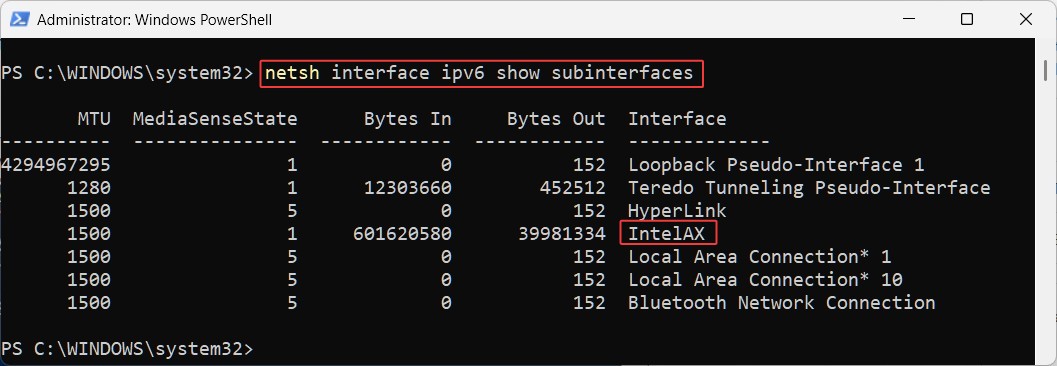
Note down the name of the Network Interface. In this case it is “IntelAX“.
Command to configure MTU value to 1300 for the IPv6 Network interface(persistent configuration): netsh interface ipv6 set subinterface interface=”IntelAX” mtu=1300 store=persistent
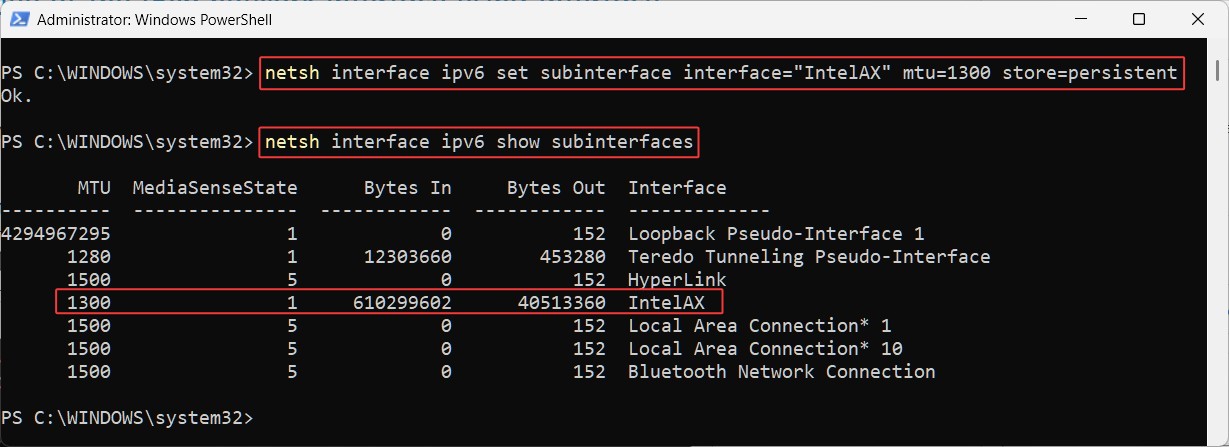
Verifying Changes
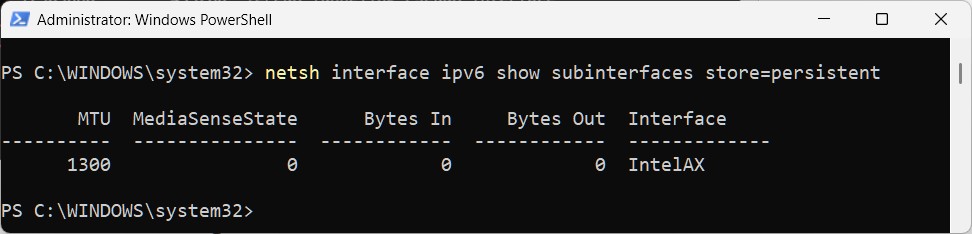
- To confirm the active configuration, use the command: netsh interface ipv6 show subinterfaces
- To confirm the persistent configuration, use the command: netsh interface ipv6 show subinterfaces store=persistent
Notes
- Run as Administrator: Open Command Prompt as Administrator to execute this command.
- MTU Values: Common MTU values are 1500 (default for Ethernet), 1280 (minimum for IPv6), or 1400/1450 (for specific networks like VPNs). Ensure the value is compatible with your network to avoid connectivity issues.
- Subinterface: This parameter is typically used for advanced setups like VLANs. Most users will not need to specify it.
- IPv6 Support: Ensure IPv6 is enabled on the interface (check with netsh interface ipv6 show interface). If IPv6 is disabled, the command may fail.
- Errors: If the interface name is invalid or the MTU value is unsupported (e.g., below 1280 for IPv6), you may see an error like “The parameter is incorrect.” Verify the interface name using netsh interface show interface