AOMEI Backupper Standard
Free backup software and very useful.
- MBR disk
- GPT disk
- EFI/UEFI boot mode
- Dynamic disk
- NTFS, FAT32, FAT, EXT2, EXT3 and other file systems
- Storage Devices: Support almost all storage devices recognized by Windows, such as hard disk drive (HDD), external USB HDD, Solid-State Drive (SSD), Flash Drives, USB 3.0 drives, Hardware RAID, Network-Attached Storage (NAS).
- Disk Style: Support MBR and GPT disk styles, working with EFI/UEFI boot mode smoothly, dynamic volumes supported.
Detailed Tutorial
DOWNLOAD AOMEI Backupper Standard
- Operating System: Windows 8.1, Windows 8, Windows 7 (all editions, 32/64-bit) – http://www.aomeisoftware.com/download/adb/Backupper.exe
- Operating System: Windows Vista, Windows XP (all editions) – http://www.aomeisoftware.com/download/adb/BackupperFull.exe
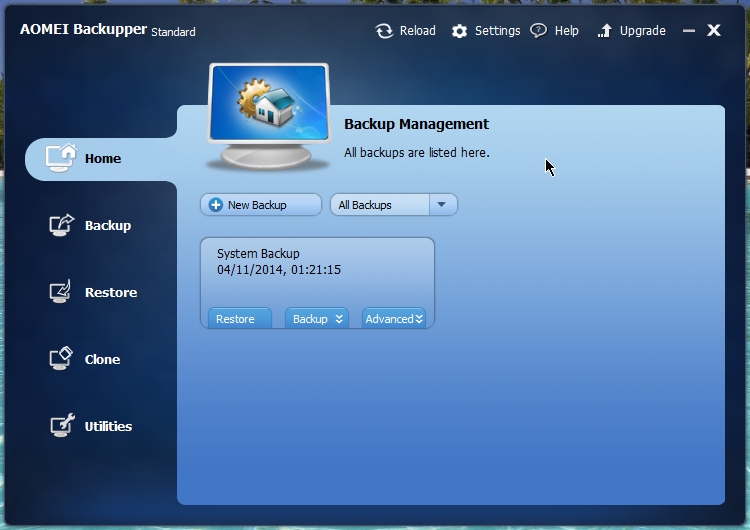
- Various Backup operations

- File backup
- Add destination path

- Add files/folder you want to backup

- File backup filter settings

- More backup options


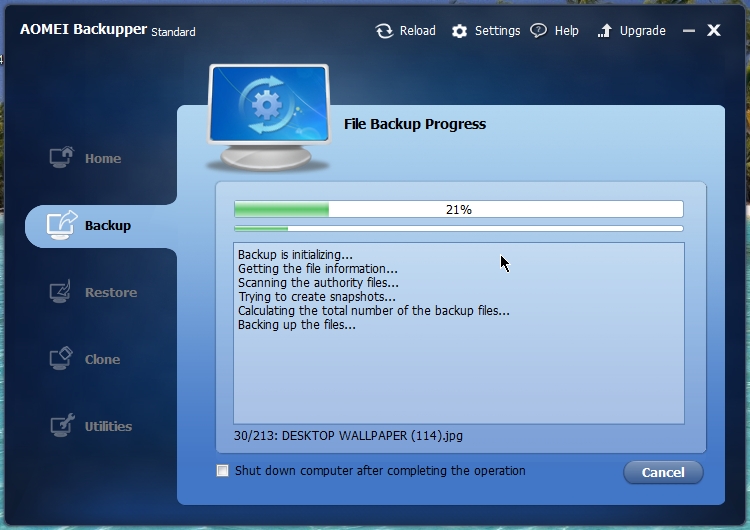
- File backup in progress
- System backup.
- backup all the files of partition in which windows operating system is installed.
- Select the destination path where files will be copied.

- backup settings.


- Disk backup.
- backup whole hard disk to another hard disk. the destination hard disk must have more free space than the size of files in source hard disk.

- Select the source disk.

- The content of “Disk0” will be copied to “J:\my backups”

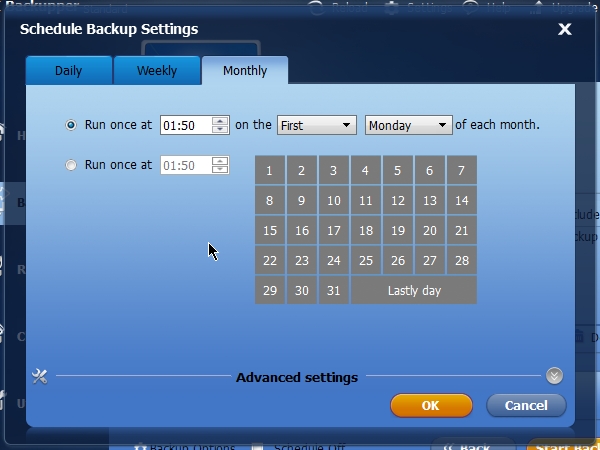
- You can also schedule the backup process.
- Daily backup
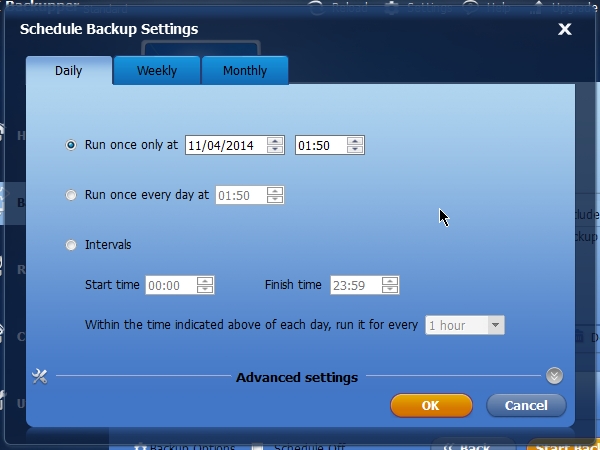

- Weekly backup

- monthly backup
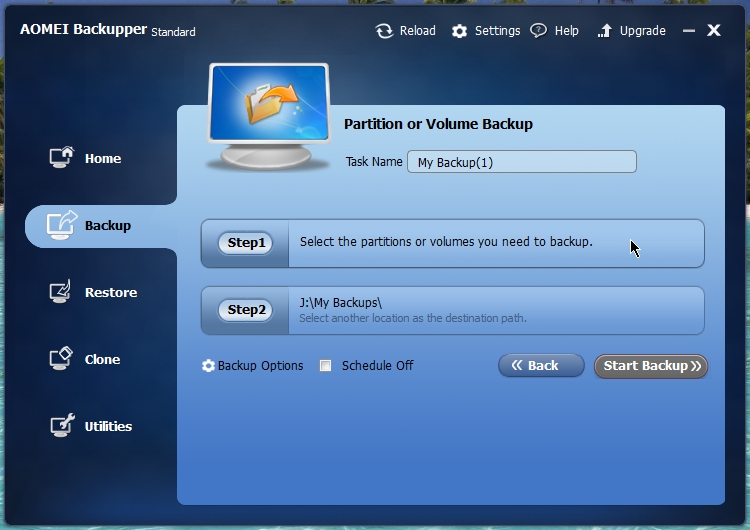
- partition backup
- Select the partions you want to back up.
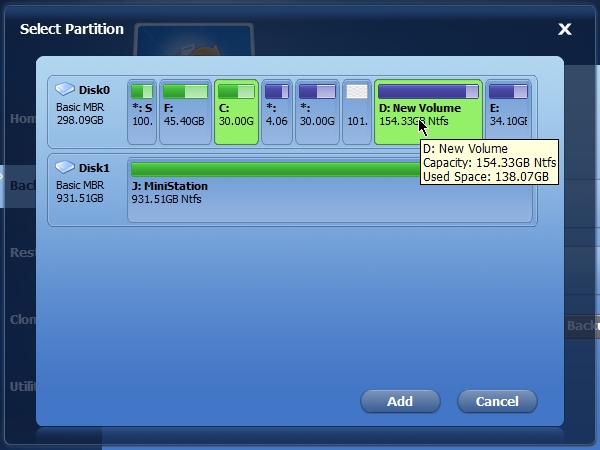
- The C: and D: drive has been selected for backup.

- Restore the files/partition/disk that has been previously backed-up.

- Restore system backup.
- The whole windows operating system partition backup that i craeted before will be restored.

- Click next

- Restoring system backup will require you to reboot.

- Clone partition or disk.

- Select source partition you want to clone. Here the source is C: partition.
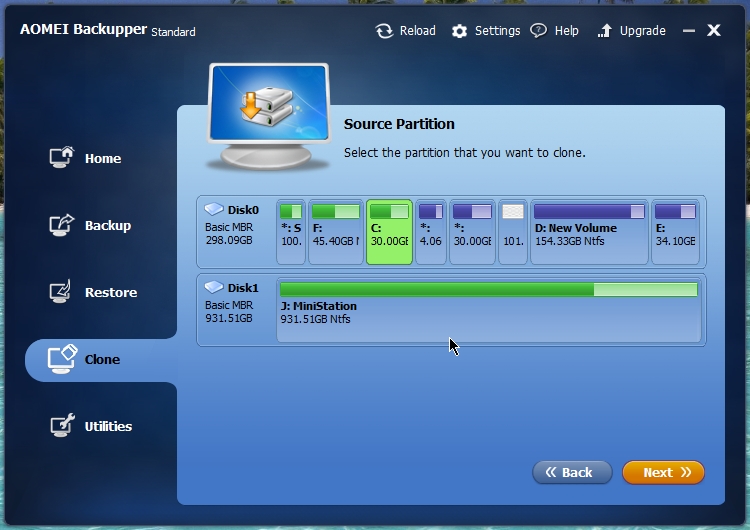
- Select destination partition where you want to save.
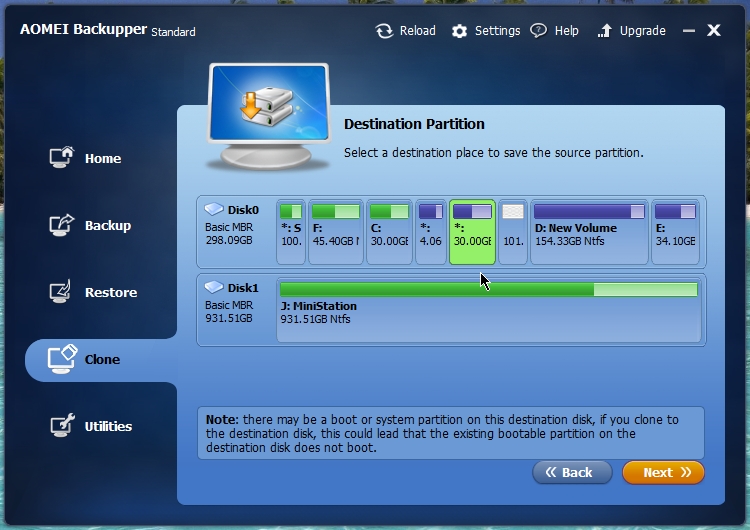
- Disk cloning .
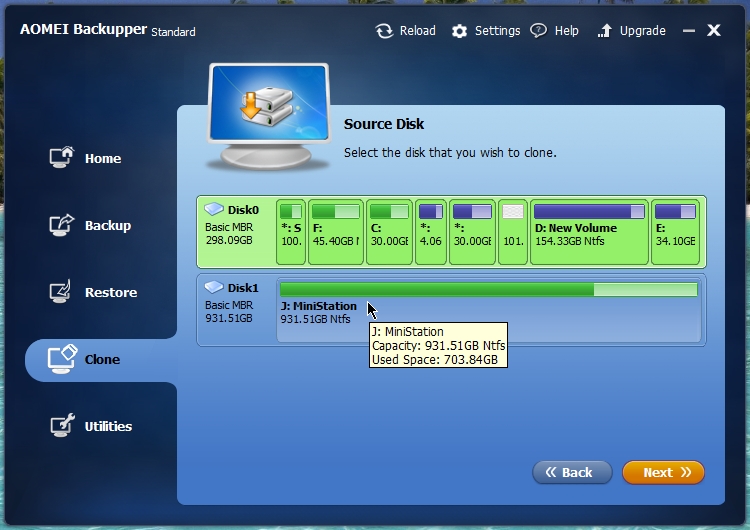
- Select source disk you want to clone.
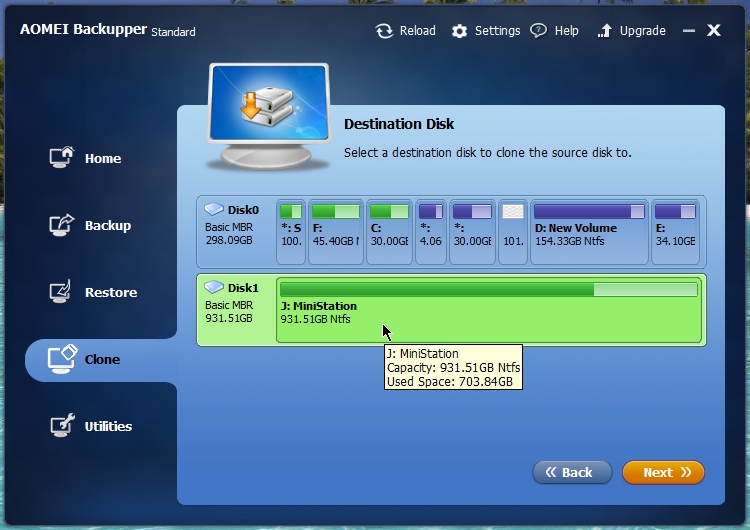
- Select destination disk where you want to make a clone of source disk.
- Check image
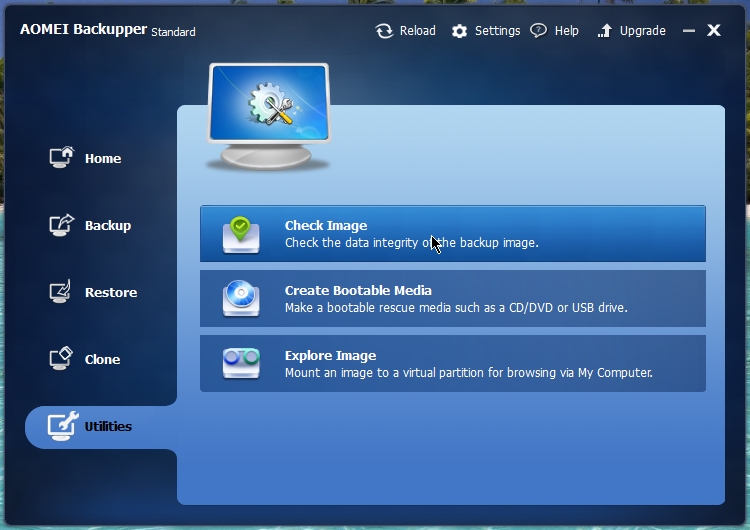
- Select the backup that you want to check .


- Checking the backup data.

- Create bootable media.

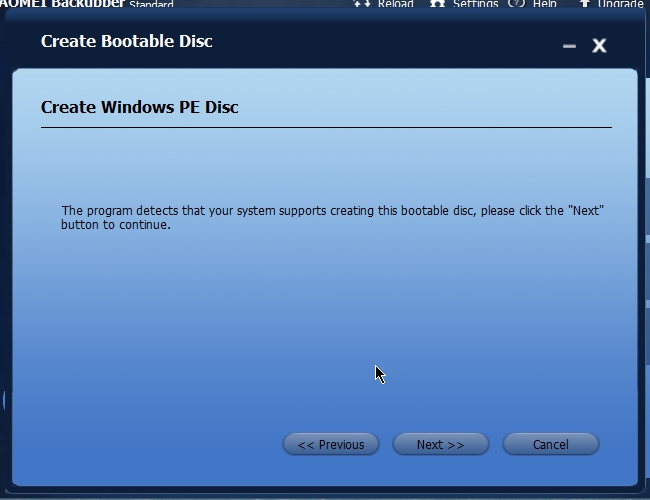
- Create windows PE disc.
- You need a CD, usb pendrive to make a bootable disc. Once created you can use it to boot from the CD, usb pendrive. Then you can use Aomei backupper to do various backup/restore tasks.